Conversion to PDF
The Documents generation uses the LibreeOffice converter to generate documents in PDf format. The converter preserves the formatting of the file however, some layout features and formatting attributes in more complex Microsoft Office documents are handled differently in LibreOffice or are unsupported.
Keep in mind that when using document conversion to PDF, differences may appear from the original template created in MS Word or some parts of the document may not be supported at all during conversion.
Therefore, before creating a document template, it is important to familiarize with the converter's list of limitations and check in which cases there may be conflicts between the original template in MS Word and the PDF document.
The following list provides a general overview of Microsoft Office features that may cause conversion challenges.
- AutoShapes
- Revision marks
- OLE objects
- Certain controls and Microsoft Office form fields (for example, the number of pages within a section)
- Indexes
- Tables, frames, and multi-column formatting
- Hyperlinks and bookmarks
- Microsoft WordArt graphics
- Animated characters/text
For example
An example of functionality that is not supported by the converter is the ability to insert page counts within a section. For the SectionPages field in MS Word, there is no equivalent in LibreOffice.
Suppose that in a document template a page numbering has been inserted in the footer along with the number of all pages but within a given section, since the document has several section divisions. The intention is that the pages in each section should be numbered from the beginning, that is, from 1, and all the pages of the section should be counted. This is realized by inserting the page number in the footer in the format Page 1 of 1. In fact, this is inserted by using the fields in MS Word: Pages (number of current page) and SectionPages (total number of pages in the section).
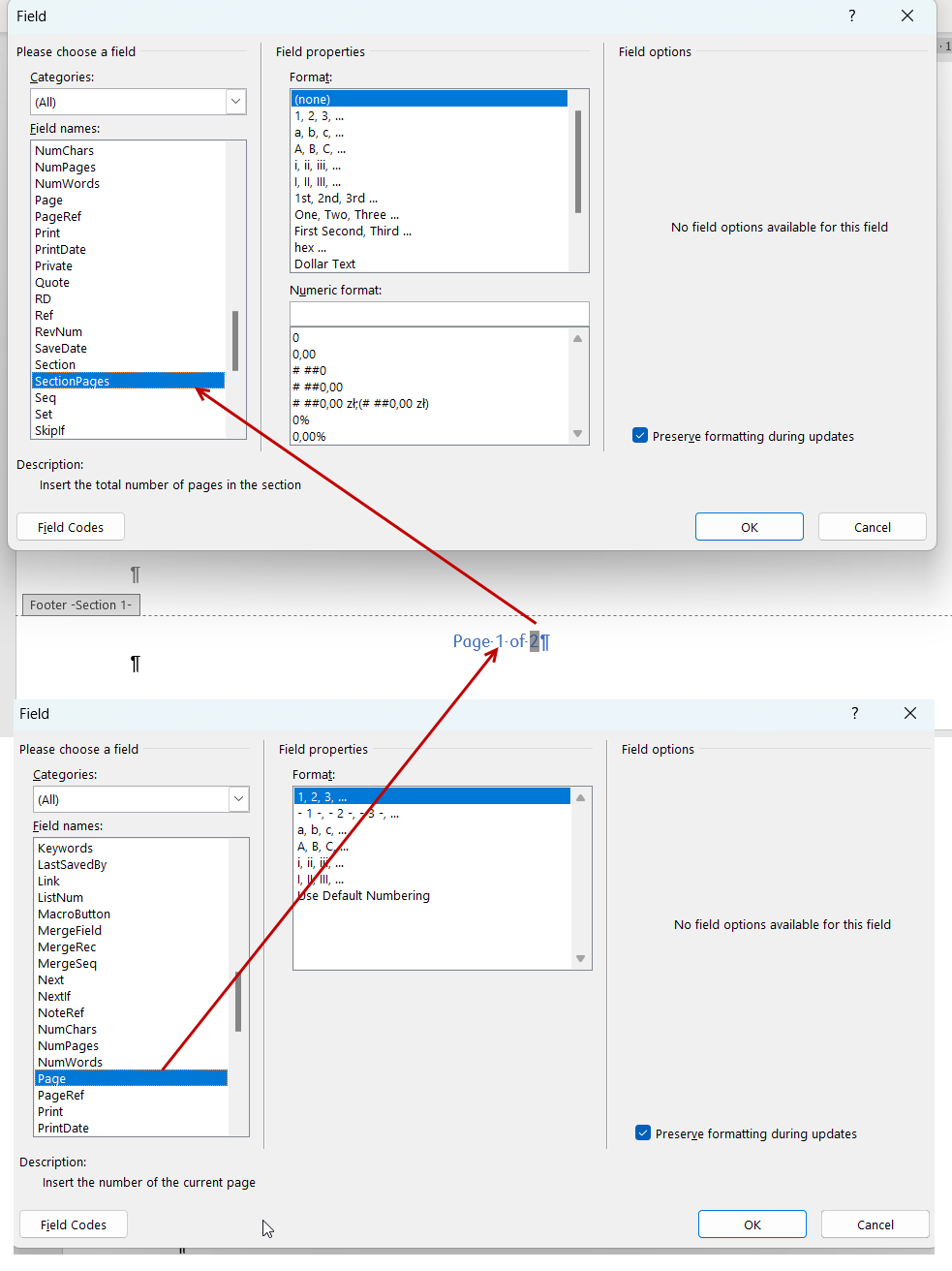
In the designed document template, it looks like this:
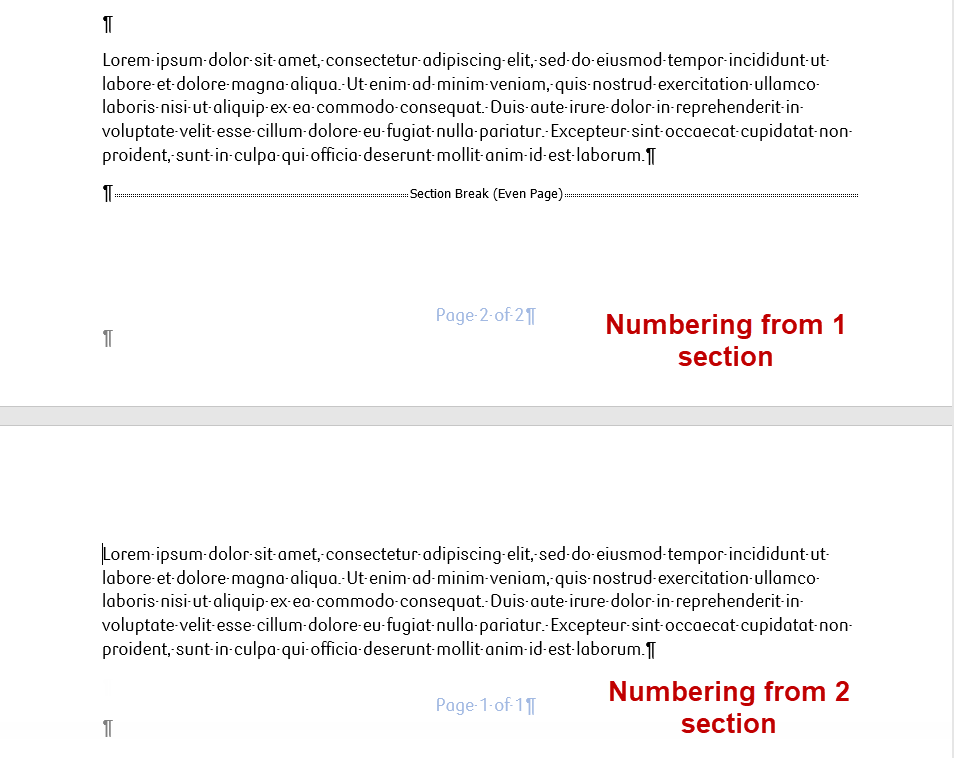
When converting to PDF, the function of counting pages within a section will not be implemented, as such a field is not supported in LibreOffice, hence it will not be possible to use such a notation unless there are no section breaks in the document and we want to display the number of all pages in the document.
Best practices when creating document templates
Tables
When converting documents to PDF, the spacing between or around cells may be disturbed, so it is best that texts in a table have properly formatted margins and text wrapping.
Images
With images, it's important to properly insert the image and use proper text wrapping.
- Insert via the option from MS Word Copy-Paste.
- To specify text wrapping around the image, the best option is In Line with Text or Top and Bottom, then the image will not overlap the text.
- We do not recommend using Anchor the image in a particular place, as the position of the image may be different when generating the document from the template.
- After copying the images, clear the formatting, as the images may inherit formatting options from the source document or have the corresponding style defined in the source document.
Styles
- It is good practice to define document styles and format text using them. For example, if a piece of text is not marked with any defined style, then any default font (spacing, paragraphs, etc.) may be used in the conversion rather than the specific one you want to use.
Sub-templates
- Sub-templates inherit styles from the main template. So if you want to introduce custom formatting for a particular document that is a sub-template, be sure to add such a style to the master template in Microsoft Word on the Styles tab.
- The header and footer are also inherited from the master template and will be the same in sub-templates.
Copying and pasting
- If you copy and paste text from other documents or external sources, remember to clear the formatting or use the Paste Options as Keep Text Only. You can also copy the text and paste it into notepad, then copy from notepad and paste into the template. This ensures that the pasted text is unformatted and does not inherit any styles and formatting from the document from which it was copied.
- We do not recommend copying parts of the document along with the tags. This may result in the loss of paths in the tags or not all the tags will be copied correctly. It is best to insert the tag anew and set it to the correct path to the field from the document data structure.