Enabling and disabling the Documents generation add-in in MS Word
To enable or disable the archITekt add-in in MS Word.
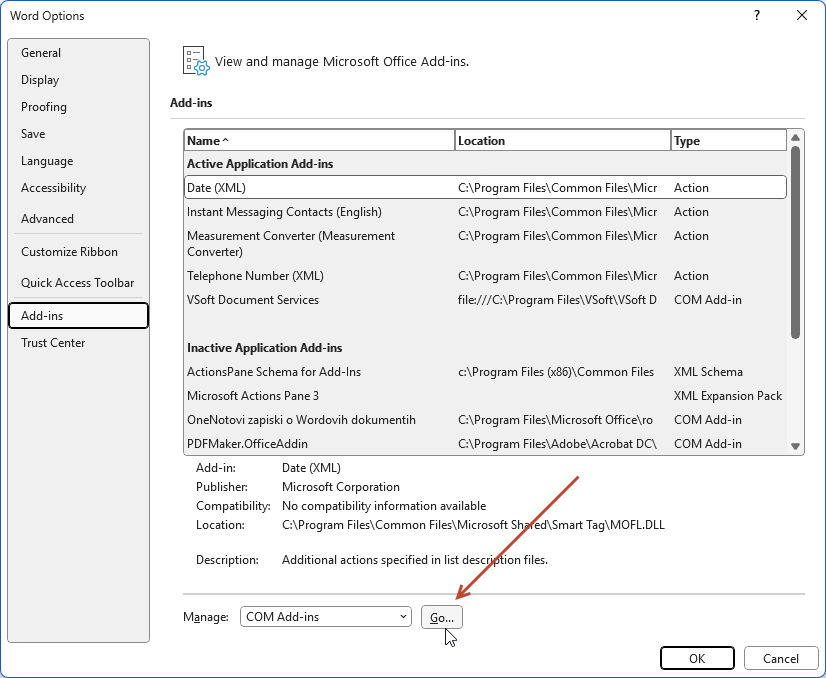
- In the File menu, select the Options tab.
- In the window that appears, select the Add-Ins tab, then in the Manage section select COM Add-ins and press the Go button.
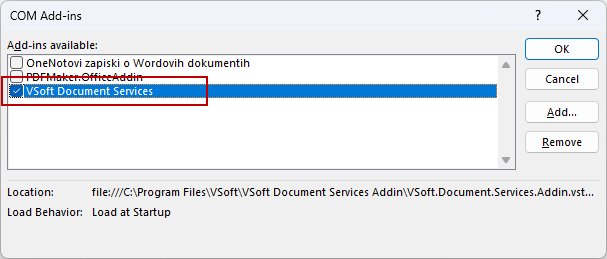
- In the COM Add-ins window that appears, select or deselect the VSoft Document Services add-in.
- Press OK.
- If you still don't see the add-in on the MS WORD ribbon or in the COM Add-ins window, where you can enable or disable the add-in, check if the add-in is in the lists: Disabled Items. In the File menu, select the Options tab. Then select the Add-Ins tab, Manage section and expand the list.
- If it is in the Disabled Items list then turn it on.
- If the above operations do not have the desired effect, you can still reinstall the add-in according to the instructions described here: Problems with running the archITekt add-in in MS Word.