Generating PDF Documents Compliant with WCAG and PDF/UA
Generating PDF documents compliant with WCAG and the PDF/UA accessibility standard (ISO 14289) is a topic that combines document structure, semantics, and correct content tagging. This chapter covers:
- Quick start – setting configuration keys in VSoft archITekt Launcher
- Project-side prerequisites
- How to prepare a Word template to avoid errors
- How the conversion works
- How to confirm compliance
- Requirement → WCAG/PDF-UA mapping
- Test procedure (manual QA)
- Definition of readiness for deployment
Quick start – setting configuration keys in VSoft archITekt Launcher
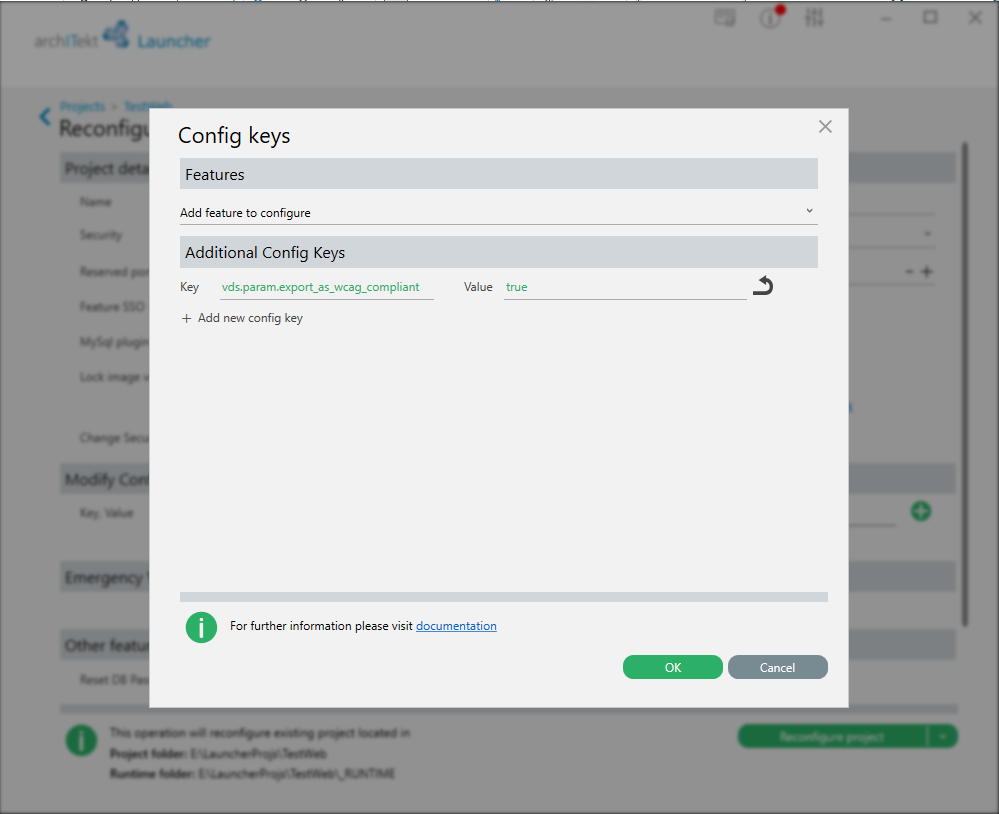
To enable PDF export with WCAG and PDF/UA compliance:
- Set the key
vds.param.export_as_wcag_compliant=true. - Restart
Documents.Host(if the service is active). - Make sure the Word template has a title and correct alternative texts.
- Generate the PDF and validate it in PAC.
Project-side prerequisites
Enabling the configuration flag activates the extended export mode, but the quality of the result depends directly on the template.
This means that:
- correct system configuration is a necessary condition,
- correct template structure and semantics is a critical condition.
How to prepare a Word template to avoid errors
Document title
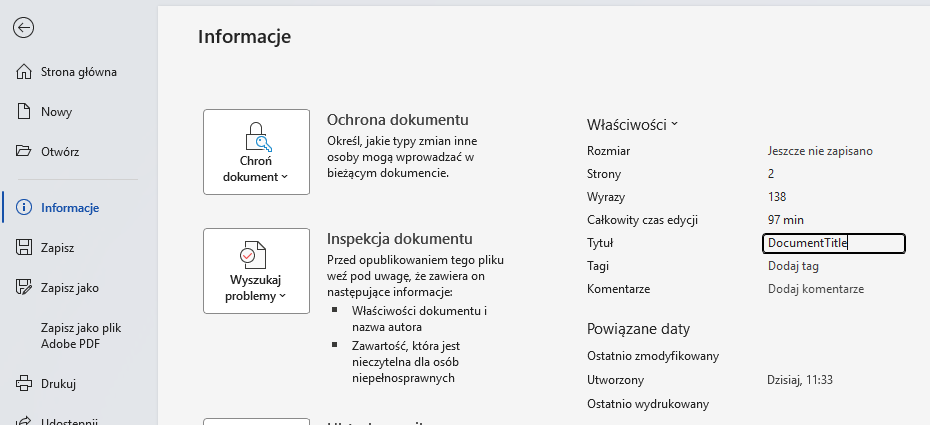
Every template should have a document title set:
- File → Info → Properties → Title.
A missing title is a typical cause of non-compliance.
Alternative texts for non-text elements
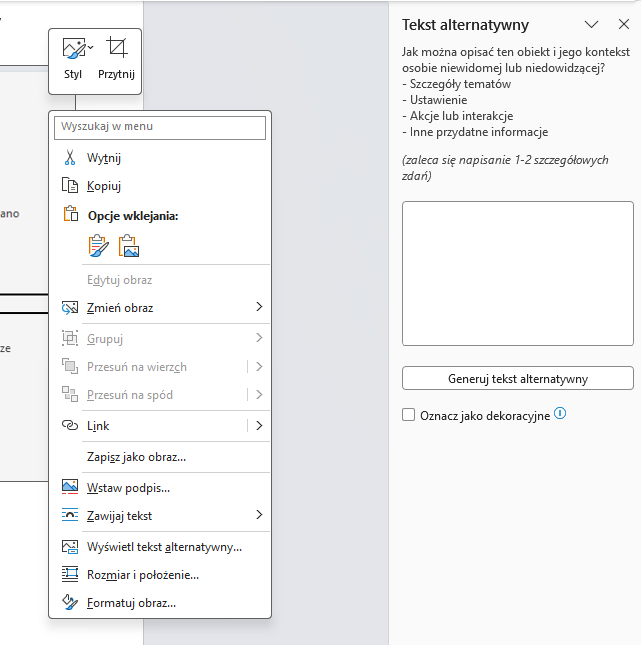
Every image, chart, and shape requires alternative text.
Practical guidelines:
- the description should convey information, not just the type of element,
- the description should be appropriate for the business context,
- do not mark elements as decorative in this process, as the converter may ignore that designation.
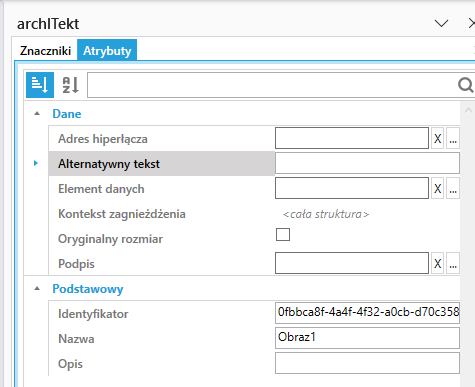
In the Image, Code, and Chart tags, set the alternative text in the dedicated attribute.
How the conversion works
The conversion is performed by LibreOffice bundled with archITekt.
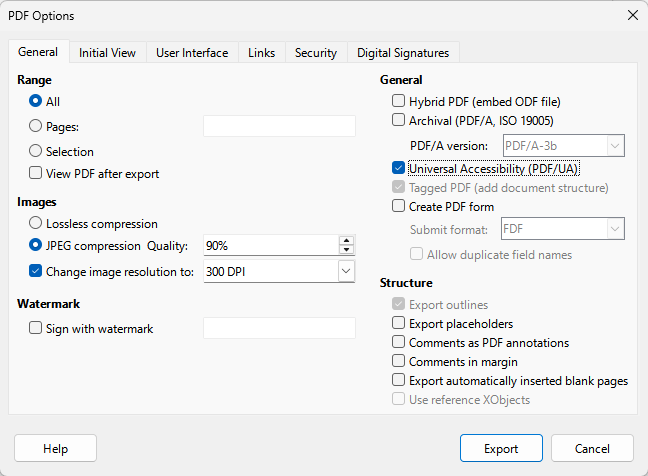
When the flag is enabled, the following export settings are applied:
- Universal Accessibility (PDF/UA),
- Tagged PDF (document structure),
- Export outlines.
How to confirm compliance
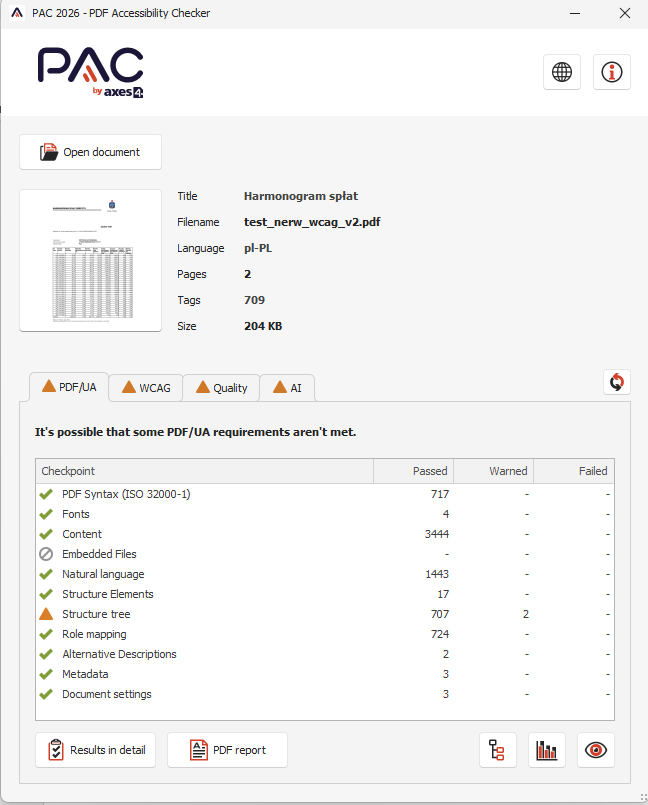
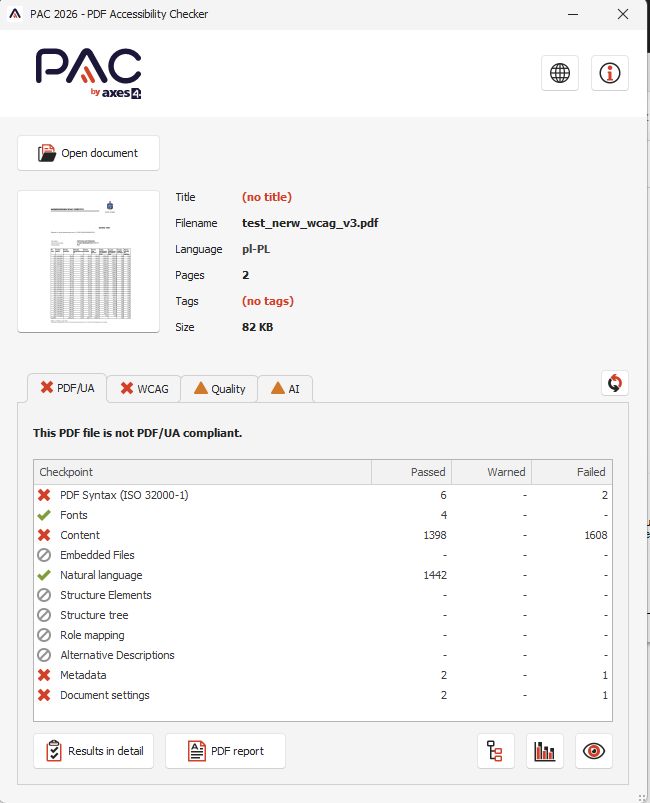
Use the PAC tool for validation:
Validation practice:
- Run a full check (not just a basic one).
- Review the critical error and warning sections.
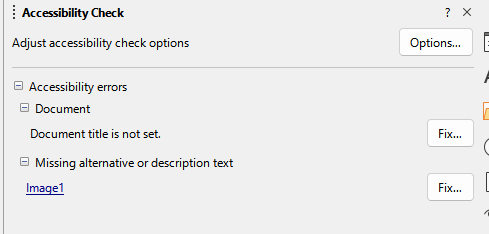
- Confirm the presence of a title, tags, and alternatives for non-text content.
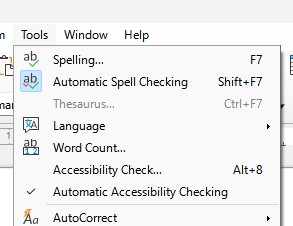
Additionally, use the Accessibility Check in LibreOffice as a preliminary step:
Requirement → WCAG/PDF-UA mapping
| Project requirement | Technical effect | Normative reference |
|---|---|---|
| Document title filled in metadata | Screen reader identifies the document | WCAG 2.4.2 |
| Alt text for images/charts/shapes | Accessible interpretation of non-text content | WCAG 1.1.1 |
| Tagged PDF export | Preserved semantics and content relationships | WCAG 1.3.1, PDF/UA |
| Export outlines | Better structural navigation | PDF/UA (navigation and structure) |
| PAC + Accessibility Check validation | Confirmed technical quality of output | Compliance assurance process |
Test procedure (manual QA)
- Prepare a sample template and test data.
- Confirm the document title is present.
- Confirm alternative text for every non-text element.
- Generate the PDF with the compliance flag enabled.
- Run PAC and record the validation result.
- For any detected errors, correct the template and repeat the full run.
Criteria for a passing test result:
- no critical PDF/UA errors,
- complete document structure,
- no missing descriptions for non-text elements,
- validation report matches the expected WCAG scope.
Definition of readiness for deployment
The documentation and configuration are ready for deployment when:
- The flag
vds.param.export_as_wcag_compliantis active. Documents.Hosthas been restarted after the change.- Templates have titles and alternative texts filled in.
- The conversion completes without technical errors.
- The PAC report shows no critical errors.
- Validation results have been confirmed by manual QA.