Calendar management
The user can import an already defined calendar or add a new one and manually choose certain days in the system to be included in the given exclusion calendar. The calendar contains a list of days excluded from running the rule. It is most often used to define holidays.
You can import a calendar from a file that contains one line of text with dates on which you want processing to be disabled. These dates must be in the format of 'yyyy-MM-dd' and should be separated by the ';' character. Remember that full dates are taken into account - for example, to exclude the date December 25 from processing, enter this date for each year separately (if the calendar is created for 10 years in advance, enter yyyy-12-25 10 times, each time entering another year).
An example of a file with a calendar definition:

- Go to the home page.
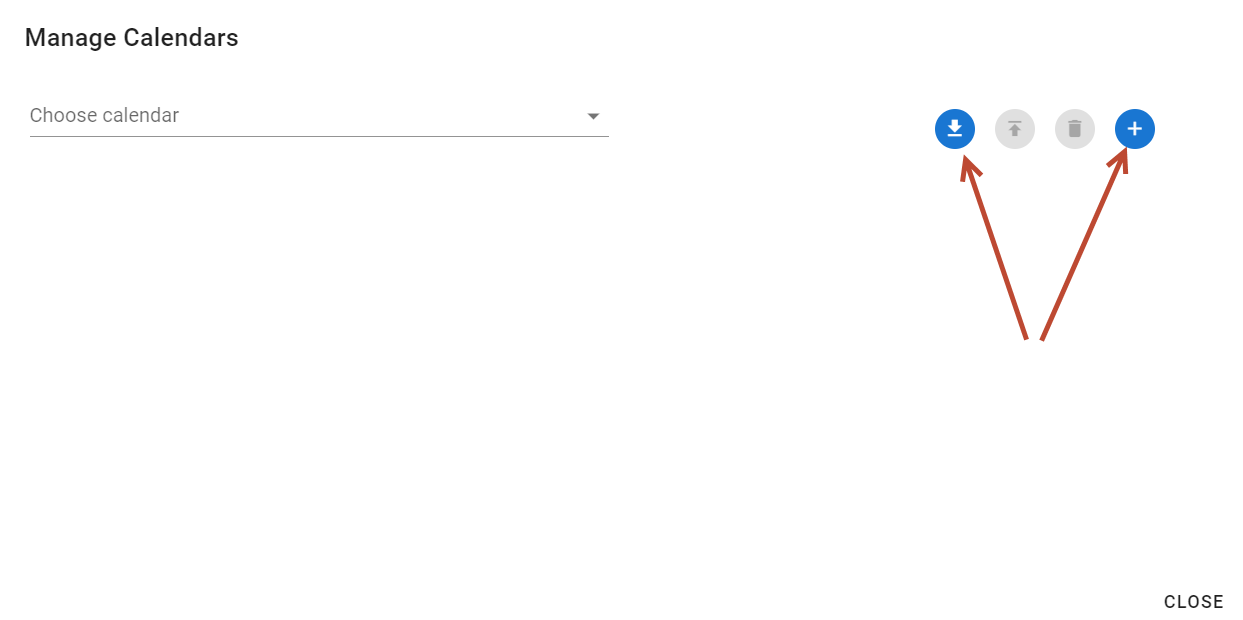
- Select the Manage Calendars button.

- Select the Add or Import button depending on the action you want to perform.
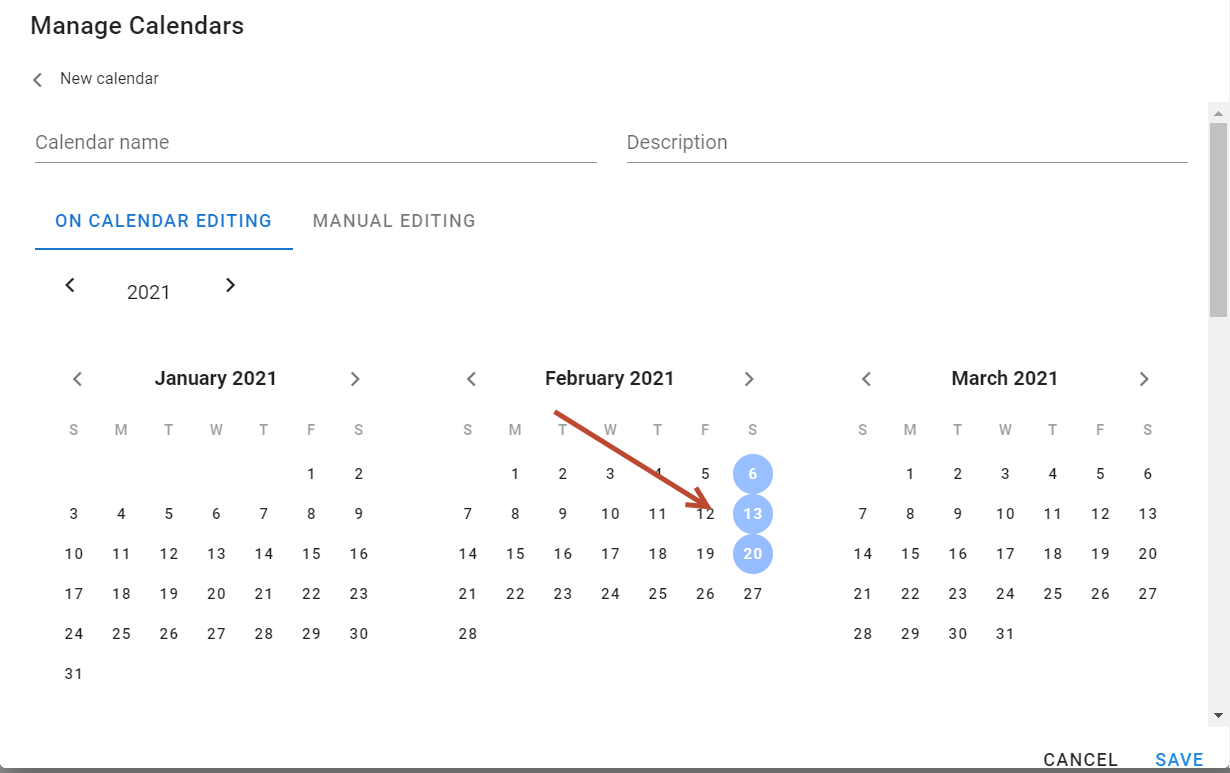
- If you are adding a new calendar, enter the name and description as well as the days to be excluded. You can select them on the calendar by selecting the Edit the calendar option or go to manual editing and enter the dates in the format
yyyy-MM-ddseparated by a semicolon; - Confirm the data.
- When importing, attach a file with a defined calendar.
- Press Import.
- The calendar will be added to the list of other calendars and will be visible in the Activity schedule section when adding and editing rules.
The user also has the option to view already defined calendars. After selecting one of them, the days that are excluded from processing will be displayed, as well as where the calendar is used, i.e. by which rules. The user also has the option of adding or removing dates in calendars, exporting calendars and deleting a calendar as long as it is not used by any rule.