Access to VSoft Scheduler
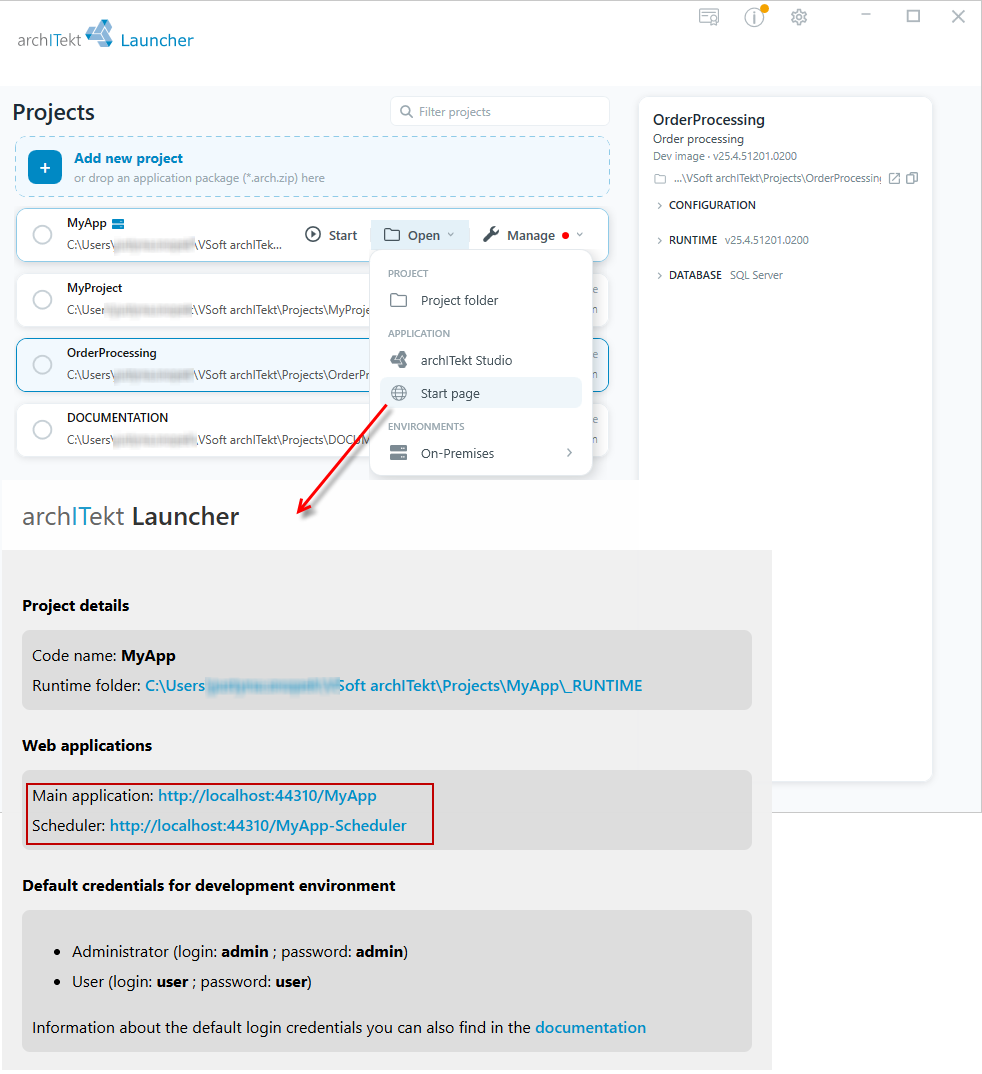
The scheduling functionality is not available directly from archITekt Studio, but is a separate web application that you can access via the project page in VSoft archITekt Launcher.
- Go to VSoft archITekt Launcher, expand the Open button next to the given project and select Start page to open the project's start page. On the start page, click the Scheduler link, which will redirect you to the VSoft Scheduler system.
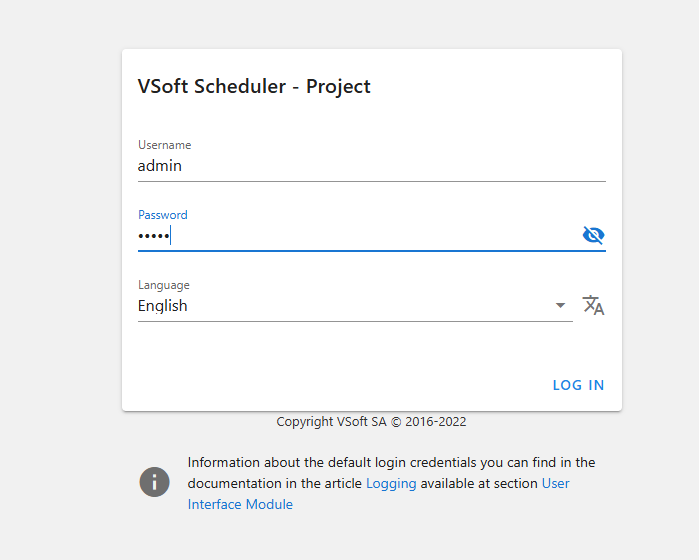
- Log in to the application using the administrator account: login/password - admin/admin
Access roles
Access to the VSoft Scheduler application is granted based on the user groups to which the logged-in user belongs (for example, Active Directory groups). User permissions are determined by the assigned access role.
The application provides three access levels:
Full access
A role intended for system administrators. The user has full permissions to manage the configuration and perform operations in the application.
The permissions described in this section belong to the Administrators role. The default admin user is assigned to this role. Login/password: admin/admin.
Permissions include, among others:
- adding, editing, and deleting rules,
- importing and exporting rules,
- activating and deactivating rules,
- managing calendars,
- managing notifications,
- changing task statuses,
- manually running rules,
- deleting processed files,
- viewing processing history,
- viewing configuration.
Execution
A role intended for operators and business administrators who are responsible for running processes but do not manage their configuration.
The user can:
- manually run rules,
- export rule definitions,
- delete processed files,
- view processing history,
- view rule configuration.
The user cannot:
- add, edit, or delete rules,
- import rules,
- activate or deactivate rules,
- manage calendars,
- manage notifications,
- change task statuses.
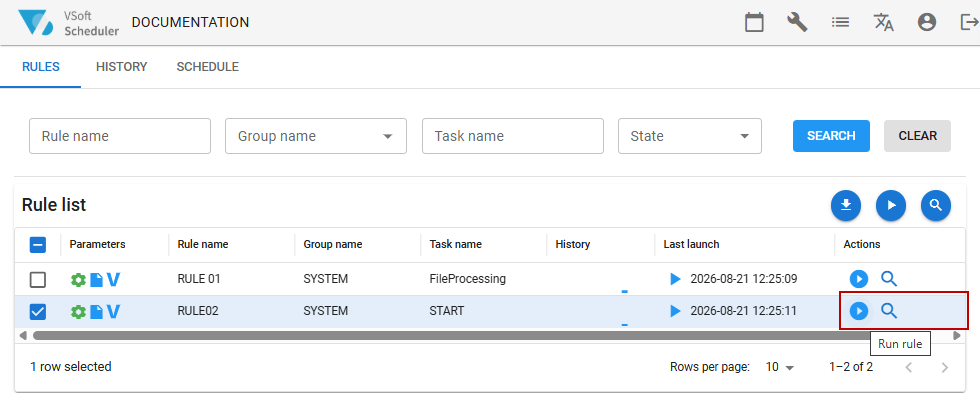
The user interface is automatically adjusted to the scope of permissions. In the rules view, a user with the Execution role sees, among others, the Run and Export actions, while the Add, Edit, Delete, Import, Activate, and Deactivate actions are hidden.
In the processed files history view, the Delete action is available along with the ability to select files.
Read-only
A role intended for users who only need access to the information presented by the application.
The permissions described in this section belong to the Users role. The default user account is assigned to this role. Login/password: user/user.
The user can:
- view rules,
- view processing history,
- view configuration.
The user cannot perform any operations that modify data or the system configuration.
Assigning roles
Access roles are mapped to user groups using configuration keys. The value of each key is a list of group names separated by semicolons ;
Example:
Administrators;PowerUsers
| Access level | Configuration key | Default value |
|---|---|---|
| Full access | scheduler.designer_access_roles.full | Administrators |
| Execution | scheduler.designer_access_roles.execute | not set |
| Read-only | scheduler.designer_access_roles.readonly | Users |
You can verify the current values of these keys in the CONFIG_KEYS table.
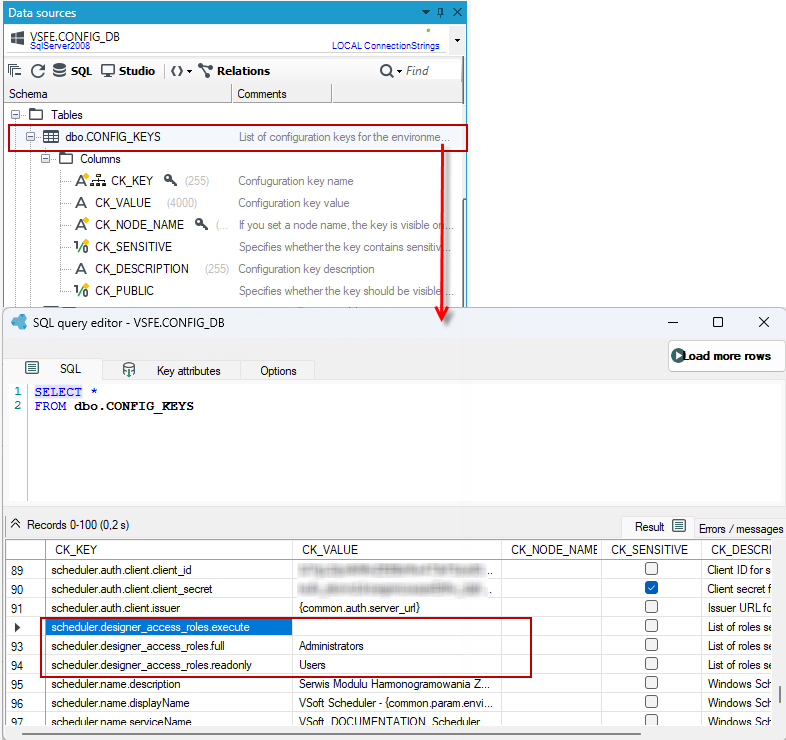
The following example shows how to assign the Execution role to a user:
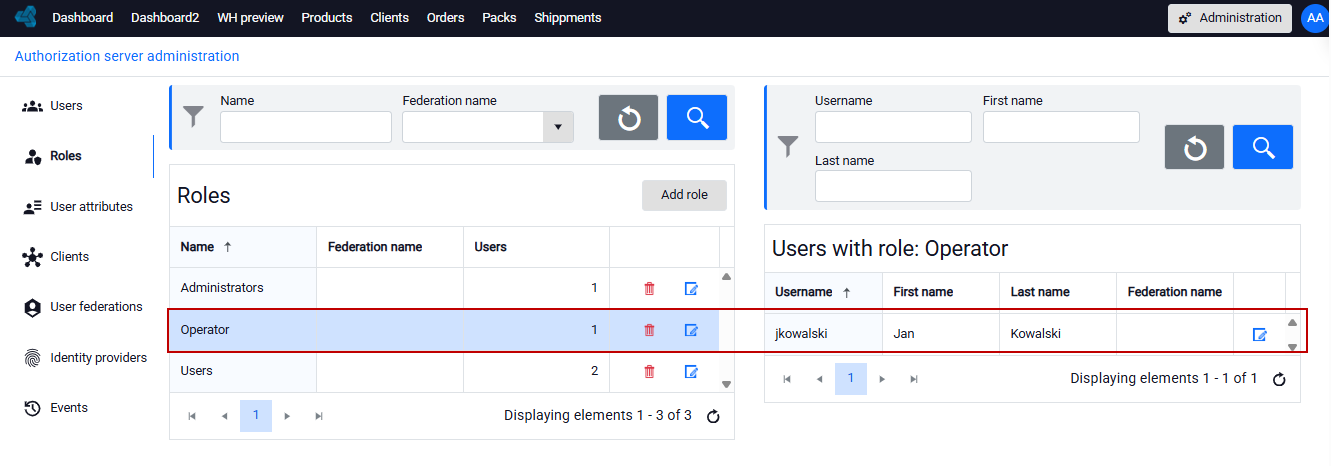
- Go to the Authorization Server and add a new role, then assign a user to it.
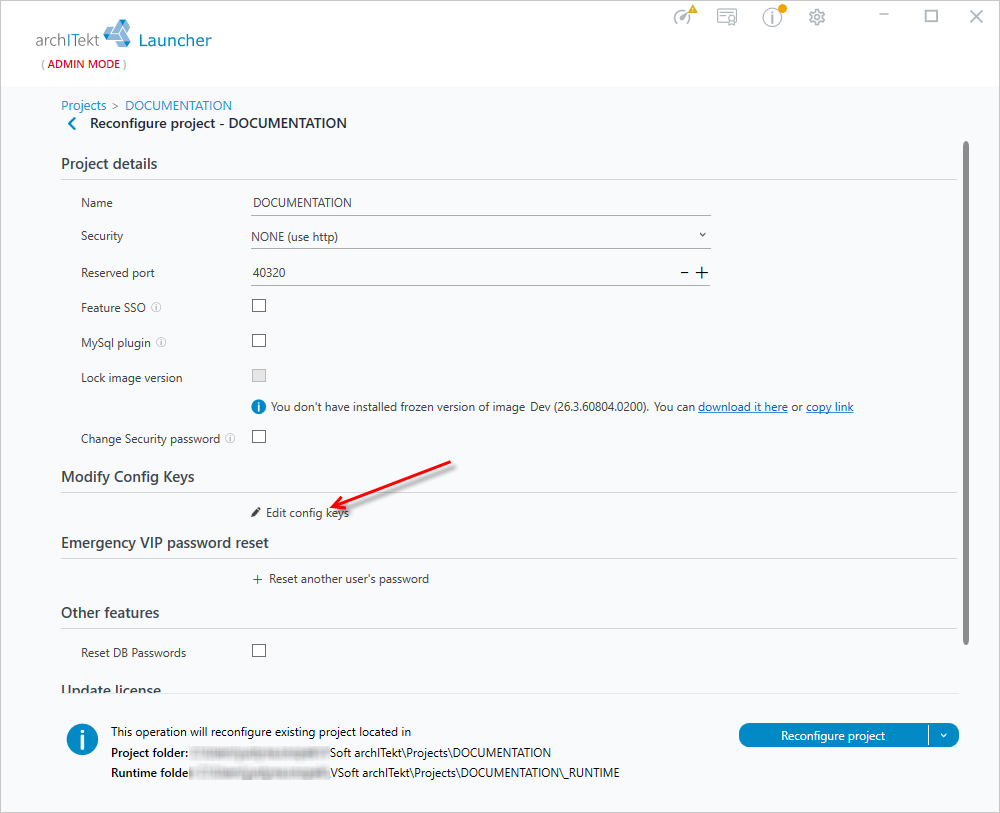
- Go to VSoft archITekt Launcher and the project reconfiguration option.
- Select Edit config keys.
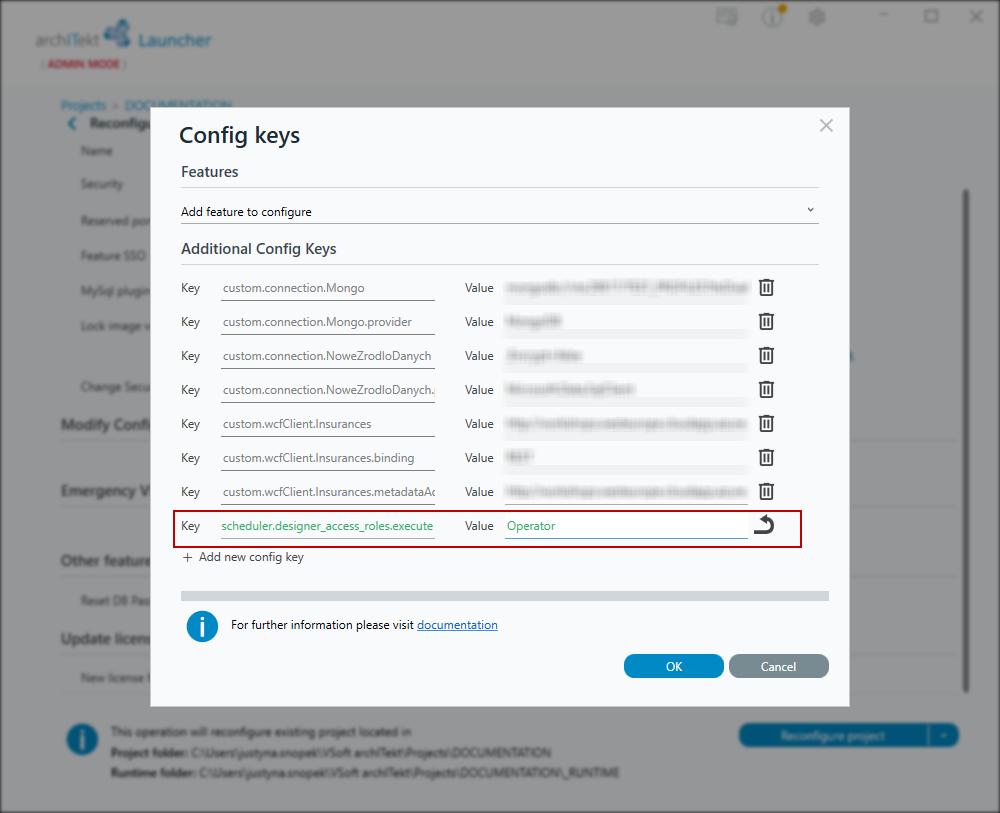
- Add the
scheduler.designer_access_roles.executeconfiguration key and enter the role name in the Value field. In this case it is Operator.
- Select the project reconfiguration option in VSoft archITekt Launcher, then log in to VSoft Scheduler with that user's credentials — the Execution role will now be active.
How it works
The Execution role is inactive by default. It is enabled once at least one user group is configured in the scheduler.designer_access_roles.execute key.
If a user belongs to groups assigned to several access levels, they are granted the highest access resulting from the assigned roles.
Changing the role mapping requires reconfiguring the project in VSoft archITekt Launcher.
The role priority is as follows:
Full access → Execution → Read-only
After changing the role mapping configuration, the user must log in to the application again for the new permissions to take effect.