Processing rules
The Rules tab allows you to define rules that are triggered manually by the system operator or in response to the appearance of defined files and/or at a specified time.
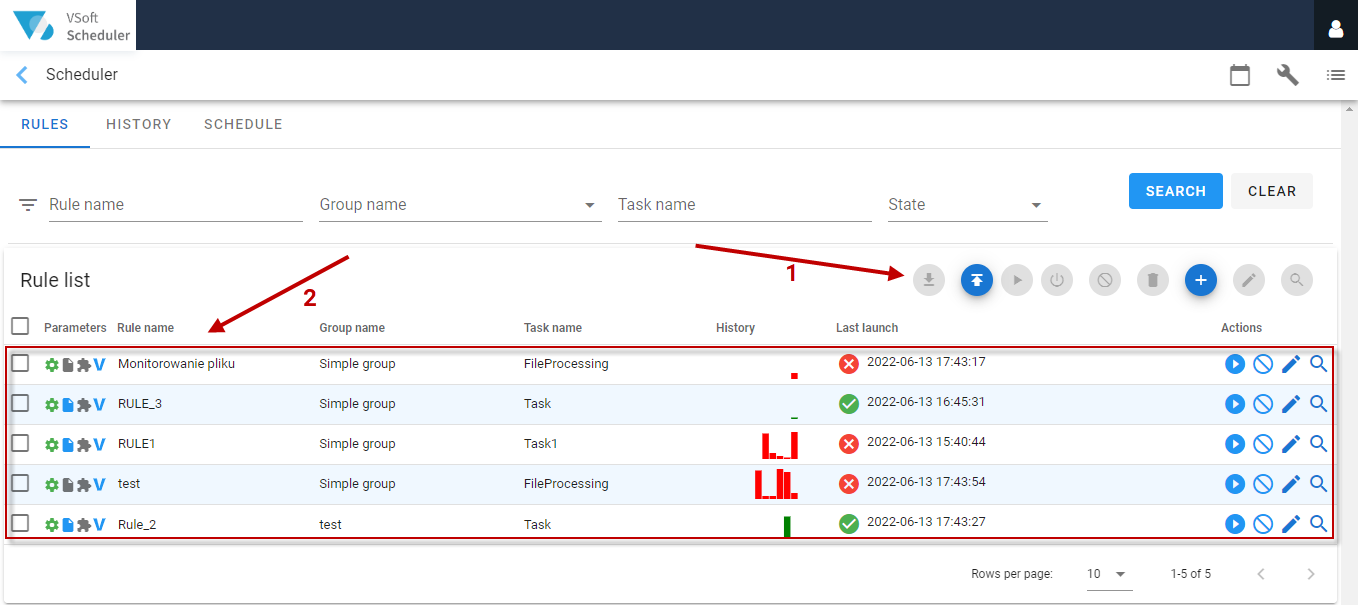
In the upper right corner, there is the Action Panel with all possible commands related to the window (1). Below is the list of rules (2).
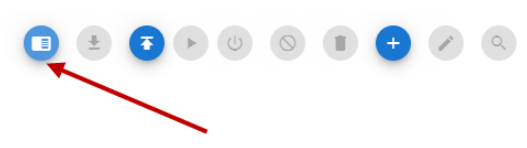
In the action panel, you can change the view mode to detailed (1).
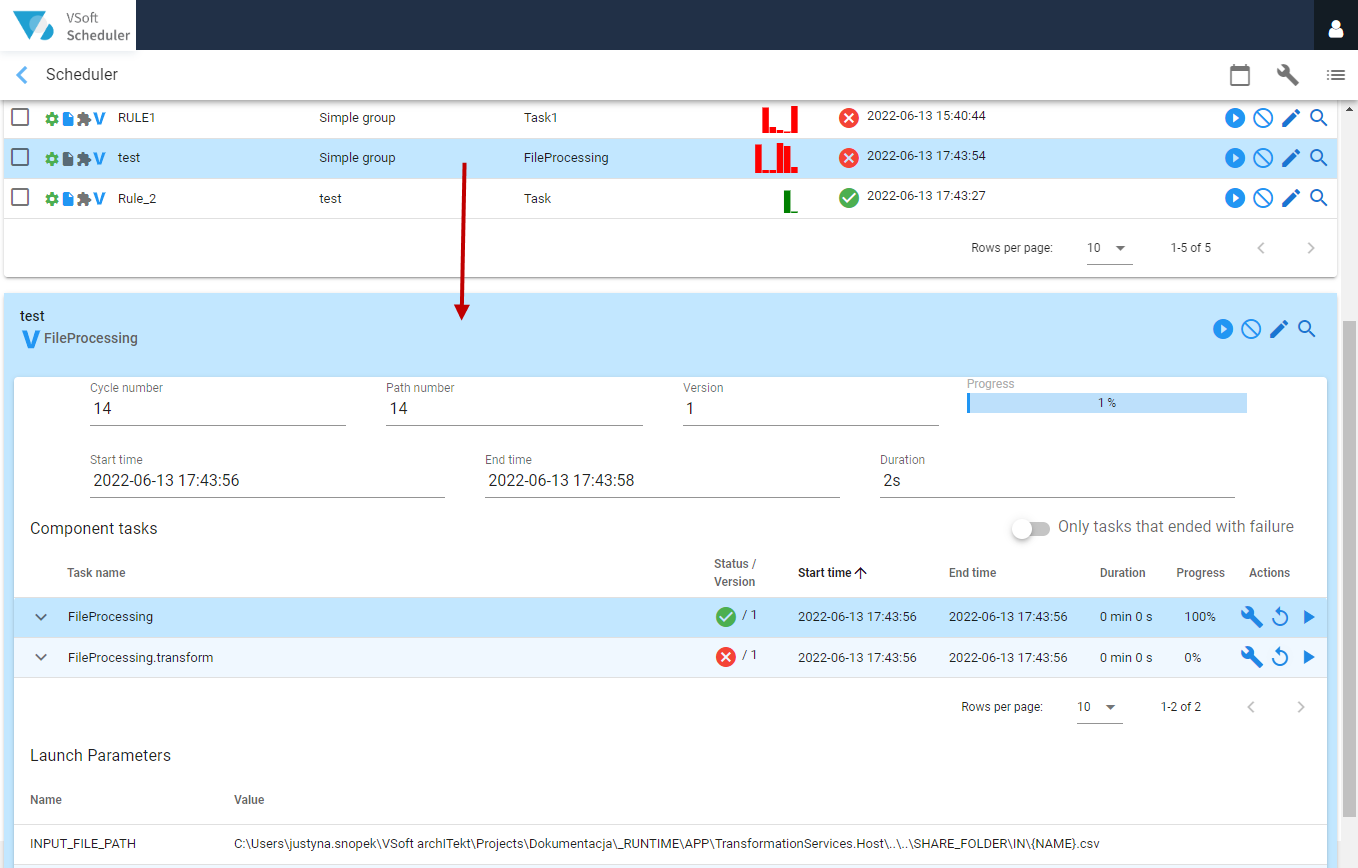
In the detailed view mode, the list of rules narrows down, and the details screen of the last run is displayed on the right.
Column symbols Parameters:
 automatic start
 manual start
 the rule includes file monitoring
 the rule does not include file monitoring
 the rule contains extensions
 the rule does not contain extensions
 task from code
 task from the data processing (task hierarchy)
The History column presents a histogram of recently completed tasks, which contains a list of the last 10 runs of the task. The height of the bars shows the duration of the subsequent processing.
 all 10 launches were Successful
 some tasks ended with an Error
 some tasks ended with the Warning status
The Last launch column shows the date and time the task was last run. In addition, the tooltip includes the following information:
- the time and status of the last run of the task,
- what condition of the rule has not been met, if the task has not been started,
- the task status.
The list of processing rules is sorted by the rule name by default.