Rules management
Editing a rule
- Go to the home page.
- Select a rule in the list.
- Select the Edit button in the Action Panel or in the action column next to the rule.
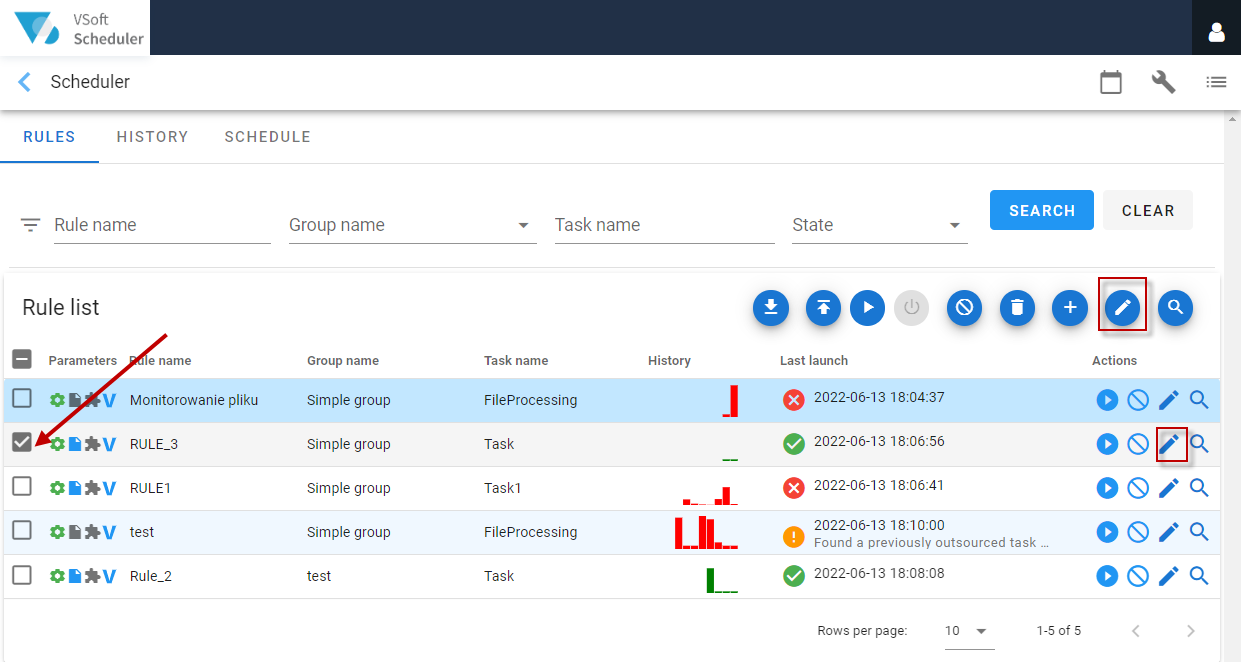
Editing a rule is similar to creating it. See: Creating a New Rule. The user can change any parameters on the form, except for the Rule Name and Rule Group.
- In the Activity schedule section, the User can change all the data.
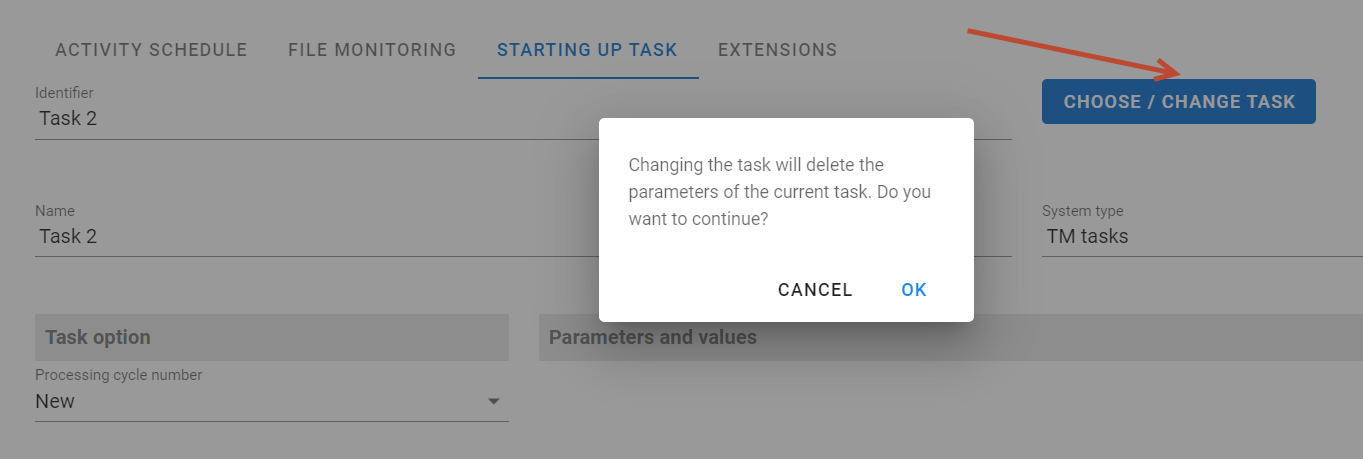
- You can also change the task in the Starting up task section. A warning appears that the selected task execution parameters will be lost when another task is selected.
Deactivation/Activation of the processing
- Go to the home page.
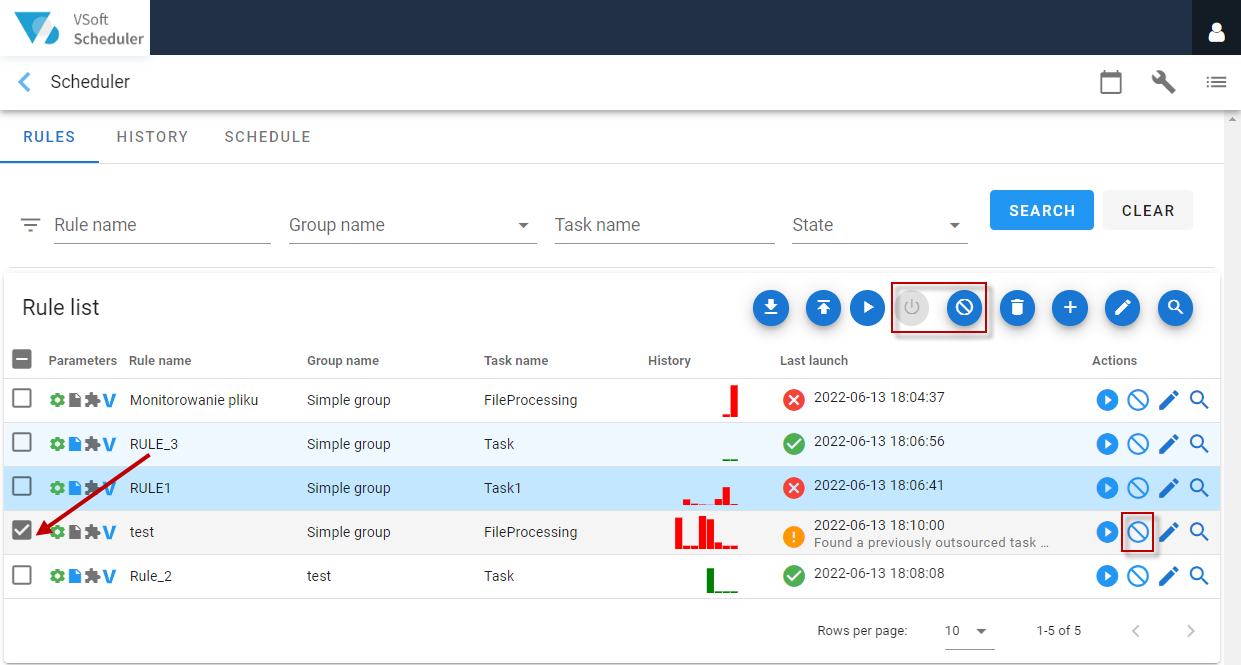
- Select a rule in the list.
- Select the Deactivate/Activate button in the Action Panel or in the action column next to the rule.
Rule configuration import/export
The configuration of the processing rules can be imported or exported by the User. This is a useful option, for example, when performing System changes.
- Go to the home page.
- Select a rule on the list or all at once by using the checkbox in the table header.
- Select the Import/Export button on the Action Panel.
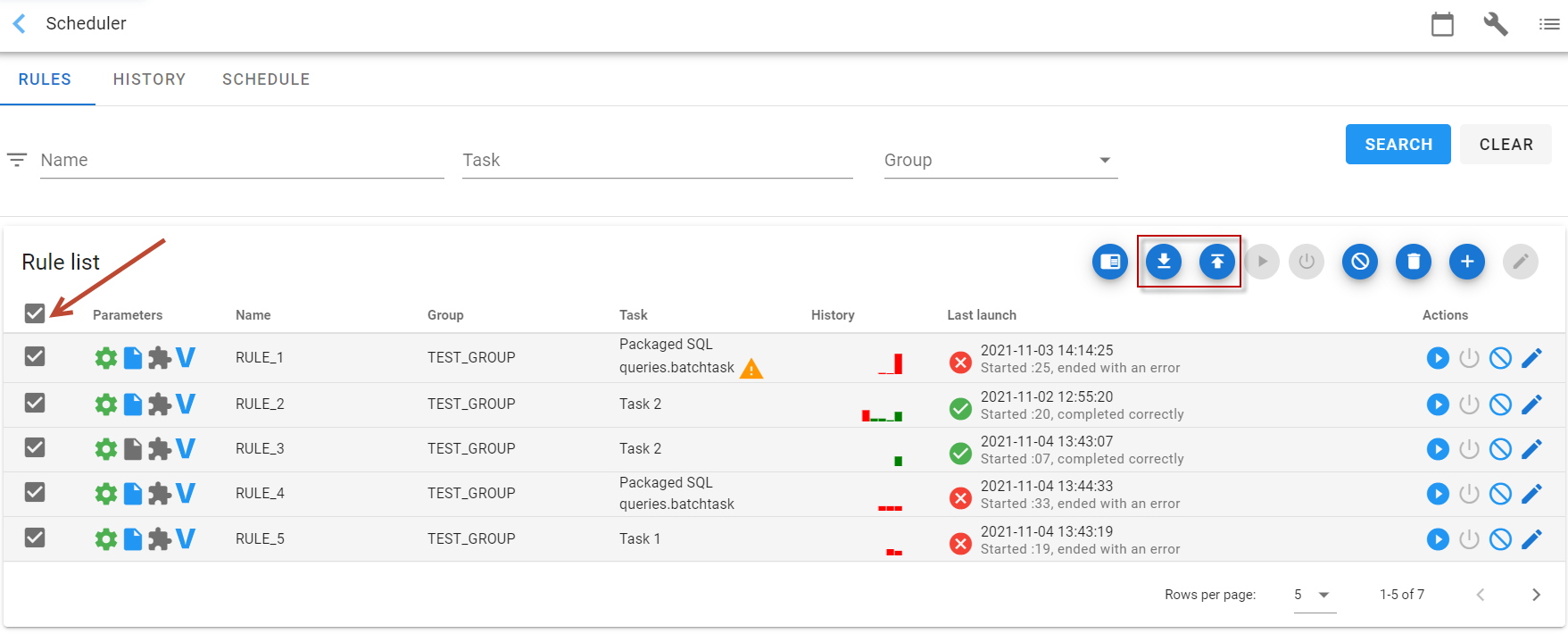
It is possible to export a single rule - it is useful when a new rule has been added in some environment and such a rule needs to be transferred to other environments.
Importing rules only overwrites the existing rules and adds new ones – it does not delete those rules which are missing in the import file - to remove unnecessary rules, select them and select the Delete button from the ribbon.
- After selecting Export, the report is saved on disk. The file will be generated in xml format and will contain information about all processing or scheduling rules in the System.
- After selecting Import, the User is asked to select an xml file, previously generated by the export function. After selecting the file, the user will be notified of the correctness of the import process.
Handling of the processing rules
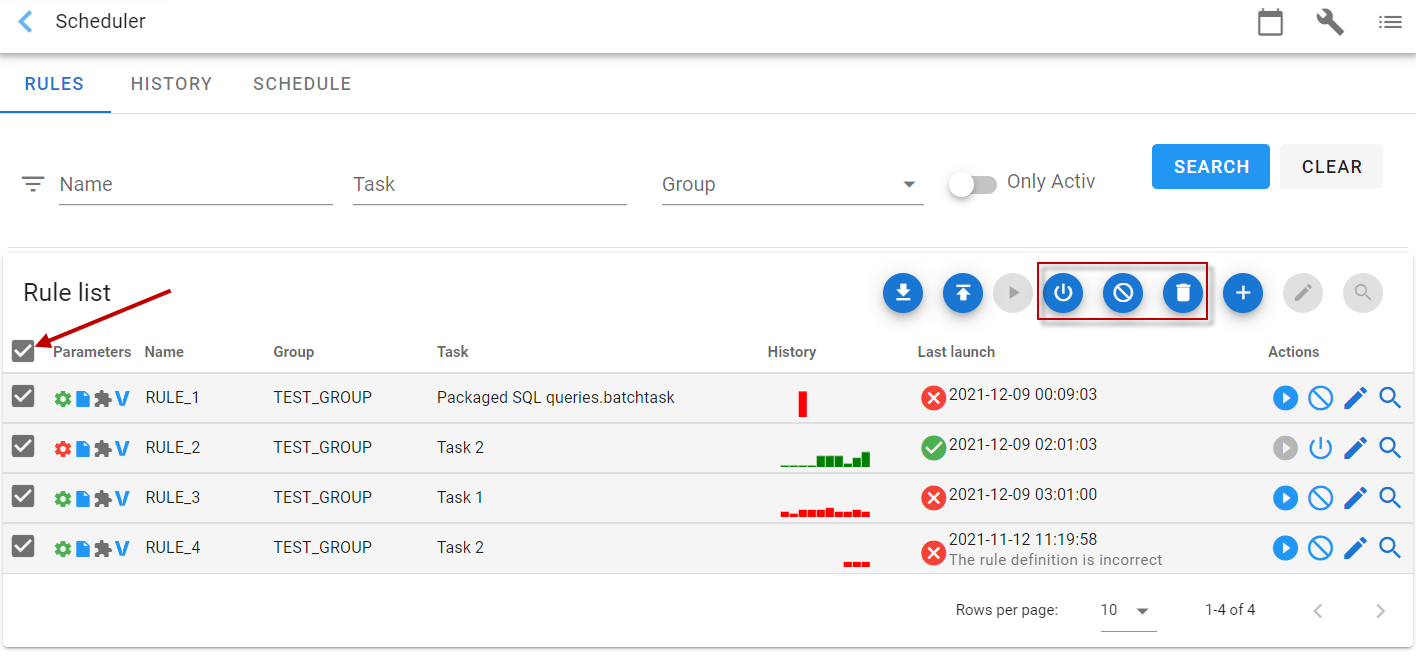
The user can handle all the rules.
With the Activate and Deactivate buttons you can stop or activate the processing for all processing rules. The Delete button will delete all rules.
- Go to the home page.
- Select the rules all at once by using the checkbox in the table header.
- Select the button depending on the action you want to perform in the Action Panel or in the action column next to the rule.