Working environment
Filtering
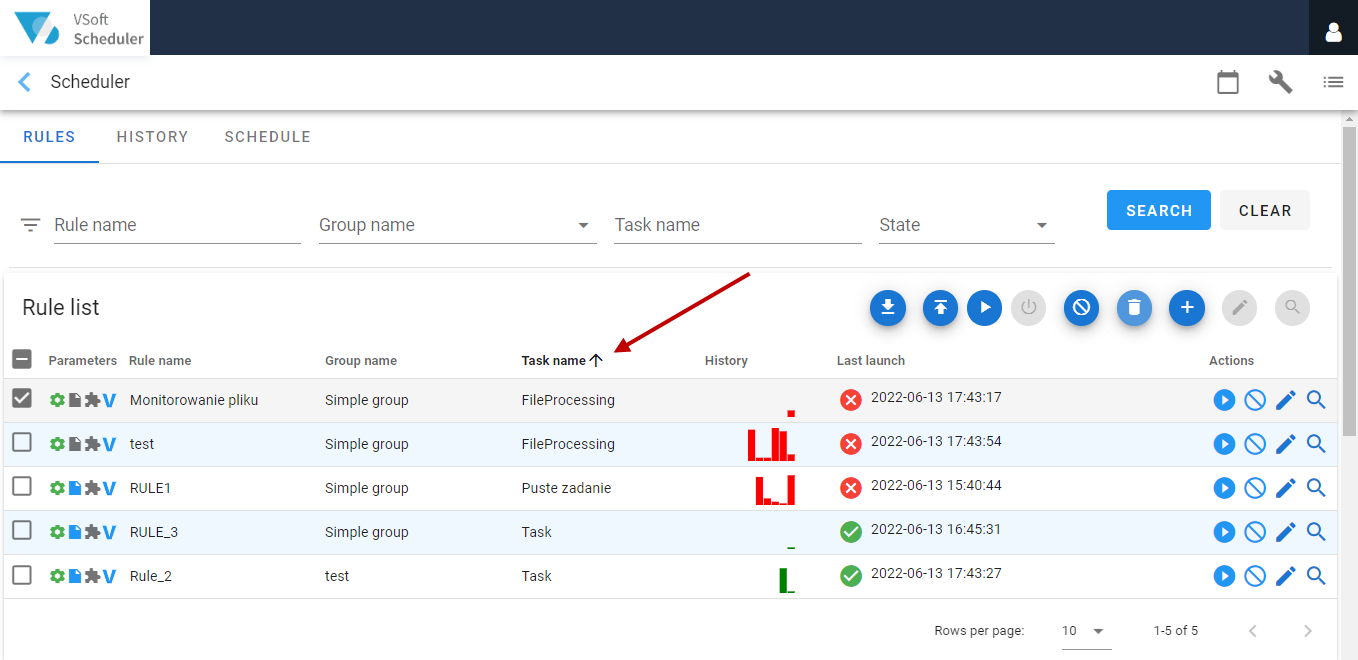
Through the filtering functionality, you can limit the amount of data presented and display it in the right order. In the lists, it is possible to sort by columns (ascending or descending). The sorting mode changes after clicking on the name of the selected column.
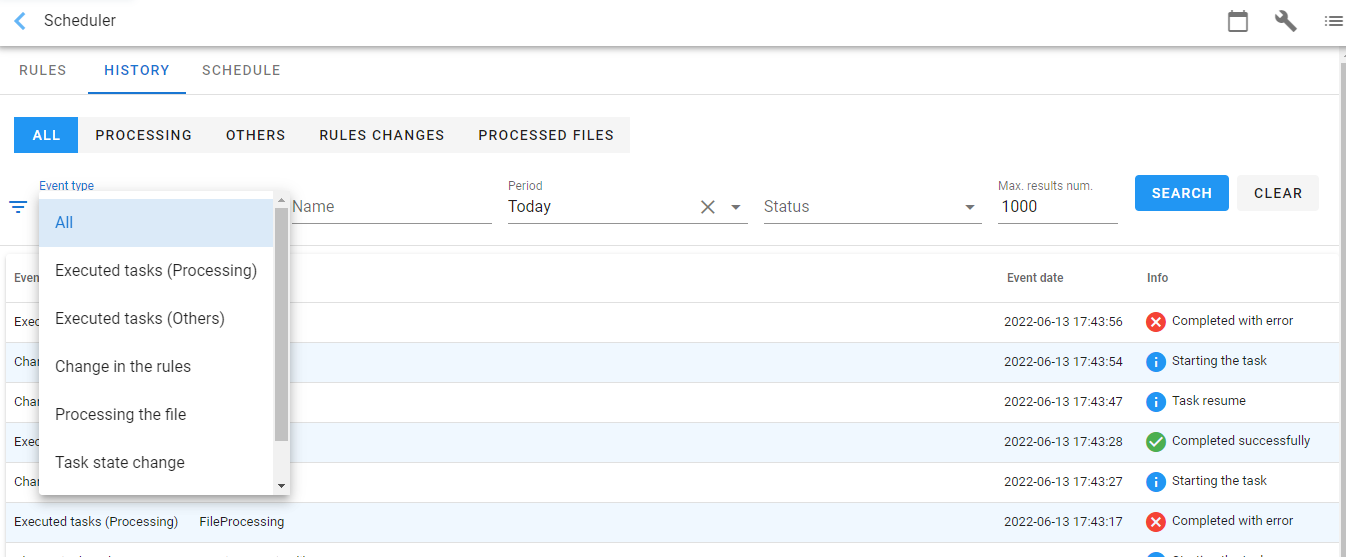
In the case of the History tab, there is a filter that allows you to filter the list by multiple fields.
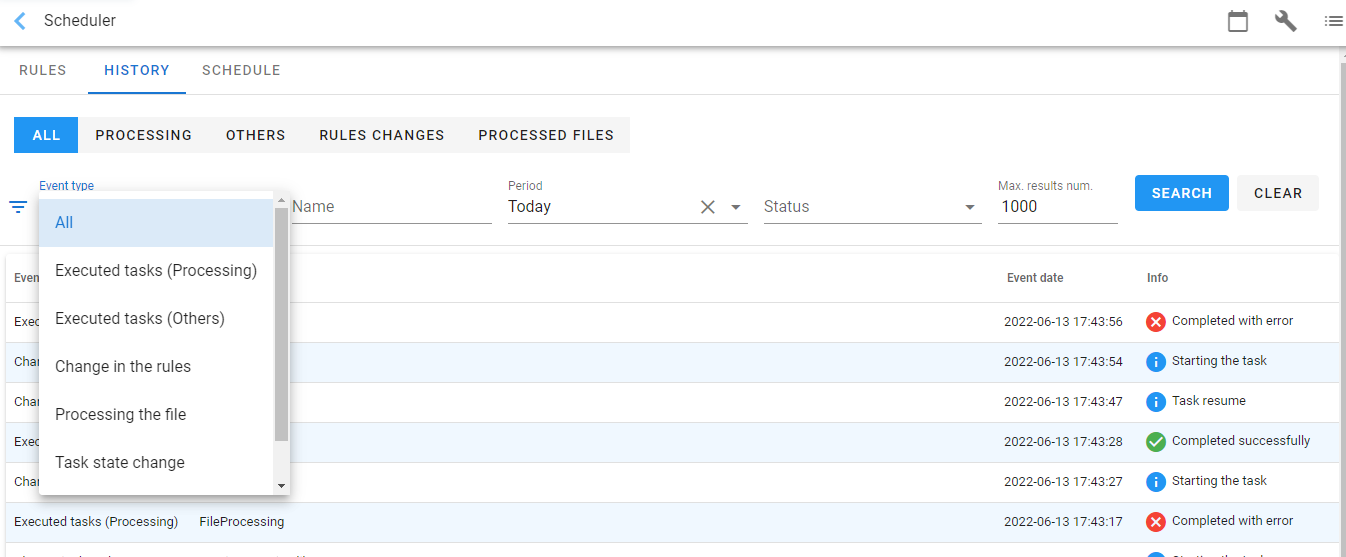
Fill in the appropriate filter fields with the search values and click the Search button. Only the rows that meet the user-defined criteria in the filtered column will be displayed in the table.
Paging
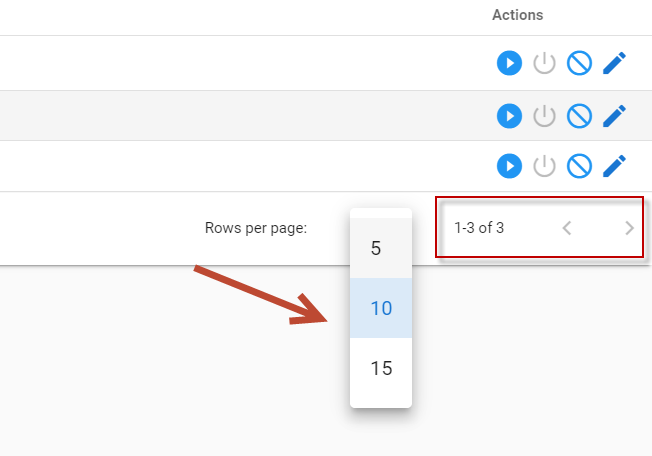
In order to limit the amount of data displayed for the User, and at the same time to increase the system efficiency, most tables show only several rows with results (possible values are: 5, 10, 15).
Such a form of showing the results is commonly called a page. Switching between individual pages is carried out by means of the function buttons (1) or by filling in the Page field (2). Additionally, in the paging panel, you can set the number of lines displayed on a single page (3).
Diagnostics
The Task Scheduling has a simple diagnostic mechanism that allows you to check whether all its components are working properly.
Additionally, all problems related to the incorrect operation are reported to the diagnostics mechanism.
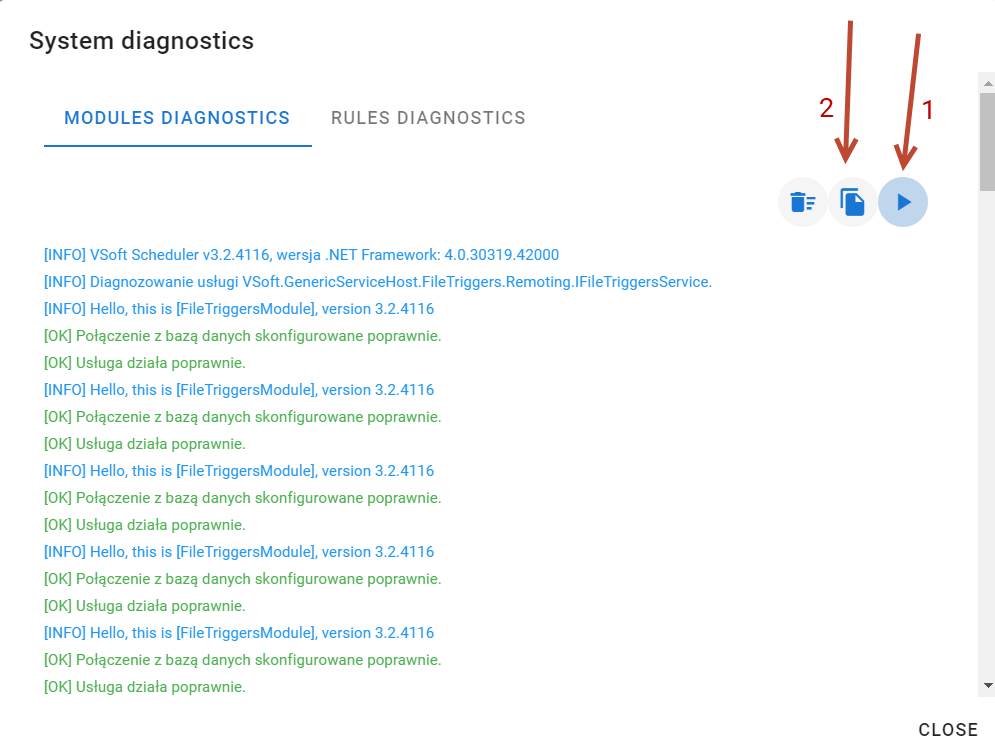
- The Diagnostics window is available as a button in the Quick Access menu on the Ribbon.
- A window will be displayed in which you can run the diagnostics (1), and then, when a report or an error message is already in the window, you can copy the report to the clipboard (2).
- On the Rule diagnostics tab you can check why a given rule was not run. When running the rules, additional information is collected which will be displayed in the window below. Diagnostics only works until the service is restarted. To enter the diagnostics, turn on the diagnostic start button (1).
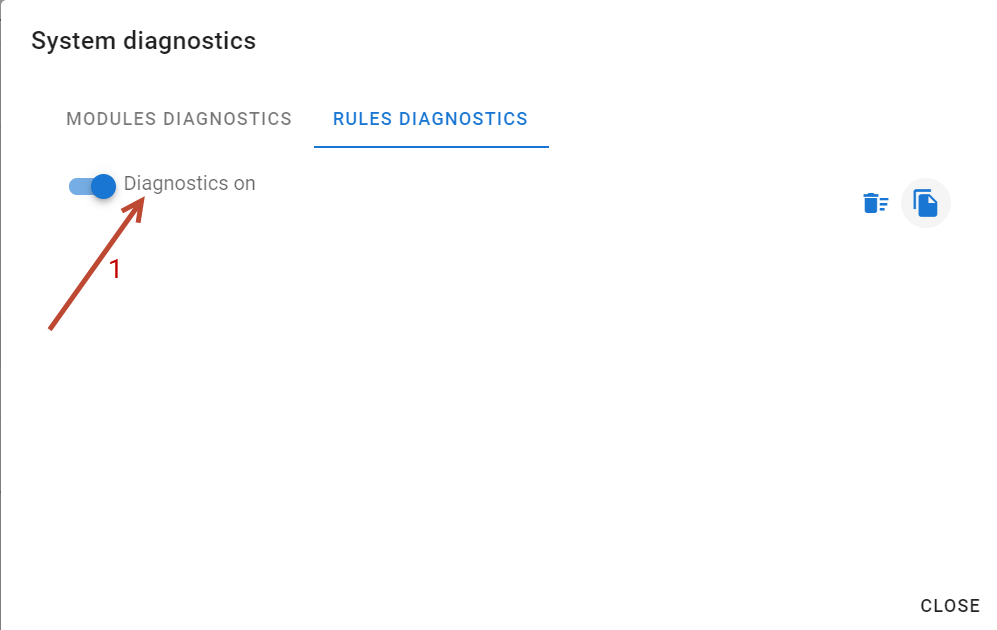
- After the diagnostics is enabled, each time the rule is run ("manual" run only), it will log additional messages that will appear in the GUI.
- You can clear the report or copy it to the clipboard by selecting: Clear (1) or Copy to clipboard (2), respectively.
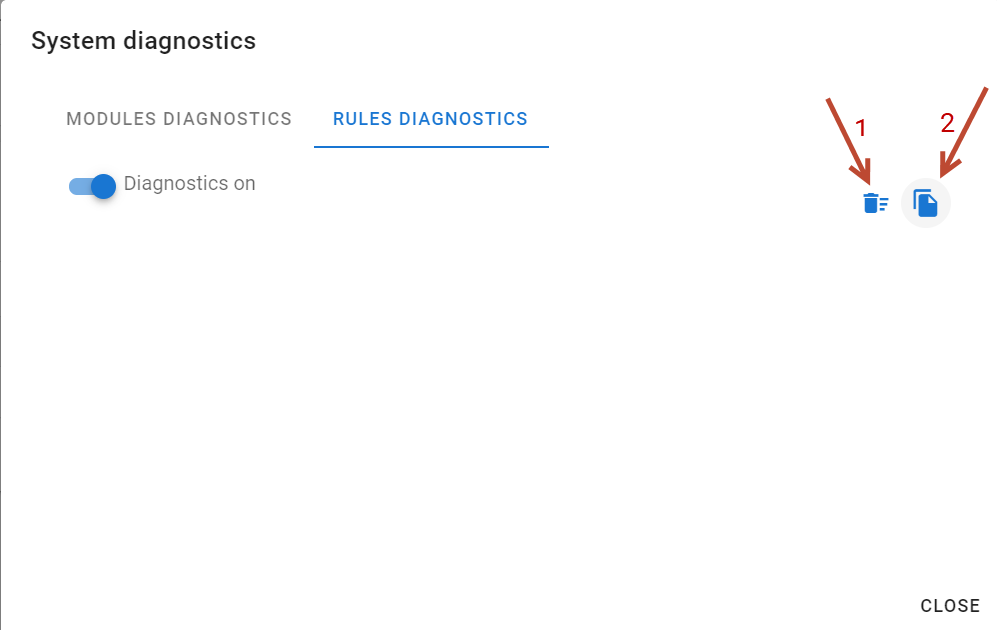
Running diagnostics record information about file matches in tasks that require input files to run them. For something to be in this diagnostic, you must have rules defined based on file patterns and manually run the task in the user interface.