Create a new rule
To create a rule:
- Select the Add rule button in the Action Panel.
- In the rule adding window, enter its name and the group it belongs to, and configure individual panels of processing rules:
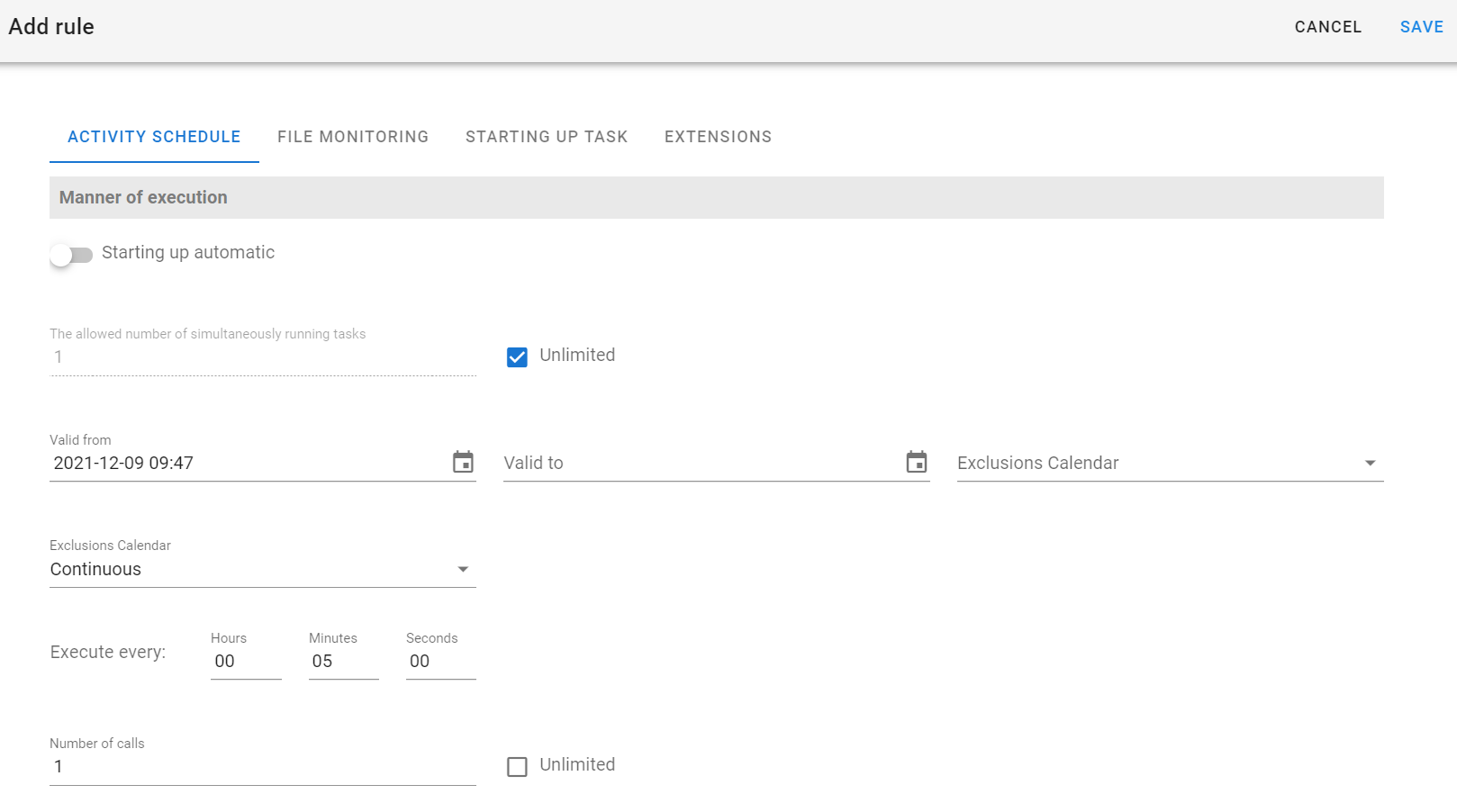
- After completing the form, select the Save button at the top of the page.
Activity schedule
The Task Scheduling allows you to define complex schedules for running tasks, allowing, among other things, to define the frequency, days of the week or months, and other parameters.
- Check or uncheck the automatic start option.
- Complete the Valid from field. If you select a future date as the start date, the corresponding information will be displayed next to the date field.
- Optionally, select the appropriate exclusion calendar from the drop-down list. If the exclusion calendar has not been defined, define it by selecting Manage calendars - on the main page (see: Calendar management).
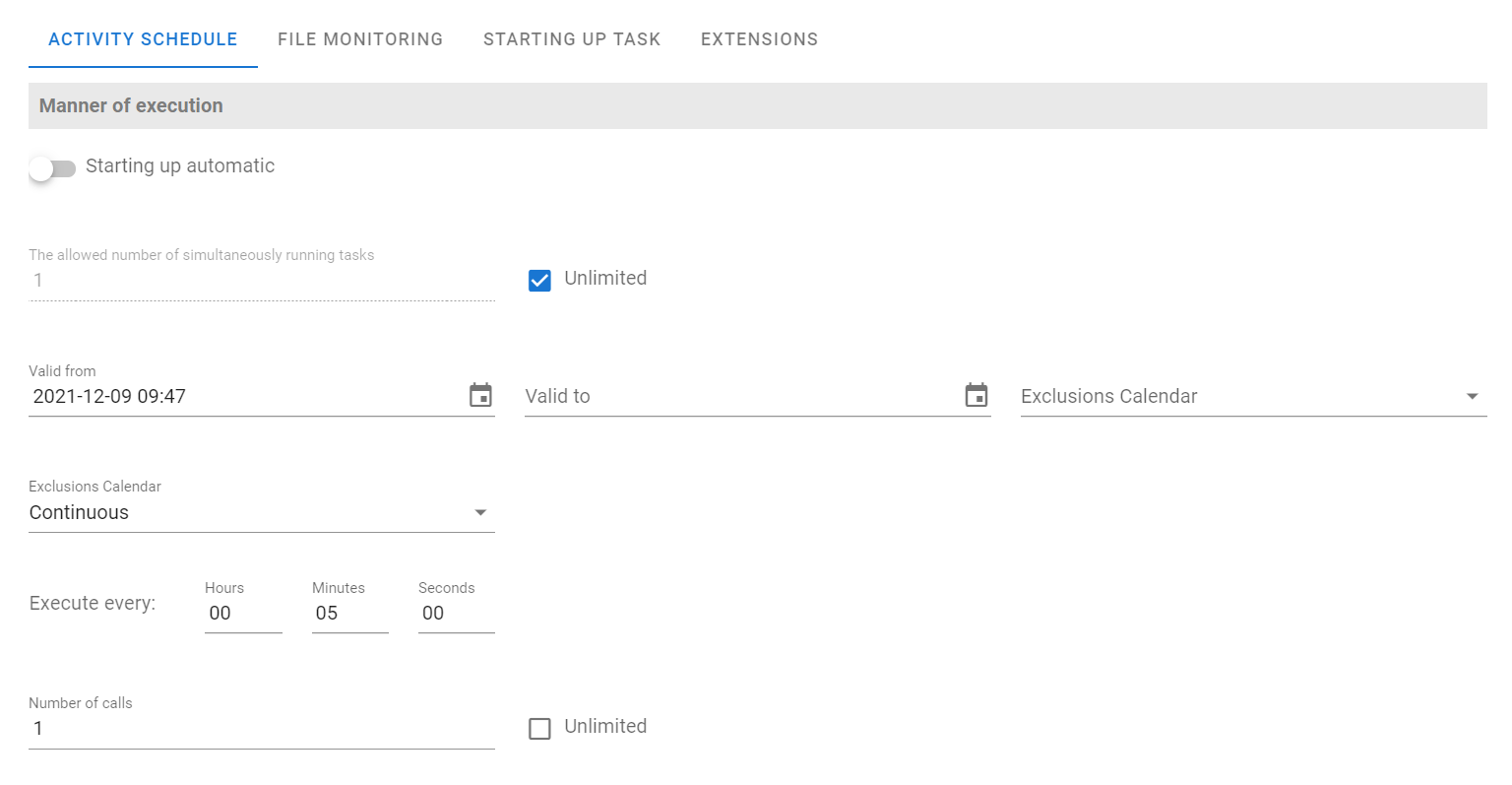
The completion of the Valid to field and the selection of the calendar are optional. The Valid from field is automatically populated with the current date and time by the System.
The user can also define other parameters of the schedule and select one of its types:
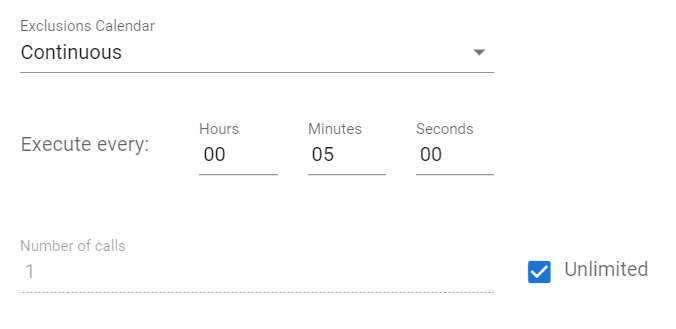
Continuous
In the case of a continuous schedule, you can define the number of task calls or select the Unlimited option, and the time interval every time the task is to be performed. To do this, fill in the fields: Execute every and Number of calls.
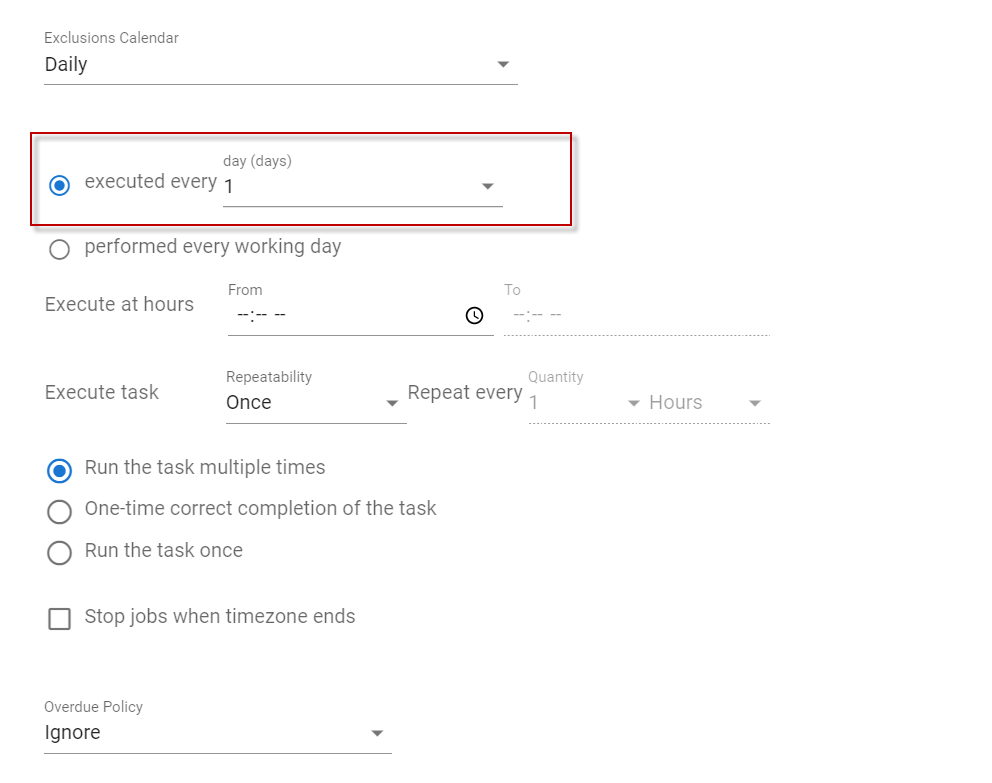
Daily
In this type of schedule, you must specify the start and end times of the task (Execute at hours – from, to) fields, as well as the exact frequency of the task (Execute task, Repeat every). Additionally, it is possible to select the option to perform the task only on working days (Performed every working day). A business day in the System should be understood as any day from Monday to Friday, which additionally is not included in the calendar.
Weekly
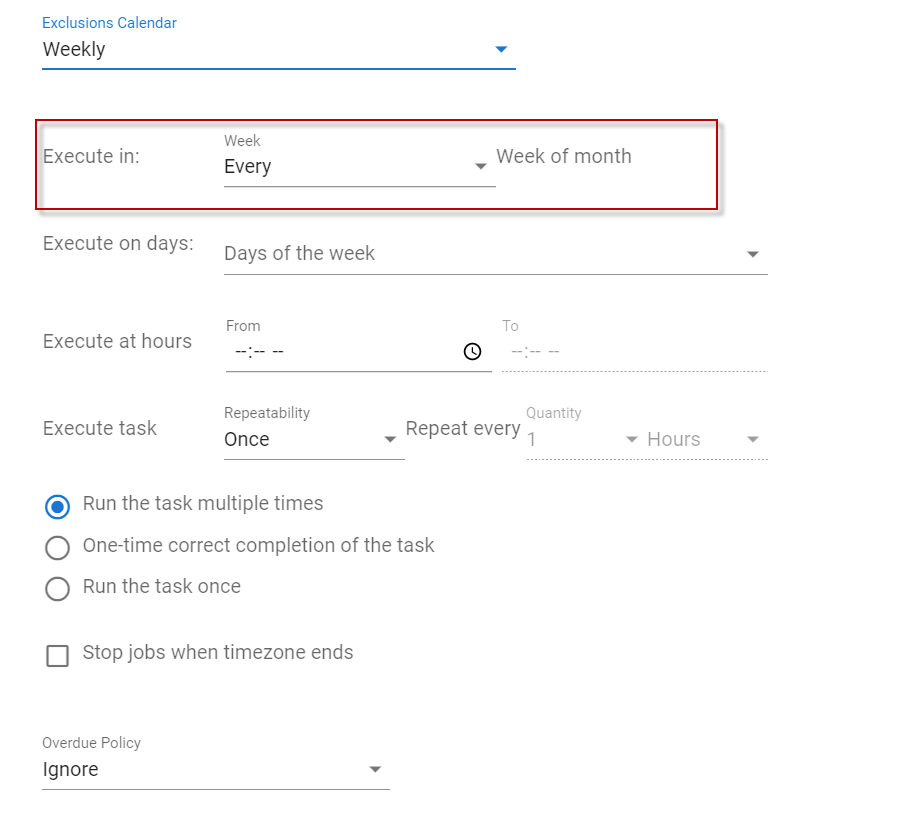
In the case of a weekly schedule, you should also specify the start and end time of the task (the fields Execute at hours – from, to), as well as the frequency of the task execution (field: Execute task). Additionally, the user can define specific days of the week (Execute on days: Days of the week) and a week in the month for the task execution (Execute in – Week of the month).
Monthly
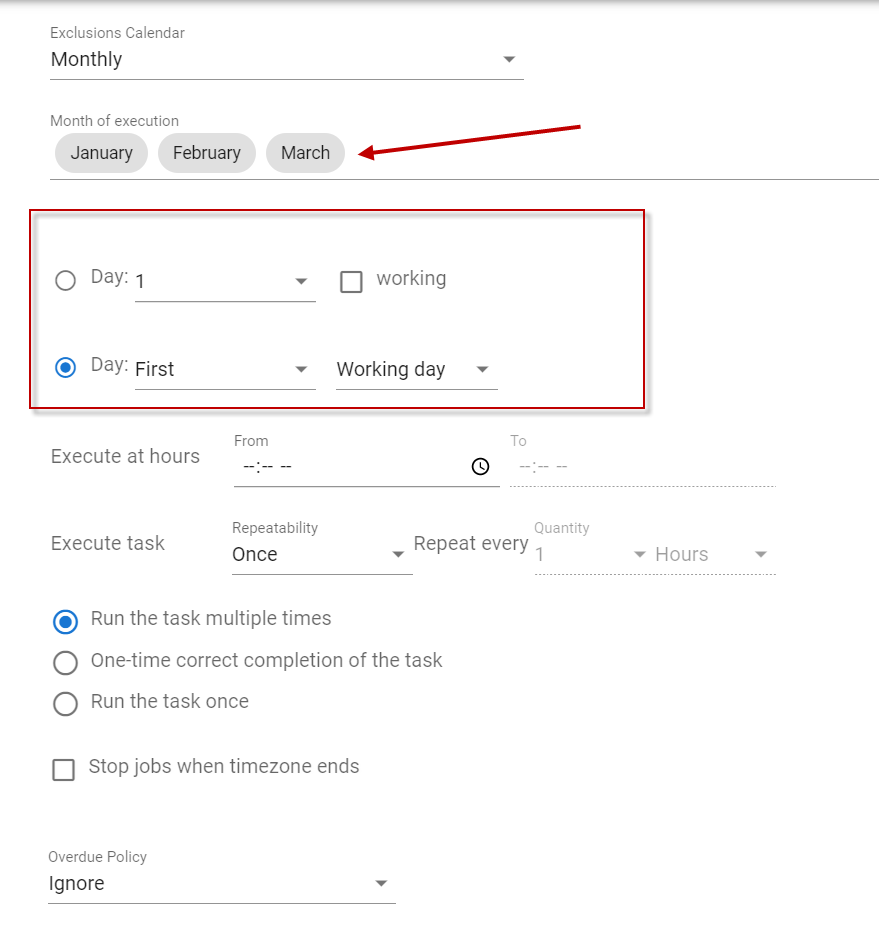
In the case of a monthly schedule, it is necessary to specify the start and end time of the task fields (the Execute at hours – from, to), as well as the frequency of the task execution (field: Execute task). Additionally, the user has the option to define specific days, weeks and months in which the task will be processed.
When specifying the execution day, you can select whether the task is to be performed only if that day is a working day. A business day is any day from Monday to Friday, excluding days declared as 'holidays' in the calendar.
For a schedule other than Continuous:
- There is an Overdue Policy option. It allows you to define how the System should behave towards a rule that was not triggered in a defined period of time, because the System was, for example, turned off at that time. Within this option, the user can choose the option:
- Ignore - do not run an overdue task,
- Run now - run an overdue task right after the System starts.
- You can enable the One-time execution option, which guarantees correct execution of the task only once during a single monitoring, i.e. within the time interval defined by the fields with the task start and end time. The option Run the task multiple times means that if the task runs and fails, the rule will keep running the task until it is successful. This option is useful when, for example, it happens that the database is temporarily unavailable, which causes the task to end incorrectly, and only the next attempt to start the task is successful.
- You can enable the One-time correct completion of the task option, which causes the rule to try to run the task in a given cycle until the run is completed successfully. Enabling this option disables the Run the task once option.
- You can also select the Run the task once option - if this option is enabled, the rule will run the task only once in a given cycle, regardless of the status the task ends with. Enabling this option disables the One-time correct completion of the task.
File monitoring
The File Monitoring section is optional. Select it only if the rule you are creating will monitor and process files.
Monitored files are identified by expressions. After finding a set of files matching the patterns, the Task Scheduler runs the task associated with the rule.
- Define appropriate path rules. In order to create the appropriate path rule, you can choose previously defined configuration items when creating a directory path.
- Select the button
 to add a path to the directory. The list of available directories will open. Select a directory in the list. The directory will be automatically placed in the Directory path field.
 - Select the button to add a path to the file

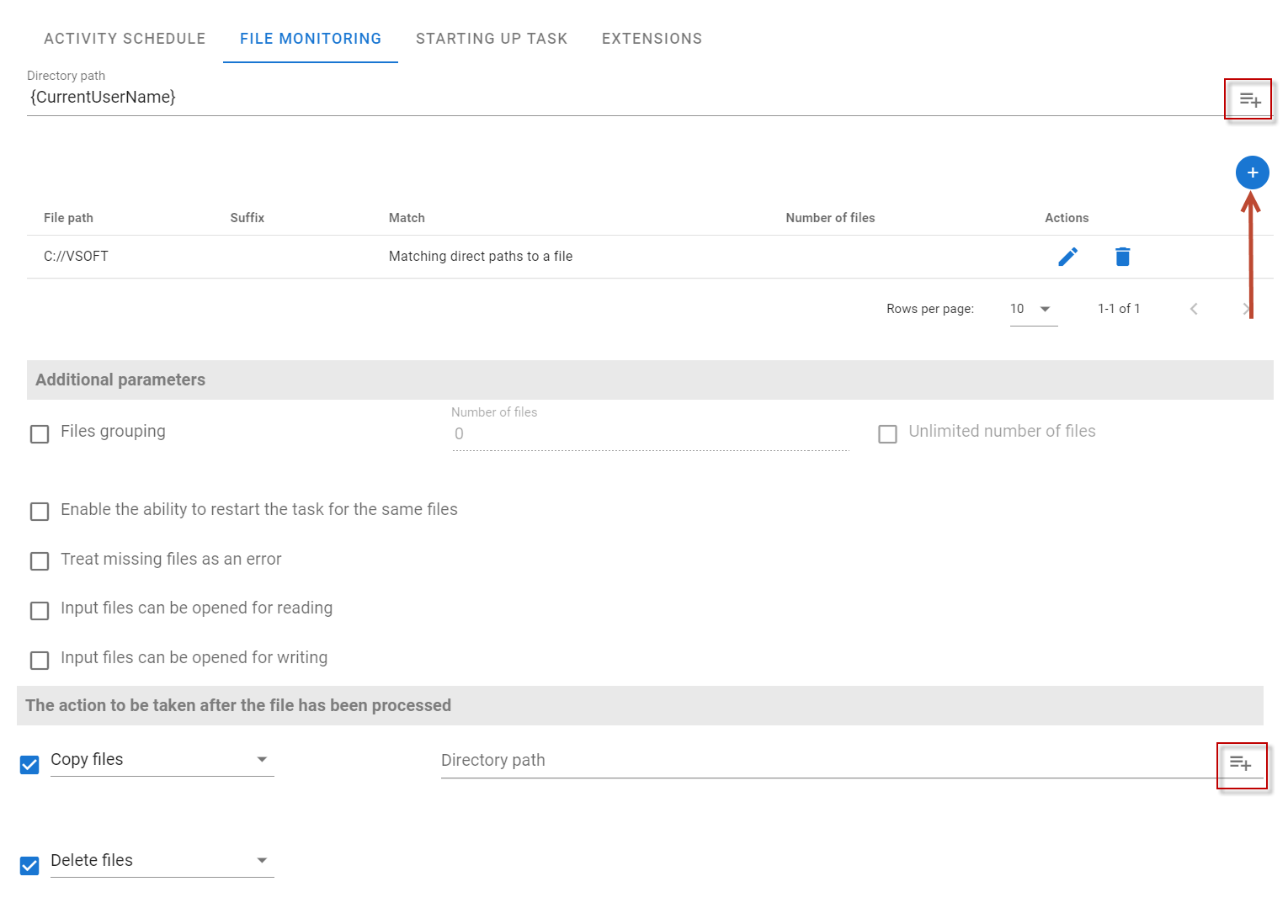
- In the Directory path field, put an expression that specifies the file.
- Additionally, you can select the option Semaphores for input files. After selecting the Yes option, enter an appropriate value in the field. If this option is selected, the system will perform the task only after the appearance of the appropriate files and files with the same names with the ending defined in the field Semaphores for input files.
- The expression can be interpreted by the System as a pattern - regex (the Path Pattern Matching option is selected) or a file name (the Match direct paths to a file option is selected in the Match method field).
- In case of specifying the pattern (regex), the system allows you to define the expected number of files. If this option is selected and "n" files are entered, the system will run the task only after finding exactly "n" files matching the pattern (regex).
- Save the data.
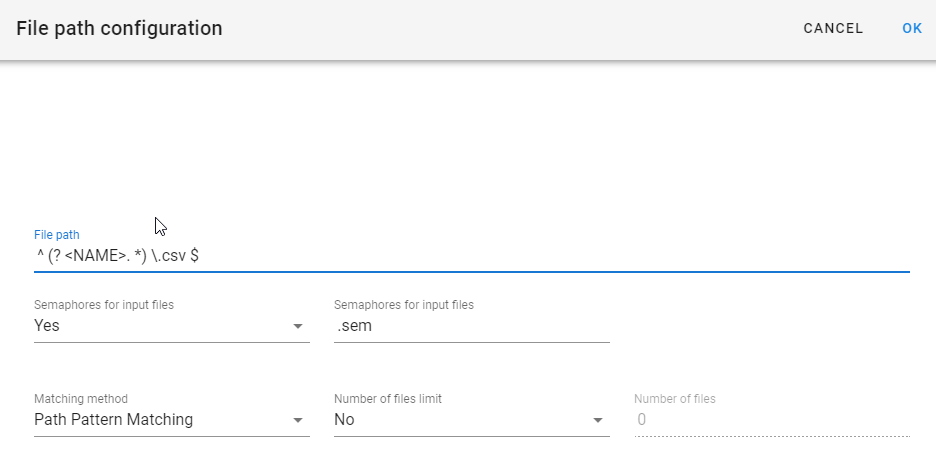
An example of using semaphores:
We’re looking for a file named file.txt. Select the option to show semaphores, enter the suffix _sem The system will run the tasks after the files file.txt and file.txt_sem appear.
Selecting the File grouping option causes that the task will not run until the system finds the specified number of files that have the same value in all named groups in regular expressions. The grouping process follows the pattern group (regex). The system searches for files with the same group value. After finding the appropriate number of files, the task starts. Groups named in expressions have the form: (?<Group name>) To prevent a specific group from being compared when grouping files, add the characters ?: right after the opening bracket, as in the following example: (?:<Regular expression) The group cannot then have a name.
If we define regex as (?<DATA>\d{6}).{2}\.txt) the system will search for files with names of the following form:
-
6 digits + any 2 characters + .txt, where the first 6 digits will belong to a group named DATA. For a single value of this group, for example files with the following names will be searched:
-
20111210cc.txt, 20111210aa.txt, 20111210bb.txt – they will belong to the same group because the first 6 digits are the same. However, for files named 20111208cc.txt, 20111209cc.txt, 20111210cc.txt, three different groups will be recognized.
The other actions that can be performed are:
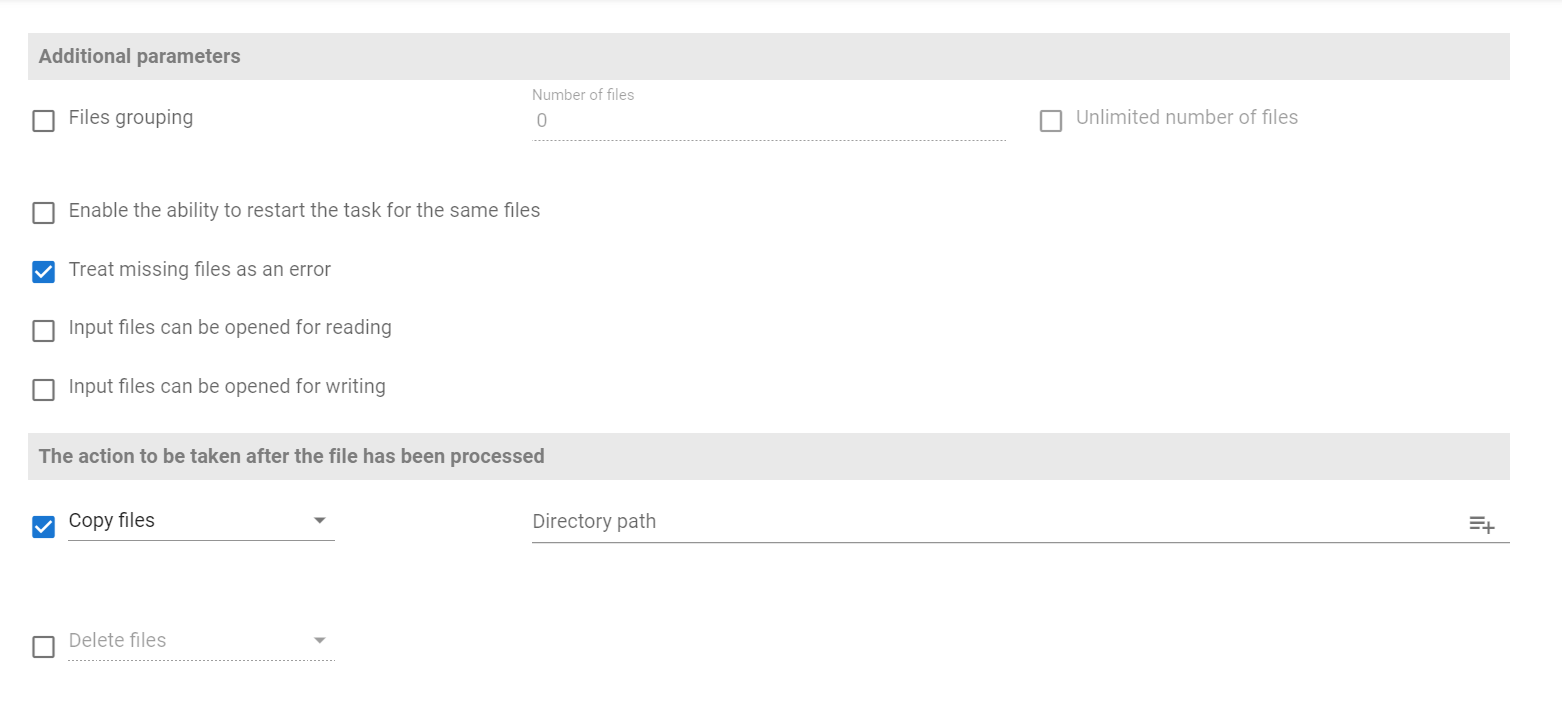
- Enable the ability to restart the task for the same files - the ability to disable checking of processed files by selecting the option. By default, the system verifies whether the files found for processing have not been processed. This means that in order to perform the processing again, you must first delete the files that have already been processed in the Processed files tab. Selecting this option will disable checking of the found files on the list of processed files. Files processed by the task will still be saved in the processed files list.
- Treat missing files as an error - by default, the system treats the lack of files needed to run the rule as an error, which is then displayed in the Processing rules panel. Disabling this option will cause the system to treat missing files as an expected situation and not to report it as an error.
- Input files can be opened for reading/writing - The user defines whether the given input files must have reading or writing permissions.
The action will be performed by the System after processing the file:
- copying files - define the path to the directory (the Path field is mandatory), where the file is to be copied to (when defining the path, you can use the defined configuration elements),
- deleting files.
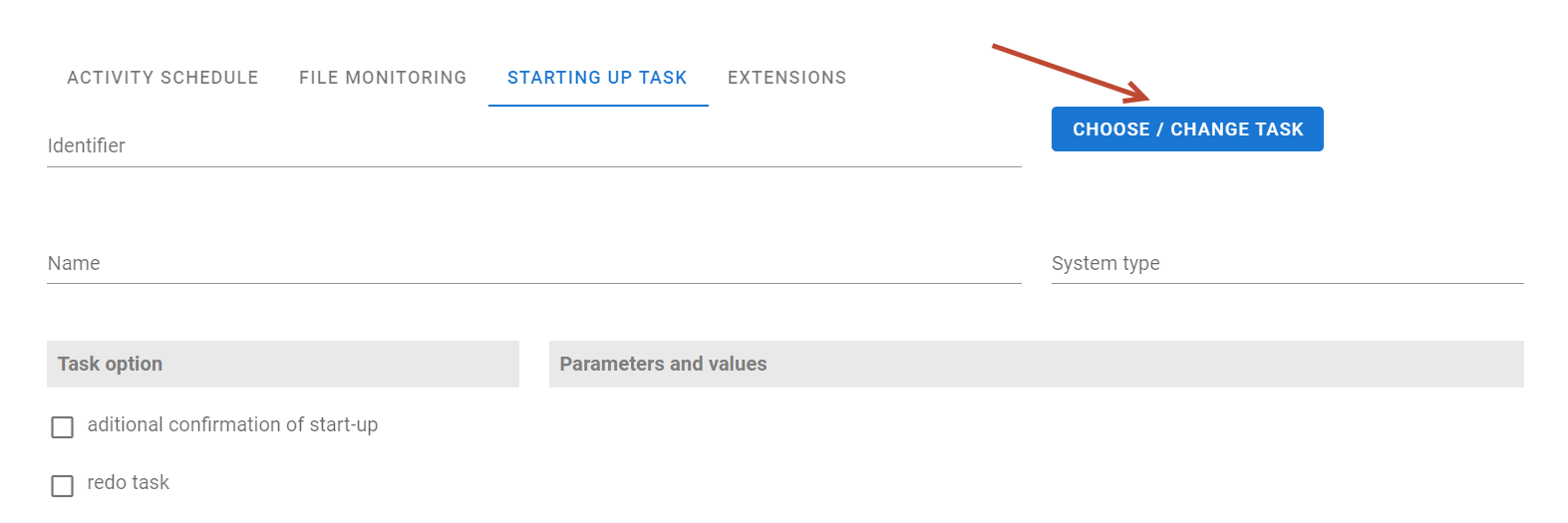
Starting the task
In the Starting up task section, there is a panel for selecting tasks that publish tasks.
The Task Scheduling allows you to run:
- In the Starting up task section, select the Choose/Change Task button.
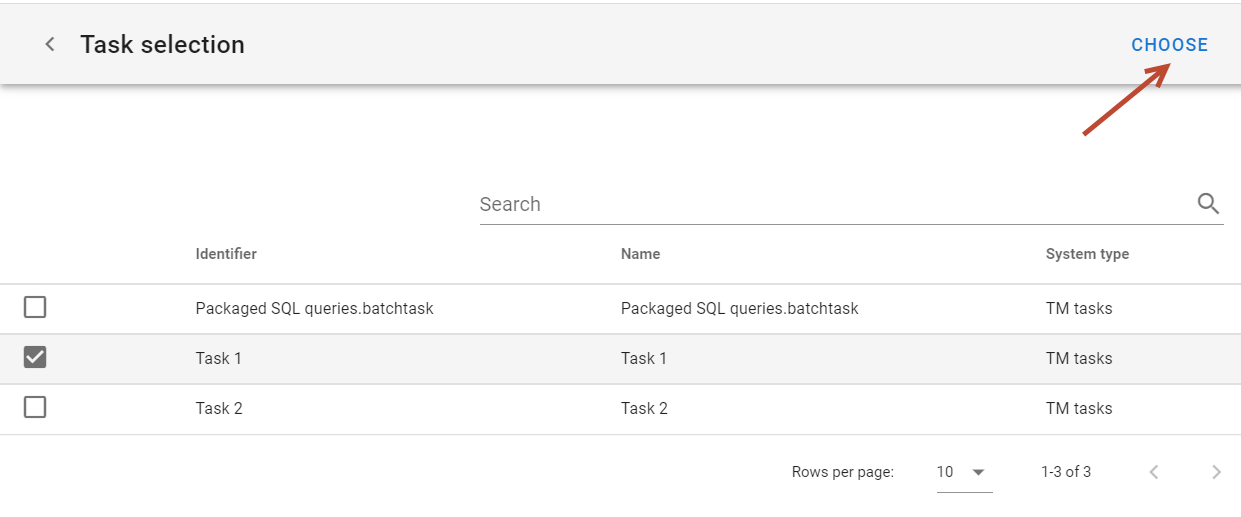
- The table contains information about the ID, task name, and system type.
- Highlight a task and press Choose
- Complete the remaining options and parameters for the task.
- The range of options and data available depends on the type of the task.
For the Task Hierarchy tasks:
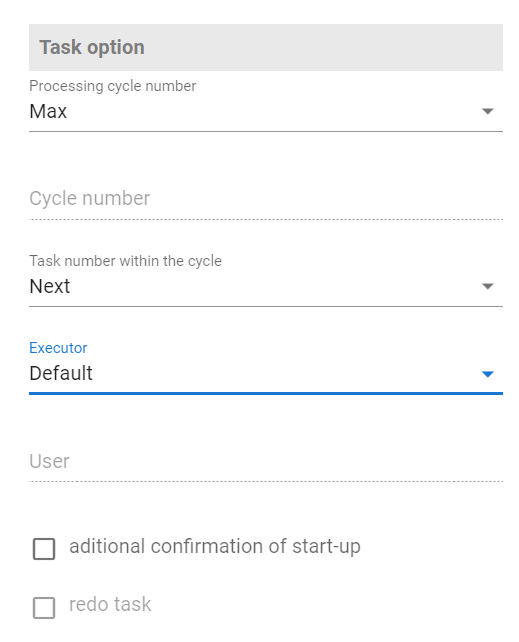
- The user can specify the processing cycle number (New, Max, Specified), and the task number within the cycle (Next, Specified). Processing cycle number (BatchId) - is a number identifying some processing cycle (a group of tasks) from the business viewpoint. It may be mapped to a single launch of a starting task, or a single day of processing, or a 3-day period, or a month, etc.. depending on the actual business case. This number will be the same for all tasks stemming from the same starting point, and possibly for some other starting point (and their descendants) in the same business cycle.
- There is yet another identifier for starting points and it's descendants - the "Path-run id". It will be different even for starting tasks within the same batch.
- On the other hand, the task number within the cycle, or the processing version number - (RevisionId) - is a logical number that distinguishes between launching within the processing cycle. It is used when there is a need to retry processing, which, from a business point of view, is a one-time operation (e.g. loading statistical data today), but has been interrupted for some reason. In this case, we want the repeated processing to also be associated with the same cycle number, so we use the processing version number to distinguish it.
- If the Additional confirmation of start-up option is selected, the user will see an additional dialog box to confirm starting the task before actually starting the task.
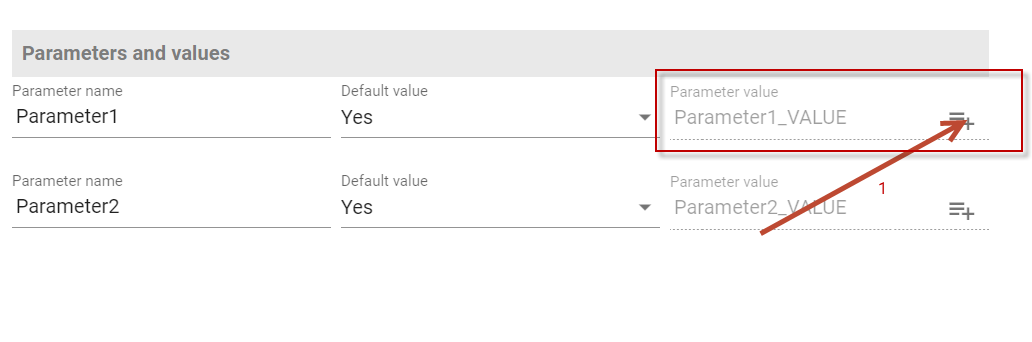
Additionally, you can define hierarchy parameters in the Parameters and values section. If the parameter name matches the group name in the patterns in the path rules, the system will automatically assign the group value to that parameter. To do this, select the option Default value: No and in the Parameter value field enter a value or press (1) to be able to display the list of available parameters.
Code tasks
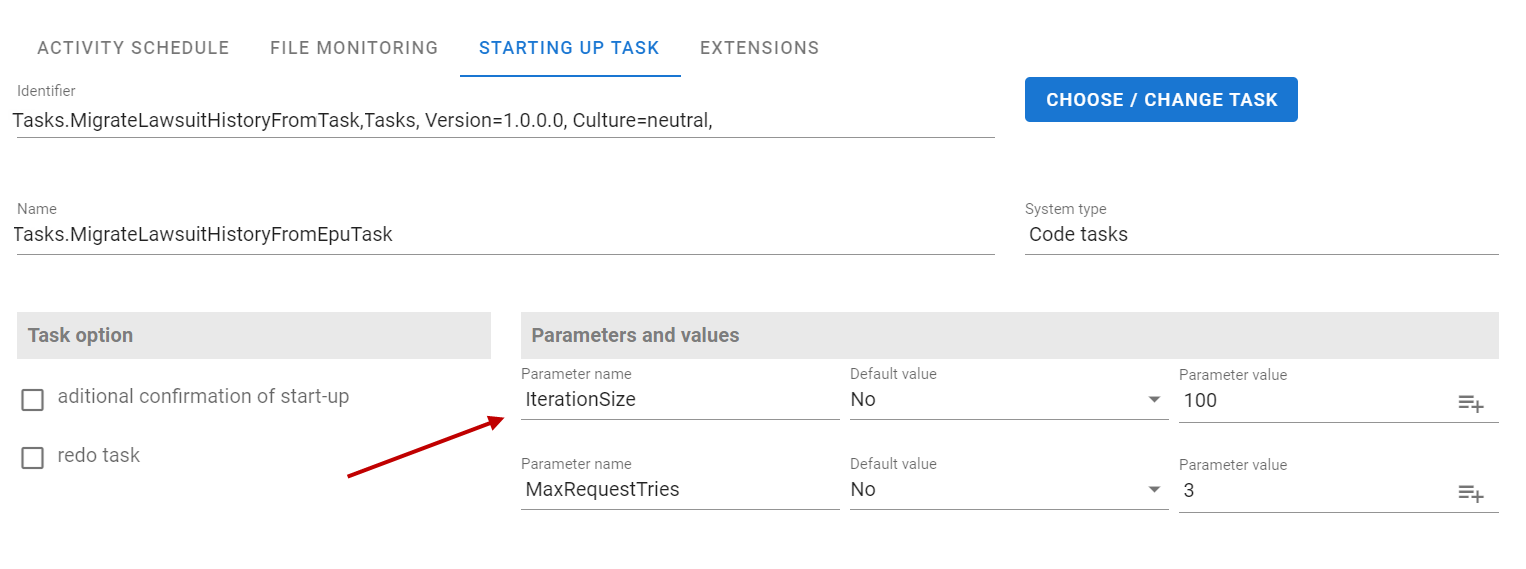
When the task returns results from the code, they are displayed on the GUI in the Parameters and values section. This is where the exact parameters, which are expected by the code task created by the programmer, are displayed.
A table here with the parameter name and value is located here.
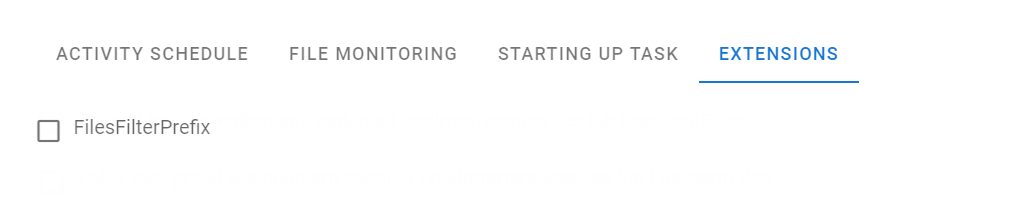
Extensions
The user can select the appropriate options in the Extensions section. Extensions are additional classes loaded and executed by Task Scheduler that are used to modify the behavior of the task execution mechanism.