Version Server and version control (database or GIT)
There are 2 types of version servers: file and database.
You decide on the version server when creating the project. For example - for a newly created development project: if you select File system in the Version Server type field, a project with a file version server will be created, and if you choose SQL Server, then the version server will be a database type.
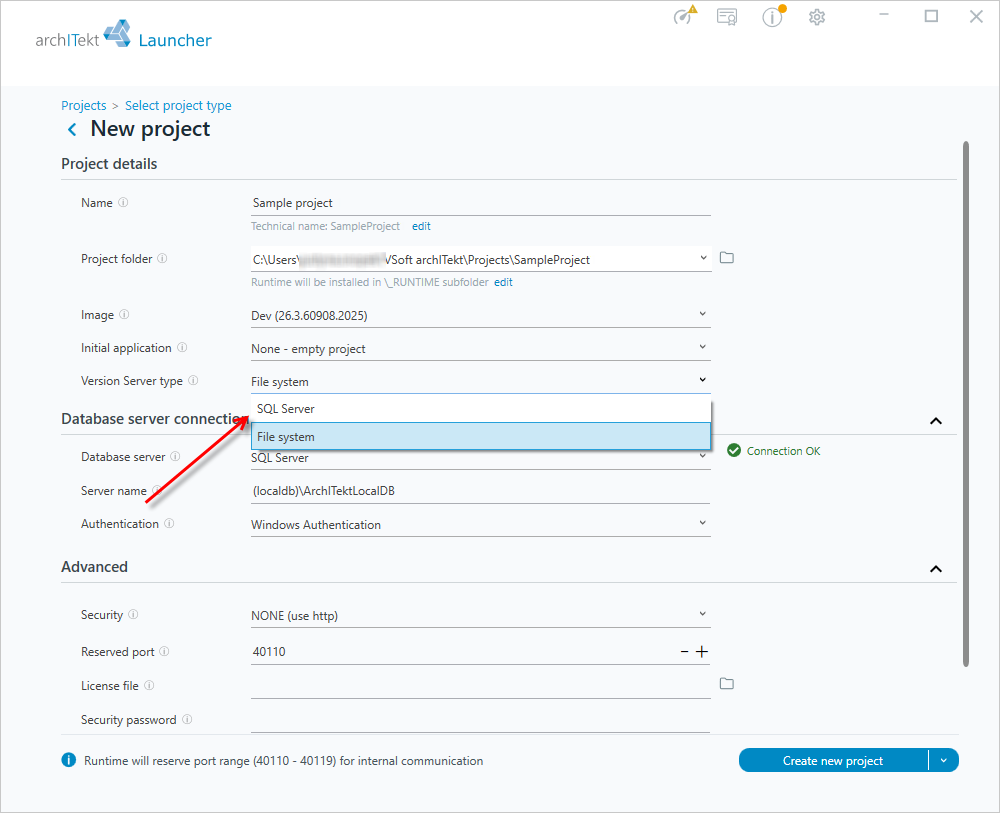
Some options that are available in the database server, do not exist in the file version server, such as version history, takeover of the version editing or entrance to the list of edited versions.
When using a file version server, you can use an external tool such as Git or another version control system to provide these functionalities in your project.
Database version server (built-in version control mechanism)
The Database version server provides control over the editing of a given file by one person and stores the history of changes. This solution is suggested for people who do not have the need to use an external version control system (like GIT, SVN, etc.).
In order to create a repository on which a group of people will work, it is necessary during the creation of the project:
- Specify as the database server the SQL Server instance that all project developers will have access to. This can be SQL Express, for example.
- As the project location, specify the shared directory to which the project developers will have access.
- As the
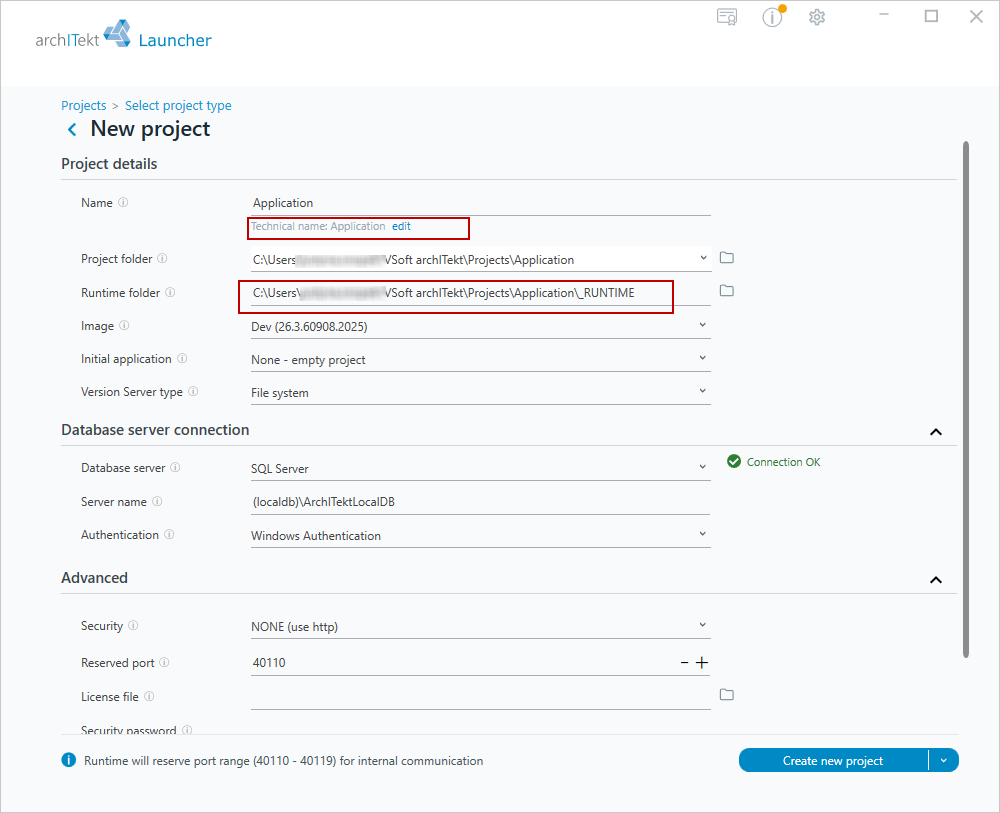
RUNTIMElocation of the application being developed, specify a directory on the local disk. The directory name must be:
[any directory]_[technical project name]_RUNTIME, as in the following screenshot of a sample project.
Once the project is created, all team members can connect to this project by selecting Attach in the Launcher's main window and pointing to the project directory.
The Runtime on the local computer will be created with each user in the same location.
File version server (GIT-based version control mechanism)
File version server allows you to use an external version control tool (GIT). This is a dedicated solution for those with technical experience. In this solution, archITekt knows nothing about the external version control tool - it treats the configuration of the version server as if it were located from a regular directory; all version management activities must be performed by the user in the selected external tool.
Creating a repository
In order to create a repository on which a group of people will work, the following steps must be performed during project creation:
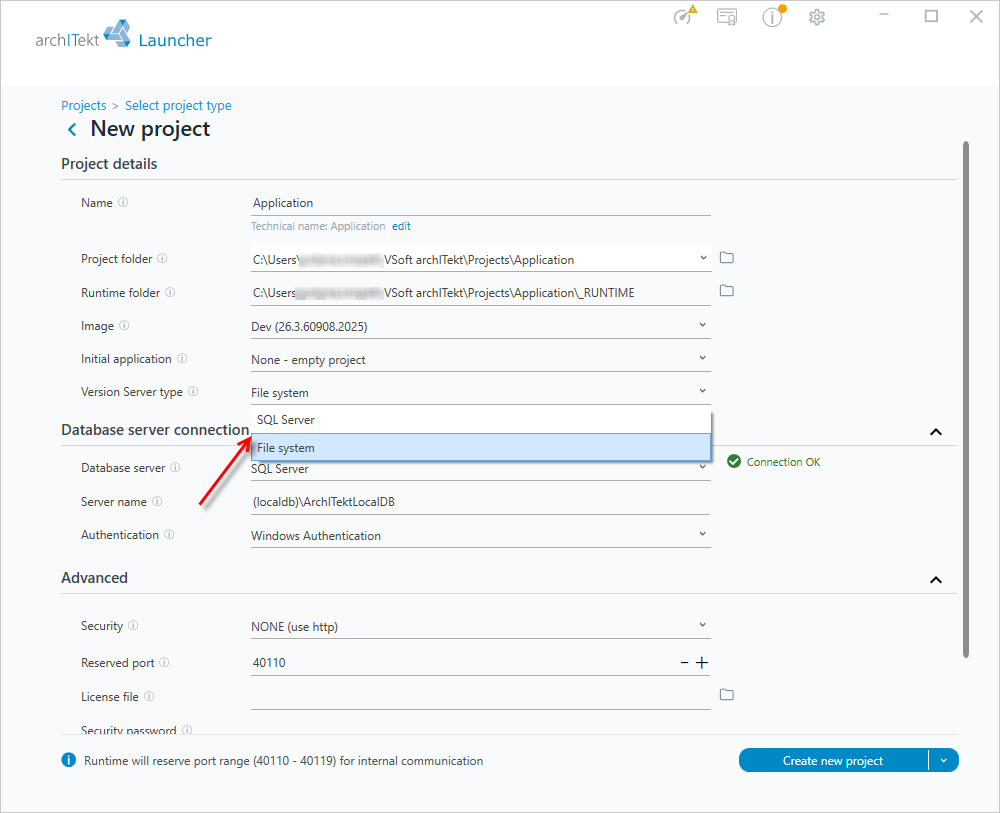
- The first person initiates a new project in VSoft archITekt Launcher and selects File system in the Version Server type field.
- Copy the
.gitignorefile to the project directory and add this folder to the GIT repository. Below are the contents of the .gitignore file.
/*
!/_RUNTIME
/_RUNTIME/*
!/_RUNTIME/VersionServer
!/Files
!/SQL
!.gitignore
!/custom.project.json
Connecting to the repository
In order to connect to the repository on which a group of people will work, you need to:
- Download the project data from the GIT repository to the selected directory on the local disk.
- Create a new project in VSoft Launcher, which will be in the directory to which the project data was downloaded from the repository. In this case, the project directory (Project folder) is
C:\GIT\Projects\Application - The name in the Technical name field must be the same as the name of the folder to which the data from the repository will be downloaded. In this case, it is Application.
- The project files will be stored in the path to the Runtime folder. The name of the folder must be:
[any directory]_[technical project name]_RUNTIME
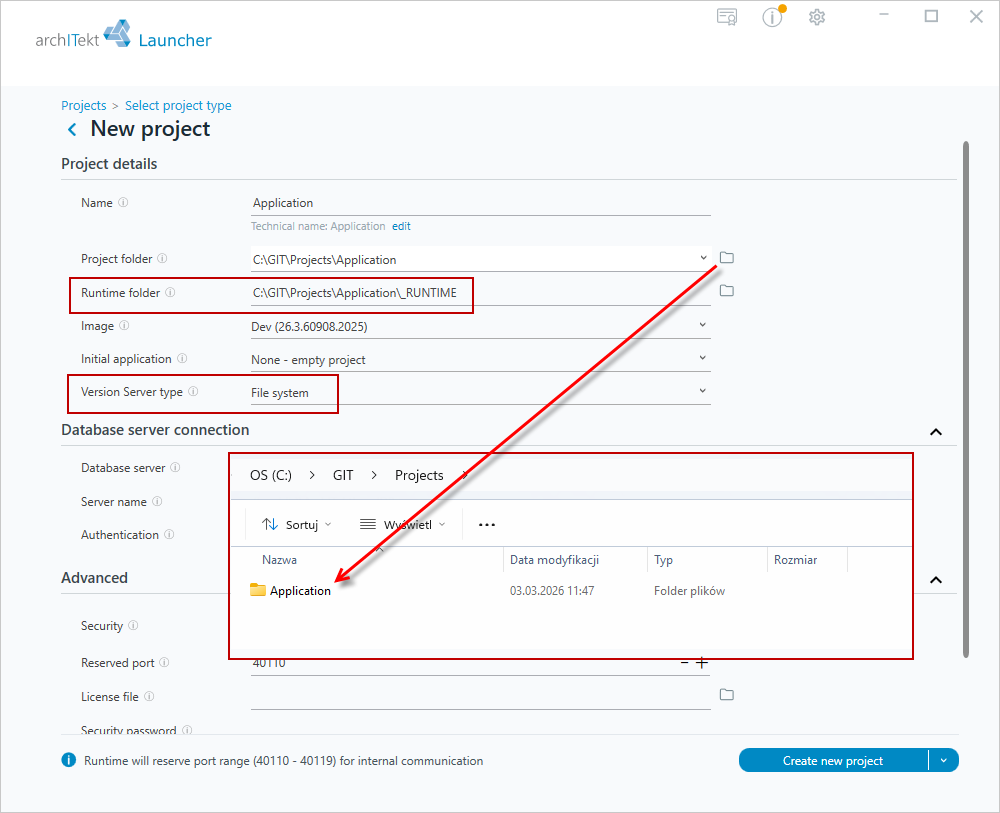
- In the Version Server type field, select the file version server - File system, and then create a project - Create new project.
After connecting the project directory to an external repository, all versioning operations should be performed in the GIT version control tool.
Dealing with conflict
With some version control systems (e.g., GIT), there may be a situation where two people modify the same file. This leads to a conflict at the repository synchronization stage and requires confirmation of the content of the disputed file before placing it in the repository.
- Version configuration in the archITekt platform is stored in XML files. Comparing two versions of the same file and merging changes can in some cases be cumbersome at the level of editing the contents of the XML file.
- In this case, it is most convenient to place both versions of the file in the version server and perform the content comparison operation using the designer.
To place a copy of the disputed file in the version server:
- Locate the conflicting file in a directory.
- Move to the same directory as in the following screenshot:

- The second version of the file should be renamed - the phrase ".conflict." added.
- The second version of the file should have a changed identifier in the metadata file: in the example above, the last 3 characters of the identifier have been changed to "999". (It is required that the identifiers of all metadata in the system be unique).
- Perform a version comparison and modification operation in archITekt Studio modifying the original file.
- Delete the newly added files, and transfer the original modified file to the repository.
Attention!
- If you add copies of some files (e.g., data structures), you may see in archITekt Studio information about errors resulting from the appearance of a duplicate (e.g., in the case of a data structure - two structures referring to the same table).
- Be aware that these errors will only be reported during the version comparison operation (they will disappear when a copy of the conflicting file is removed from the version server).
Deleting a local project
For projects connected to the GIT code versioning system (that is, projects that have a ".git" subdirectory in the project directory), the project deletion operation does not delete the entire project directory, but only those directories that VSoft archITekt creates automatically.
As a result, deleting a project from the list will not delete the local copy of the GIT repository. The user himself, consciously, should delete the project directory (along with the local copy of the GIT repository).