Performing operations on a Version
After selecting a given version and selecting the context menu, you can perform a number of operations on the version, such as renaming the version, deleting, locking, unlocking, etc. The range of available options to be performed may differ depending on the type of file. For example, if you select the data structure, you can go to the update of data structures from the version server panel from the context menu. Or, for a form, you can select Preview and display the form in the browser.
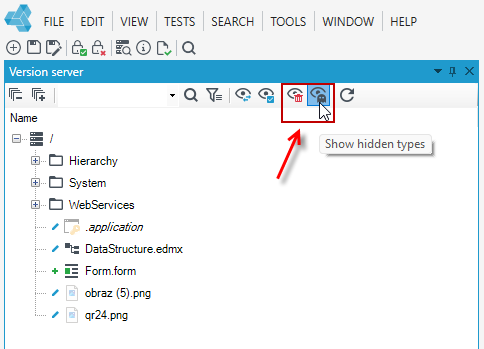
All operations performed for versions are performed for the versions currently displayed on the panel. If you want to perform an action for hidden files or view deleted files, select the appropriate option from the Version server panel menu. For more information, see: Hidden files.
Mass operations
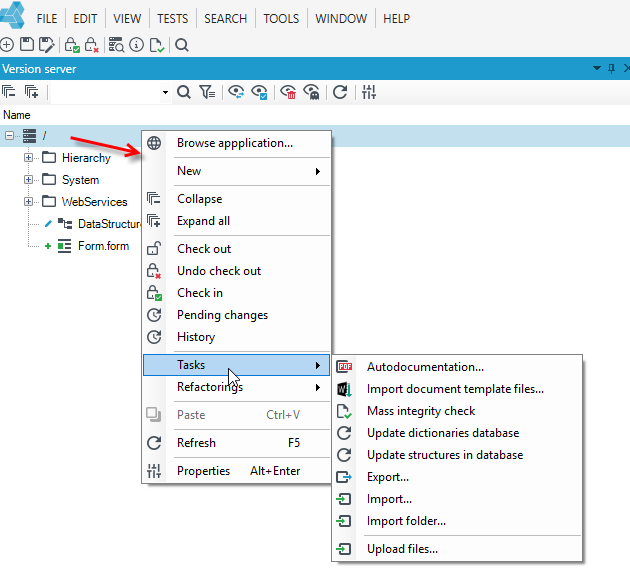
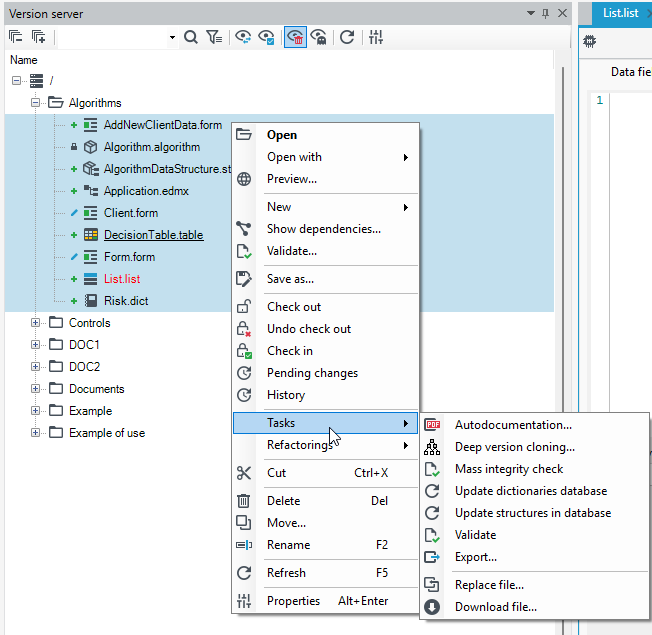
You can perform an operation on several elements at the same time. You can perform an operation on several items at once. If you select several files, the operation will be performed on the selected files. If you click on the root of the data in the version server, the action will be performed for all files.
The condition for performing mass operations is to select to browse the version in the physical view.
- Select the Version server panel.
- Select the directories and items while holding down the Ctrl key.
- Select an option from the context menu that appears when you right-click the mouse.
- If any of the options are unavailable for mass operations, then they will not be displayed in the context menu.
Mass operation for check-in/check-out version
- To end/start editing versions in bulk, select the desired versions or click on the data root and select Check in/Ckeck out.
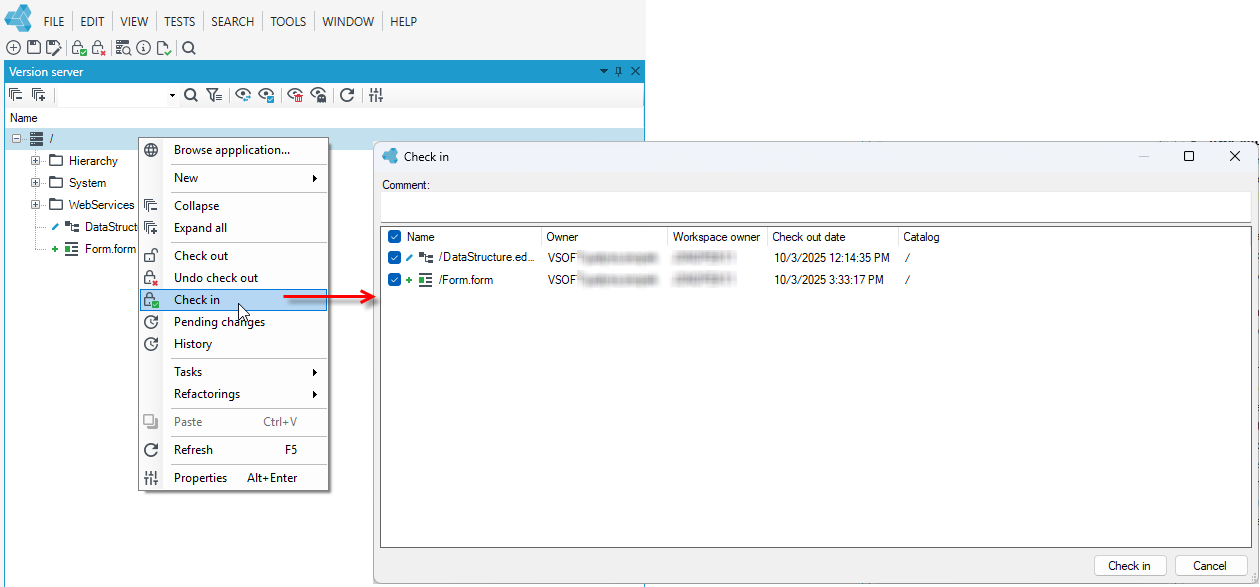
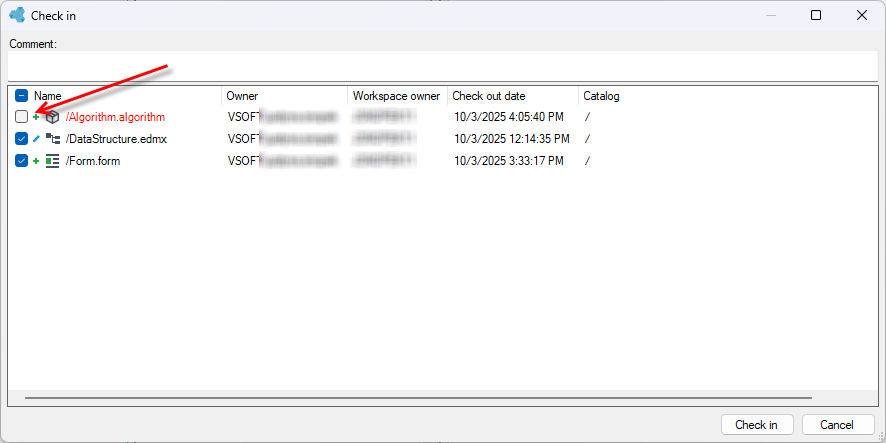
Check in operation is only possible for valid versions. In the case of invalid versions, deselect them in the Check in window.
Both ending and starting version editing will be performed for all files currently displayed on the version server. If you want to perform the action for hidden files as well, you must switch to the hidden files view and select the option from the context menu. See: Hidden files.
Version Validation
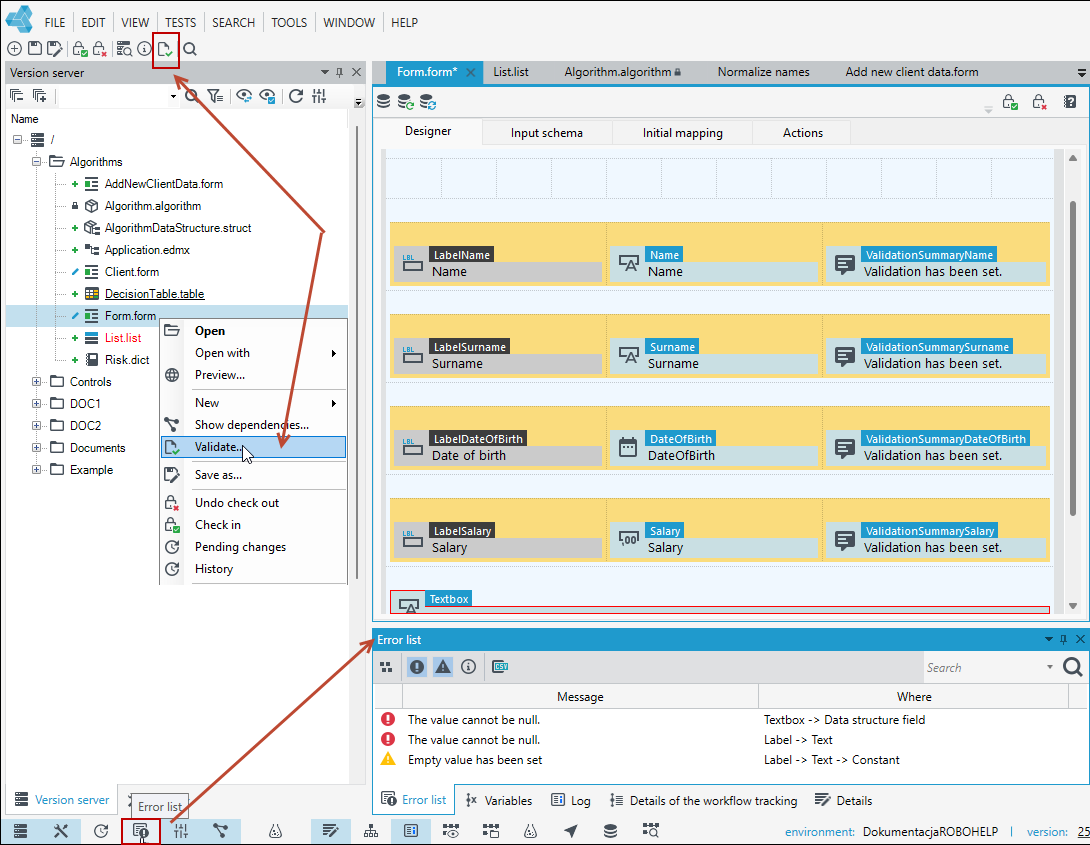
In order to check the correctness of a given version, you can choose the option from the main menu  when you have a given version open in the working window, or use the context menu.
- Select the Version serverpanel.
- Highlight a version and select Validate from the context menu.
- If any data is incorrect, select the Error List tab which displays details of errors or warnings.
Renaming a Version
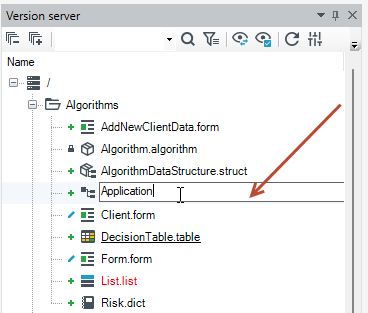
You can rename versions directly in the tree in the Version server panel.
The name can only be changed if the version editing has finished.
- Select the Version server panel.
- Select the file on the version server.
- Right-click and select Rename from the context menu.
- You can also double-click (at a slower pace) on the version name.
Dependency graph
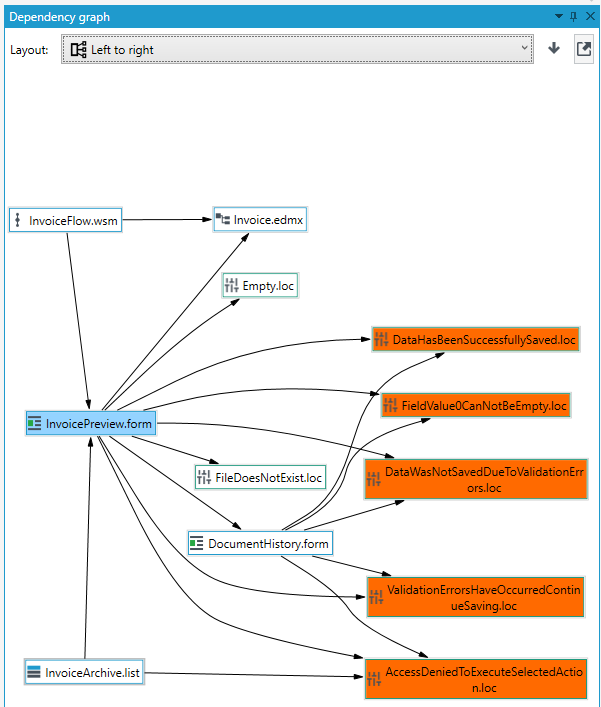
You can quickly see if a given version is related to another via the dependency network.
- Select the Version Server panel.
- Select the file on the version server.
- Right-click and select Show dependencies from the context menu.
- An additional panel will be displayed, in which dependencies regarding the given version are drawn, if any. (For example, when the form's dependency graph is displayed, it will be displayed as related to the data structure it is based on and the list, if there is a transition to a list from a given form).
Generating autodocumentation
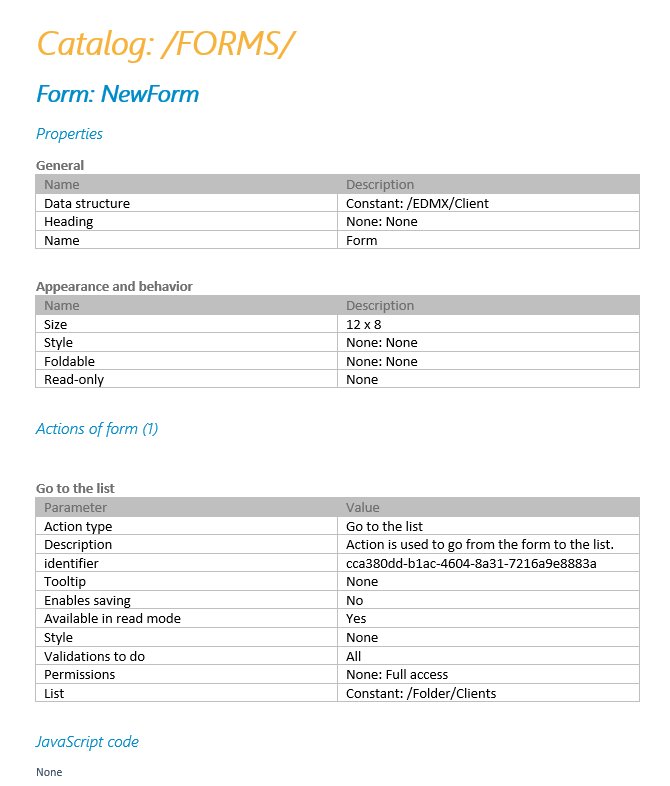
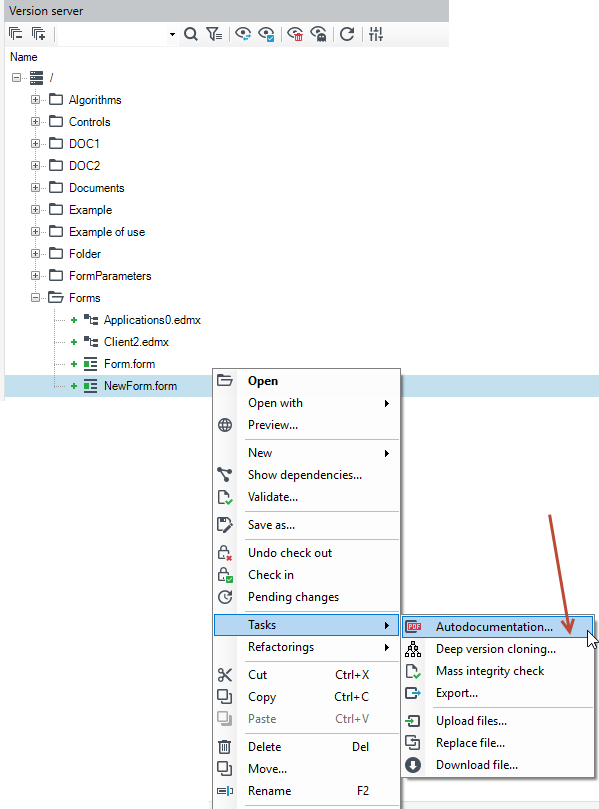
Thanks to autodocumentation, you can generate a WORD document containing version details. You can perform the action for one version or several.
- Select the Version Server panel.
- Select a given file on the version server or Ctrl + click multiple versions.
- Right-click and select Tasks>Autodocumentation from the context menu.
Below is a piece of the autodocumentation regarding the created form.