Publishing versions
The archITekt platform offers the possibility of providing access via API to business elements such as algorithms, tables, workflows an processing packages. This operation is performed by publishing the element in the version server.
In order to publish access to a given element
- Select the Version server panel.
- Select a version (decision table, algorithm or workflow, microworkflow).
- Select Publish from the context menu displayed by clicking the right mouse button.
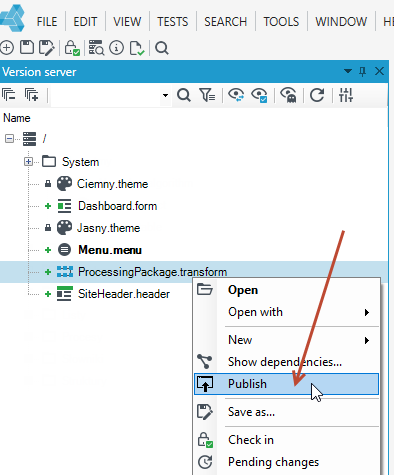
The platform allows you to publish any number of version server elements. Each published element is visible in the API as new methods that can be called by external systems.
The published element will be available through the API as a web application element:
- is available through the API at:
http(s)://[application name ] /WebServices/EntryPoint.svc
For example:
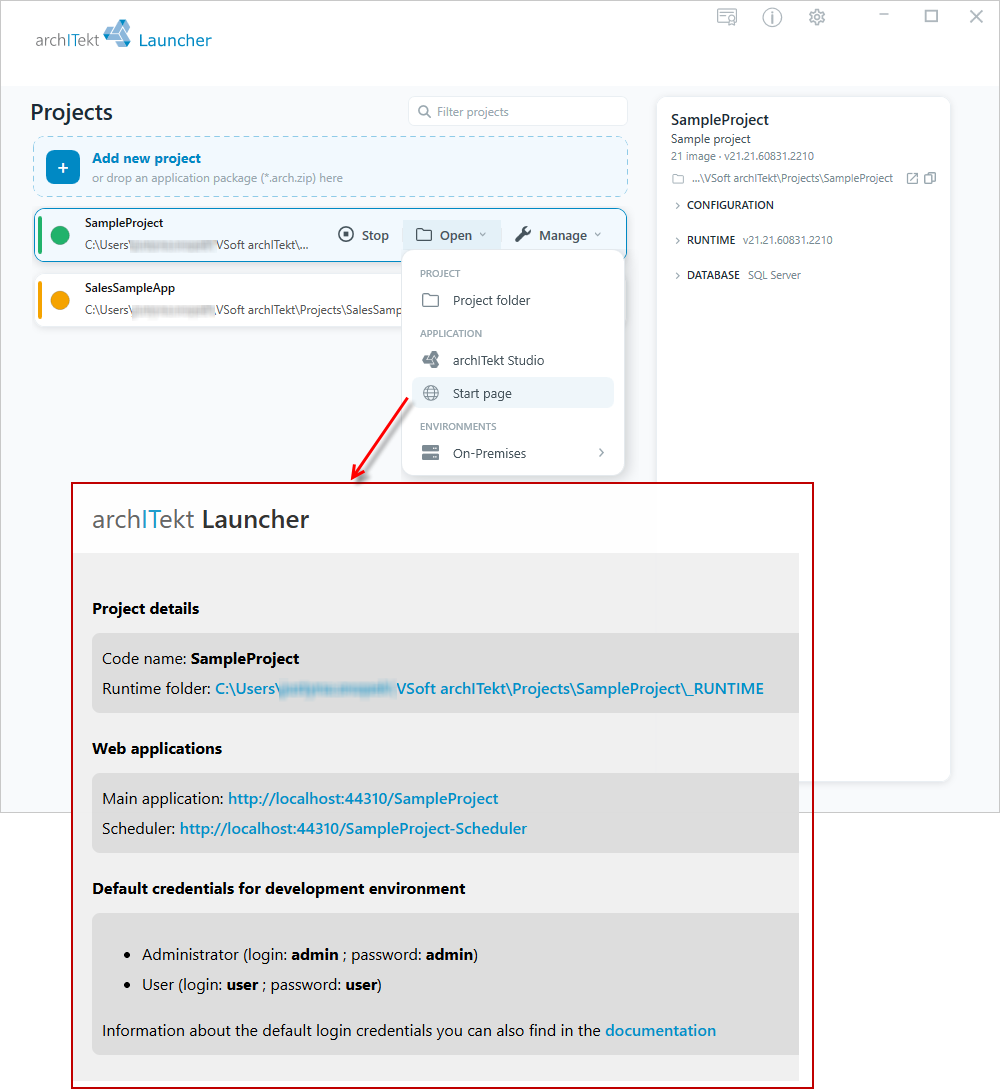
- To correctly define the address, go to VSoft archITekt Launcher, expand the Open button next to the given project and select Start page to go to the page with the application addresses.
Add WebServices/EntryPoint.svc to the Main application address: http(s)://localhost:44310/Sampleproject In this case, the published elements will be available at address:
http(s)://localhost:44310/Sampleproject/WebServices/EntryPoint.svc
- WSDL is available at
http(s)://[application name] /WebServices/EntryPoint.svc ?singleWSDL
If an item is published (undo publication) or modified, the changes to the API will be visible after restarting the Web service.
Different methods are available depending on the published element:
Algorithms and decision tables
- Algorithm: method
Execute_[Algorithm name]**, which runs the calculation of the algorithm and returns its result data. - Table: method
GetValue_[table name]which returns the value of the table.
When calling the table and algorithm, it is necessary to pass as one of the arguments the VersionSelector object, which is responsible for selecting the appropriate version of the algorithm/table for calculation.
Available implementations of this type are:
- DateVersionSelector - selects for calculation the version of the algorithm/table valid for the specified date.
- SingleVersionSelector - allows you to run the calculation of an algorithm/table that has a single version. If the algorithm/table has two or more versions, the call returns an exception.
- SpecificVersionSelector - allows you to run the selected version of the algorithm based on its identifier.
Workflows (persistent and nonpersistent (microworkflow))
Nonpersistent workflow: methods Start_[workflow name] and StartAsync_[workflow name] start it and return its result.
Persistent workflow:
Start_[workflow name]andStartAsync_[workflow name]methods starting it and returning an instance of the workflow.Continue_[workflow name]andContinueAsync_[workflow name]methods to continue execution of a workflow waiting for State activity. The methods require a workflow instance and an action code. For more on the State activity, see: Workflow elements - activities>State.
For methods that allow you to operate on workflows, there are two versions of each method: synchronous (standard) and asynchronous (with suffix Async).
- In the case of synchronous methods
StartContinuethe start and continuation of the workflow execution is performed within the web application (on the IIS server). - In the case of asynchronous methods
StartAsyncContinueAsyncthe start and continuation of the workflow execution is performed within the Workflow service.
The place of execution/continuation of workflow execution should be selected appropriately taking into account the execution time of the activities that the workflow performs:
- In the case of workflows (fragments of workflows) with activities that execute quickly, they should be run synchronously (in the context of a web application).
- In the case of workflows (fragments of workflows) with activities that take a long time to execute (e.g., generating documents, connecting to external systems), they should be run on the Workflow service.
Processing packages
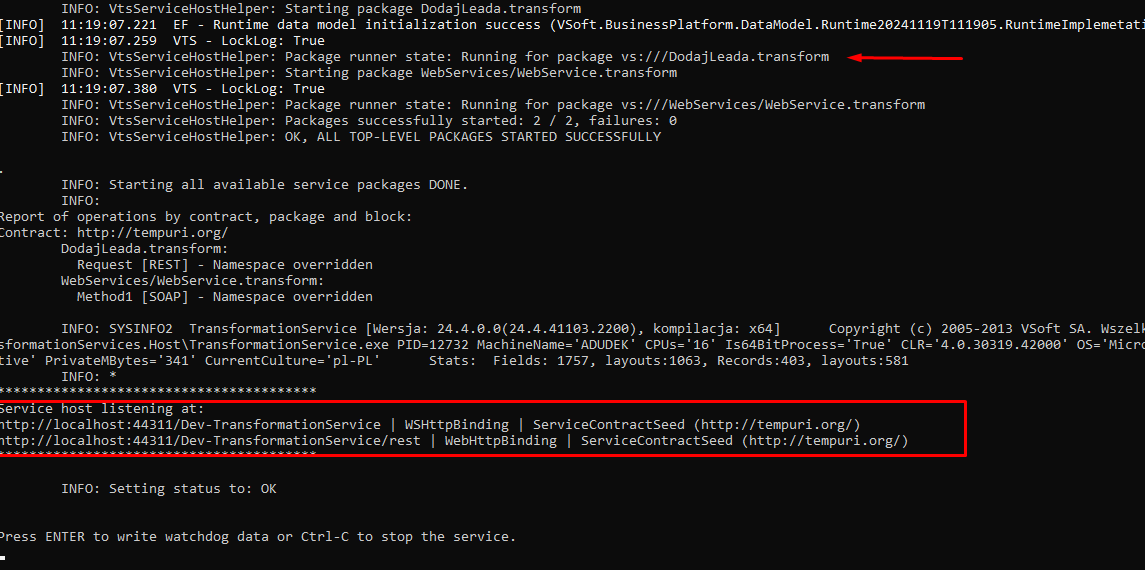
- After publishing the package, go to VSoft archITekt Launcher and restart TransformationServices.Host.
- Hover over the TransformationServices.Host row and select the Console button to go to the console.
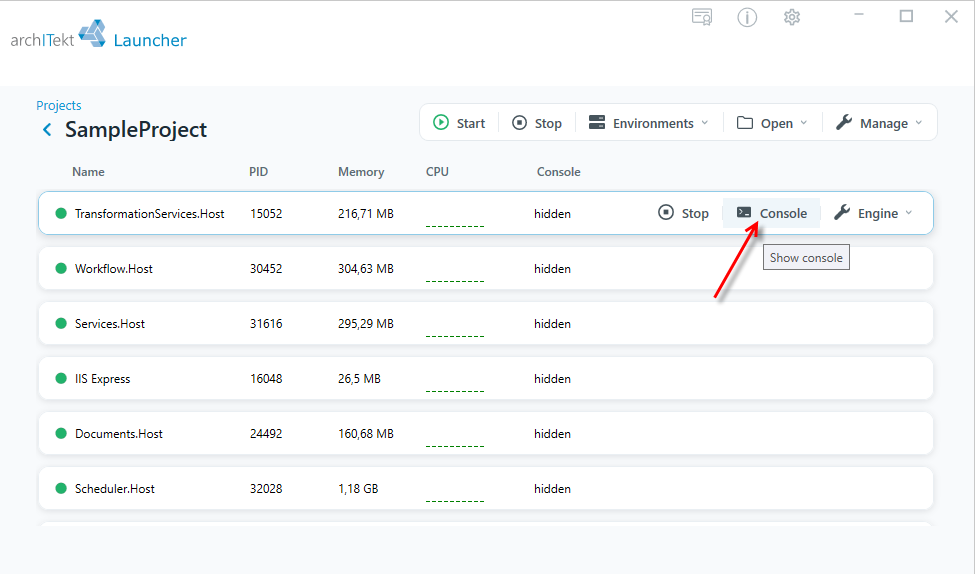
- The console will show information about the service address.