Version editing
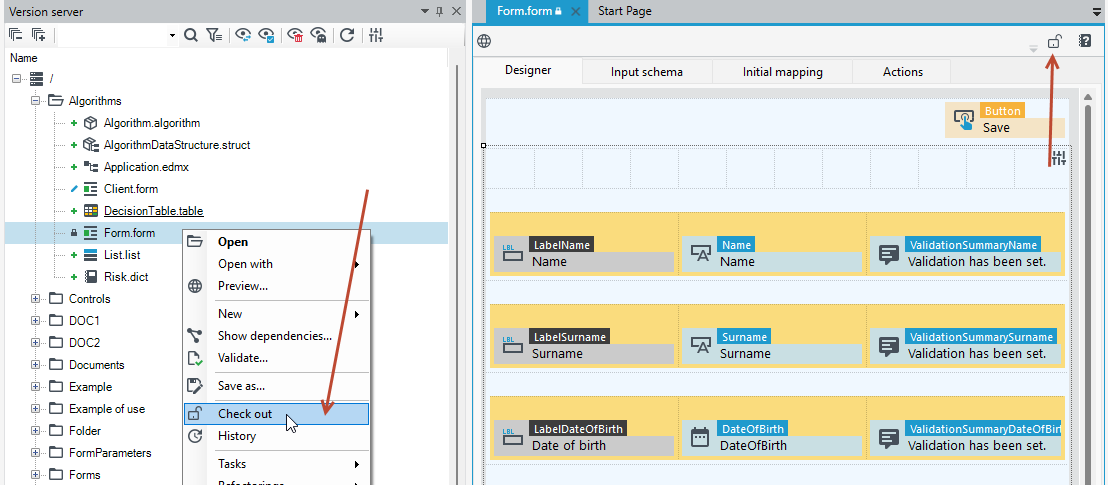
- Select the Version Server panel.
- Select the file on the version server.
- Right-click and select Check out from the context menu.
- You can also double-click the selected file on the version server, then it will be opened in the workspace. Then select the icon
 to edit the file.
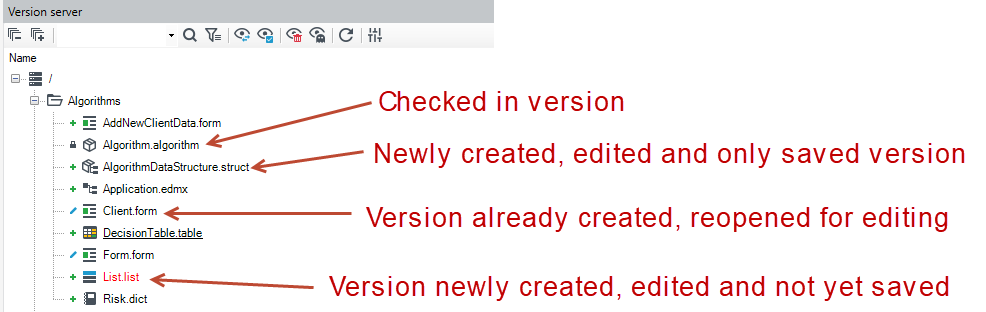
When a version is being edited, it is locked for editing by another user and is marked iconographically. At each stage of editing of a version, depending on whether it has just been created and saved or not, and if it is reopened for editing, there is a different mark next to the version.
Version unlocking
From the Version server panel, you can unlock the versions you are locking. It is unlocked when editing of the version is completed.
- Select the Version Server panel.
- Select the file on the version server you are editing.
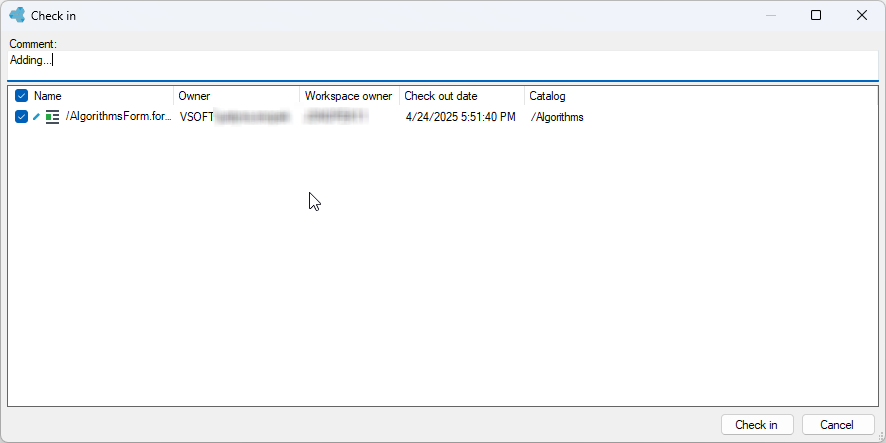
- Right-click and select Check in from the context menu.
- You can also double-click the selected file on the version server, then it will be opened in the workspace. Then select the icon
 in the upper right corner of the workspace. Additionally, you can add a comment to the edited version.
Unlock versions blocked by other users
You can unlock a version locked for editing, but only on the database version server. Unlocking the locked versions is possible from the context menu displayed after selecting an item in the Version server panel. Unlocking the version is equivalent to saving the changes made while editing the version.
- Select the Version Server panel.
- Select the file on the version server.
- Right-click and select Take Over Editing from the context menu.
- After selecting Finish Editing, a window is displayed in which to enter a version comment and click Save. The Comment field is mandatory to be completed.
After saving the changes made while editing the version, the version is unlocked.
Revert Version Editing
If you are editing a given version, you can also cancel its editing from the Version Server panel.
- Select the Version Server panel.
- Select the file on the version server you are editing.
- Right-click and select Undo check out from the context menu.
- You can also double-click the selected file on the version server, then it will be opened in the workspace. Then select the icon
 in the upper right corner on the workspace.
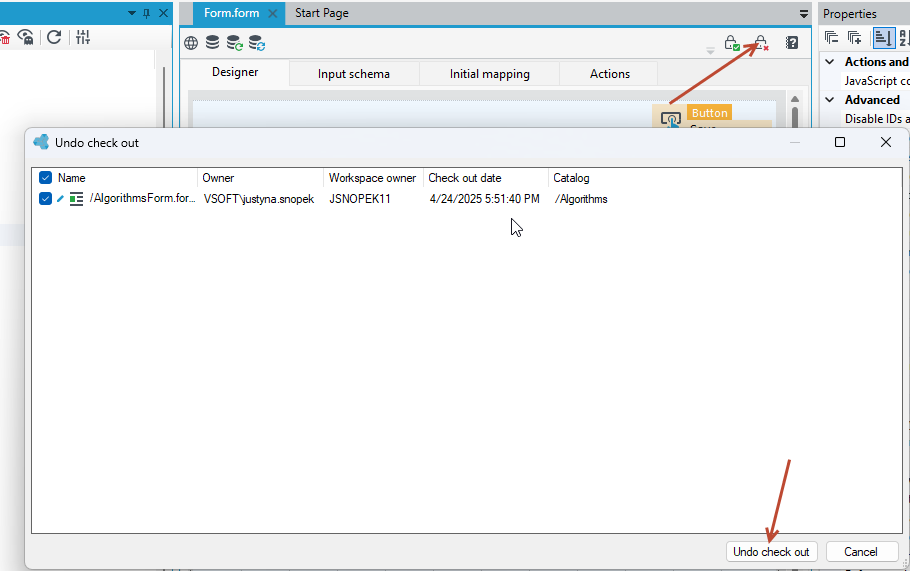
Any changes made to the currently edited version will be lost, and the version will revert to the state it was in before editing.
Restore versions
Within History, you can revert to a previous version of a file or any version that has already been edited at any time. As with the history of changes, rollback is only possible for the database version server.
- Select the Version Server panel.
- Select the file on the version server.
- Right-click and select History from the context menu.
- In the History window, go to the Version restore tab.
- Select the version you want to restore and select the Restore version button.
The editing of the version must have been completed for the user to be able to restore the version from another state.
Takeover of the version’s editing
For a database version server, it is possible to edit a version locked by another user.
- Select the Version Server panel.
- Select the file on the version server.
- Right-click and select Take over check out from the context menu.
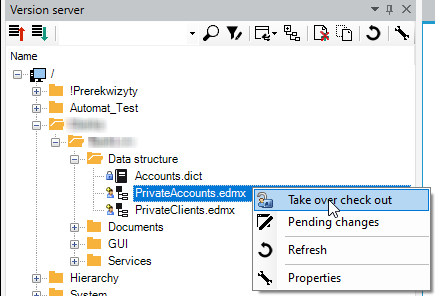
After saving the changes made while editing the version, the version is unlocked.
Copying, Pasting the Version
You can copy versions in the Version server panel and paste them elsewhere (in the same or a different folder). Use the context menu and select Copy, then click where you want to copy the version.
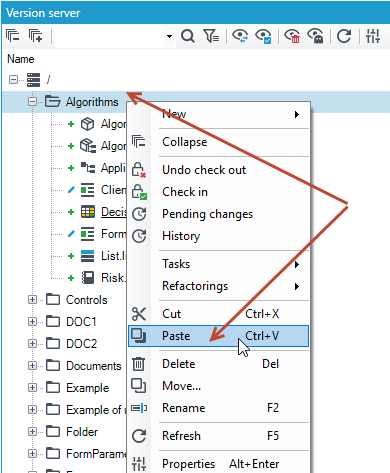
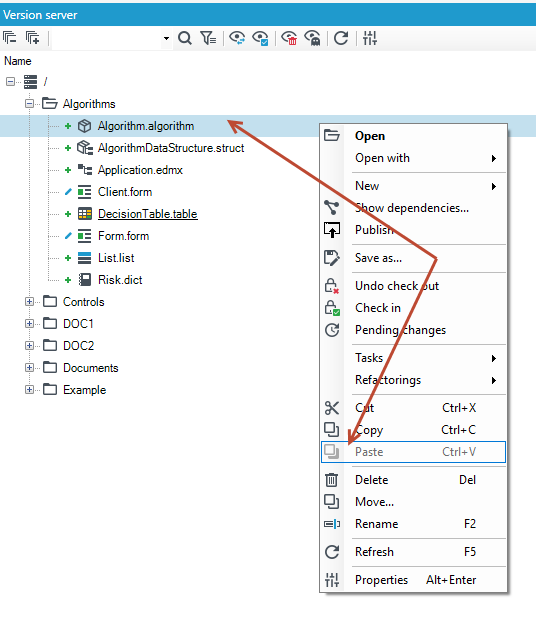
You must select the folder where the copied item is to go to, otherwise (for example if you select another version from the folder) the paste option will not be available.
List of edited versions
You can quickly go to the panel that displays all edited versions, both by yourself and by another user. The option is available on the database version server.
- Select the Version Server panel.
- Select the file on the version server that is currently being edited.
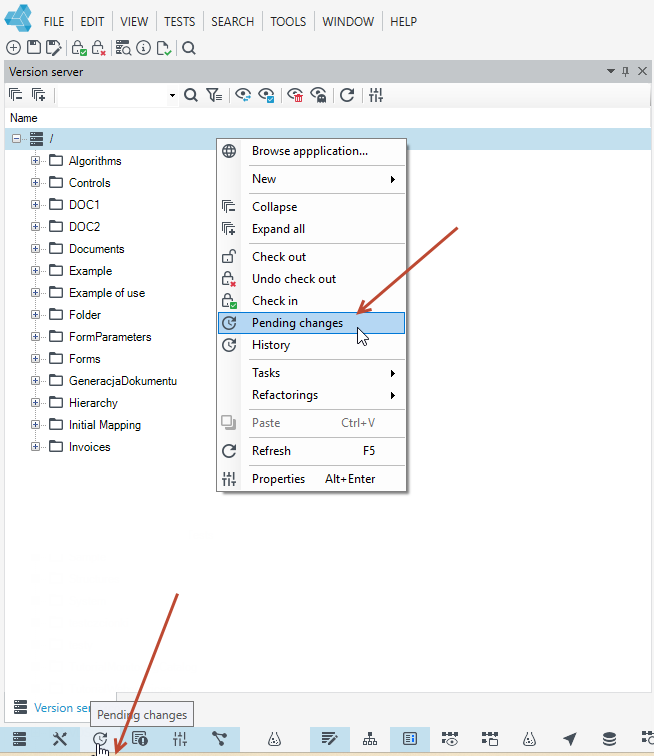
- Right-click and select Pending Changes from the context menu.
- You will get the same result if you use the Pending Changes panel.
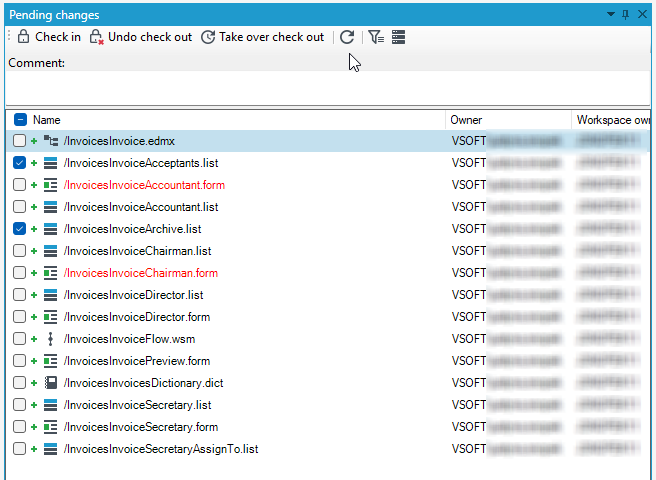
The panel will be displayed as one of the tabs next to the Version server. You can select all or several versions and bulk end or undo editing and enter a comment to be included in the version history.
Additionally, you can filter the versions by the current user and the current area.
Edit Version as XML
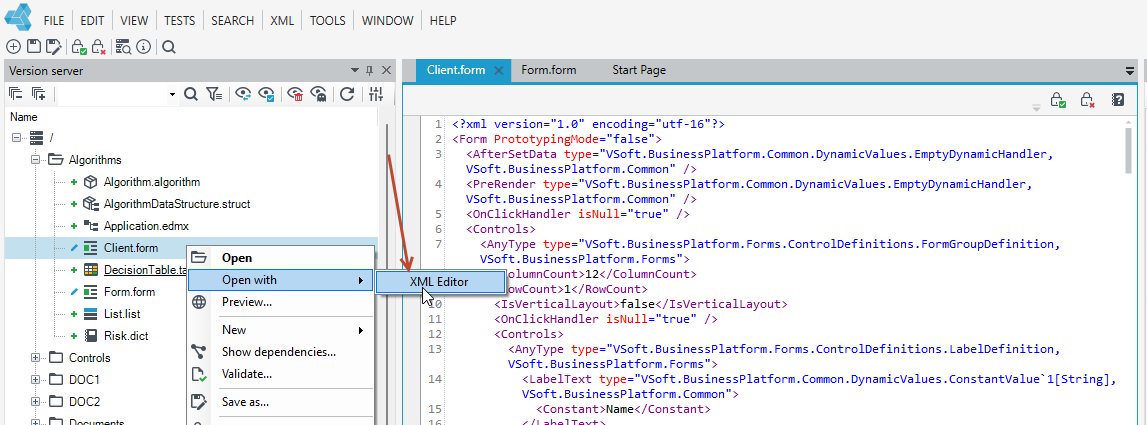
All files in the Version server are XML files that you can open through the XML editor.
- Go to the Version server panel, right-click on the file and select Open with>XML Editor from the context menu.
Renaming versions - Normalize names
You can rename files in the version server via the context menu and the Rename option.
You can also use the built-in naming convention that has been adopted in archITekt Studio.
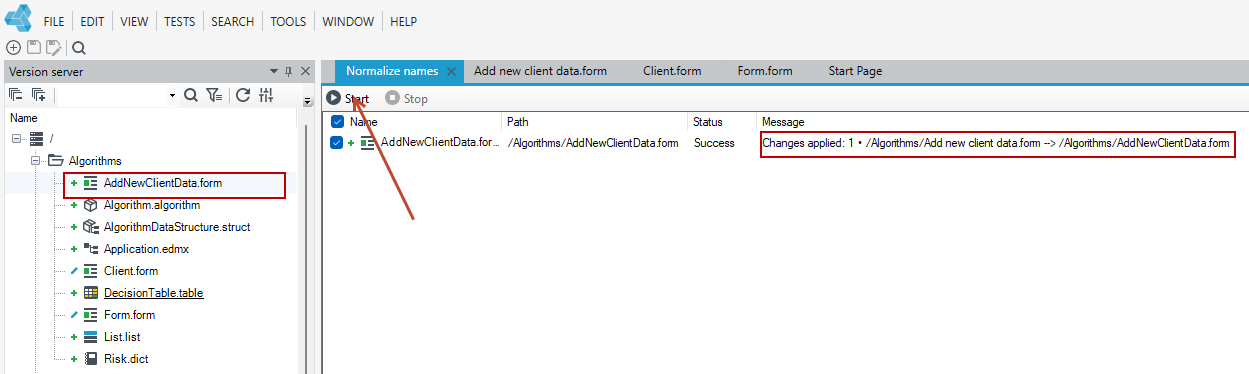
- Select a file in the version server and select Normalize names. In the example below, the form has spaces in its name.
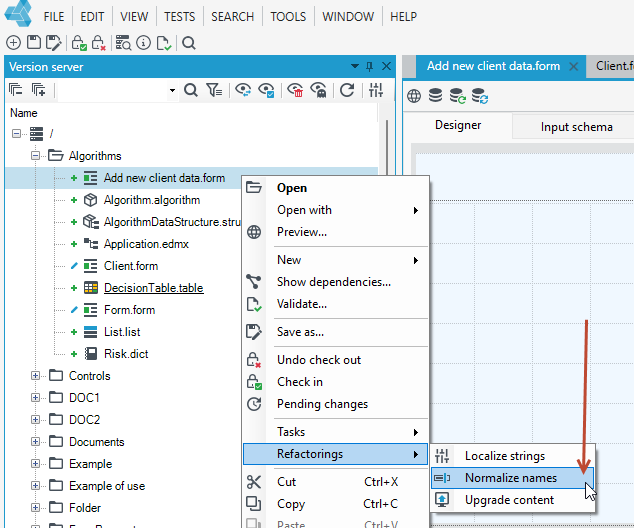
- In the Normalize names window, select Start to rename the version. After making the change, there will be no spaces in the name, and each consecutive word will start with a capital letter.
Change text to localize strings
For some versions, you can use the option to change text to localize strings.
- In the following case, fixed text was entered on the label form.

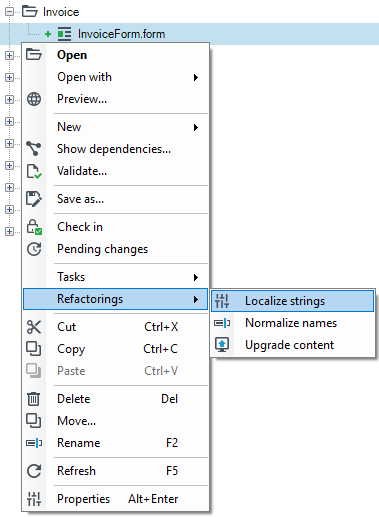
- Select the file in the version server and choose Refactorings>Localize strings.
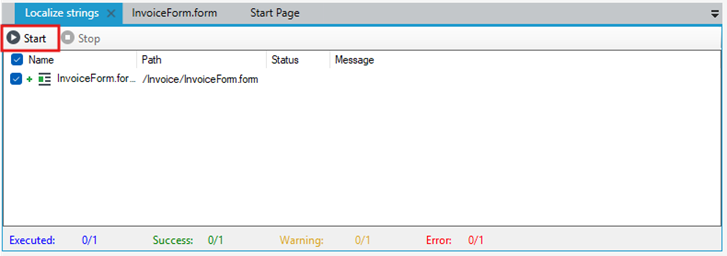
- A window will open in which you should select the elements on which the operation is to be performed, and then click Start.
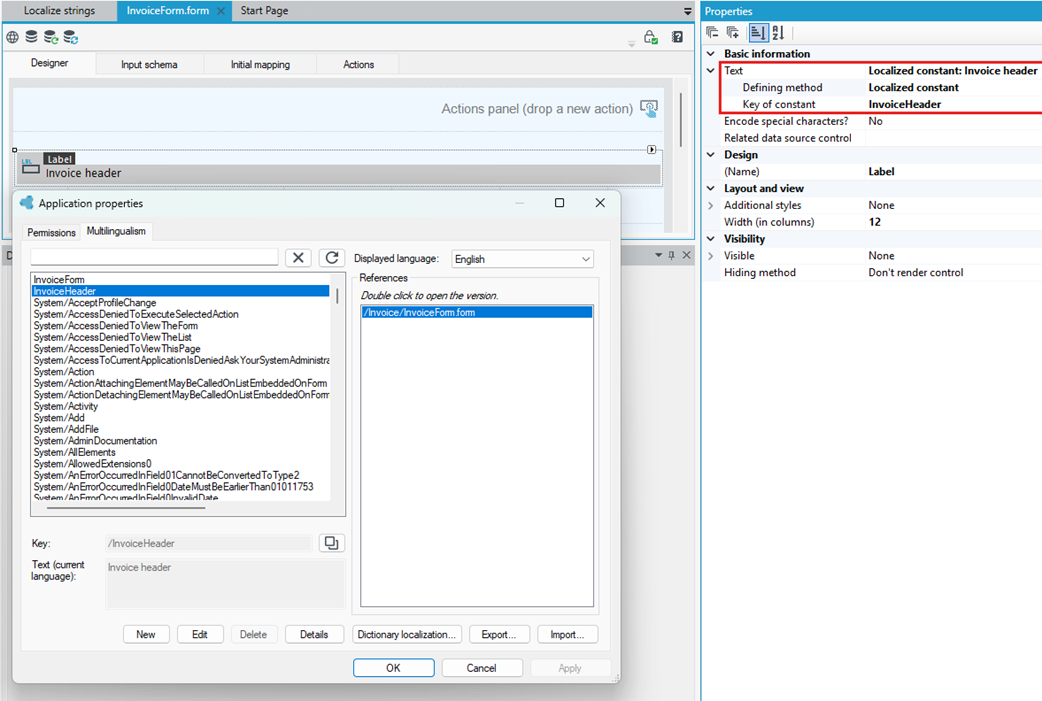
- After successful completion and returning to the element, you can see that the constants have been replaced with fixed localizations.