Version export/import/replace
Exporting the version
The Export option creates a package *.vs.zip from the selected items, which can be imported later.
- Select the Version server panel.
- Select the file on the version server.
- Right-click and select the Tasks option from the context menu, and then - Export.
- In the Export versions window that appears, select whether you want to export related versions.
Exporting Related Versions
For example:
If the form is exported and the Include versions used by selected items option is selected, the data structure on which the exported form is based will also be exported, as well as the list, if the action of moving to a given list has been defined on the form.
If you export the same form as above and check the Include versions that use selected items option, the list or another form with the defined action of switching to the exported form will be exported.
If none of the options is selected, only the form itself will be exported.
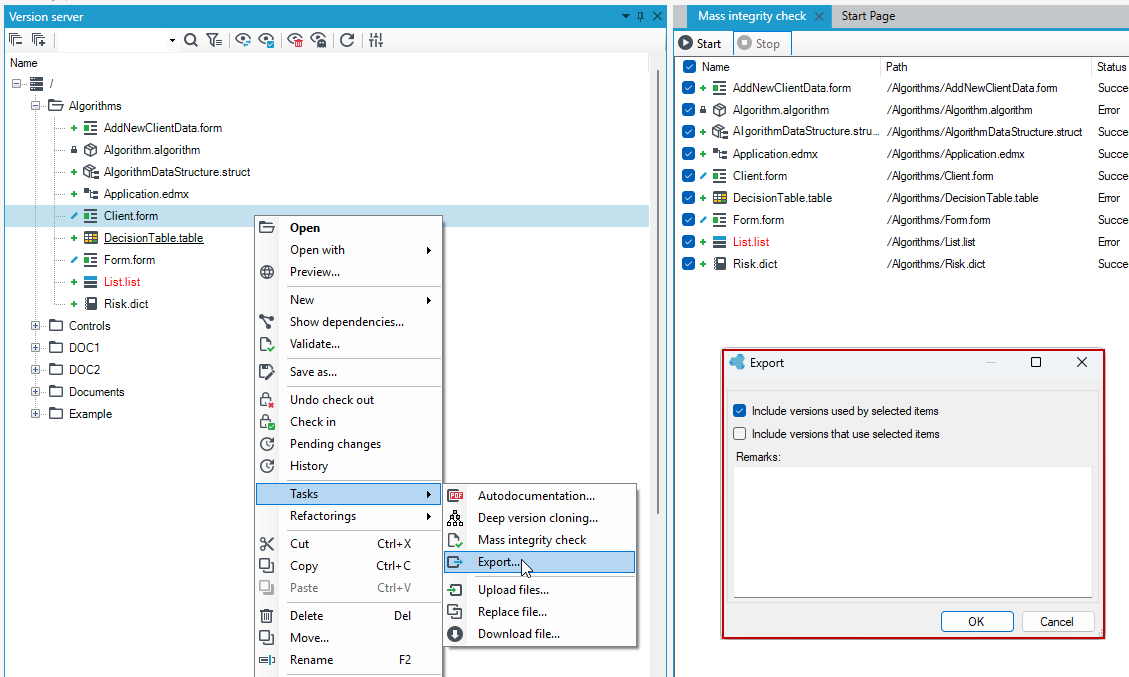
A package of version server items with a .vs.zip extension will be exported.

Importing a version
The Import option allows you to import a package *.vs.zip with version server items.
You can only import files to a version that has related items which are not locked by another user.
- Select the Version server panel.
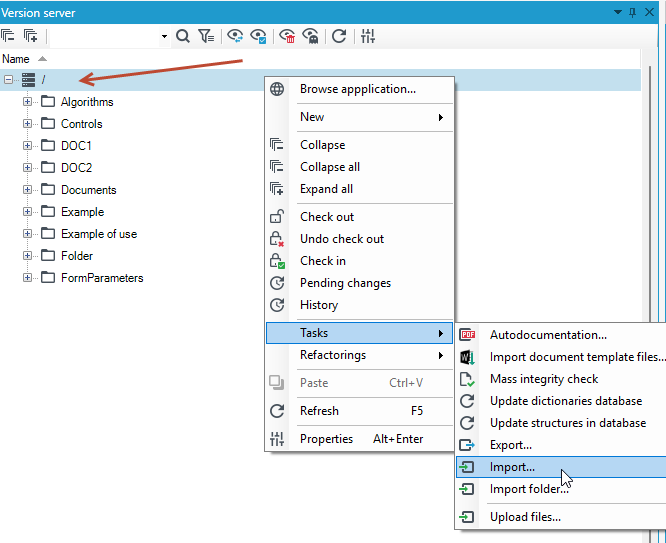
- Right click on the root of the version server tree and select the Tasks option from the context menu, and then - Import.
- In the window that appears, select the package to be imported and click Open. The package that you can import with the elements of the version server must have the extension .vs.zip.
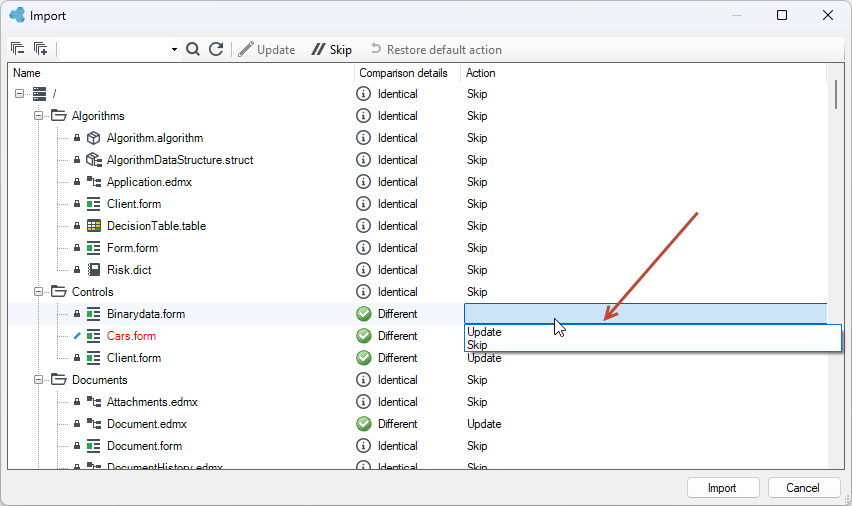
- Verify the items to be imported and click Import.
If any modifications were made to the items related to the imported version, in the displayed window, double-click in the Action column and select the option to update or skip the change.
After successfully importing the version, the information about the successful completion of the version import will be displayed.
Import folder
The option to load a folder of files allows you to load the entire folder, including unpacked files, into the version server.
- Select the folder where you want to load the files, or the root of the version server tree.
- Select the Import folder option from the menu.
Version replacement
The Replace file option allows you to replace the selected file.
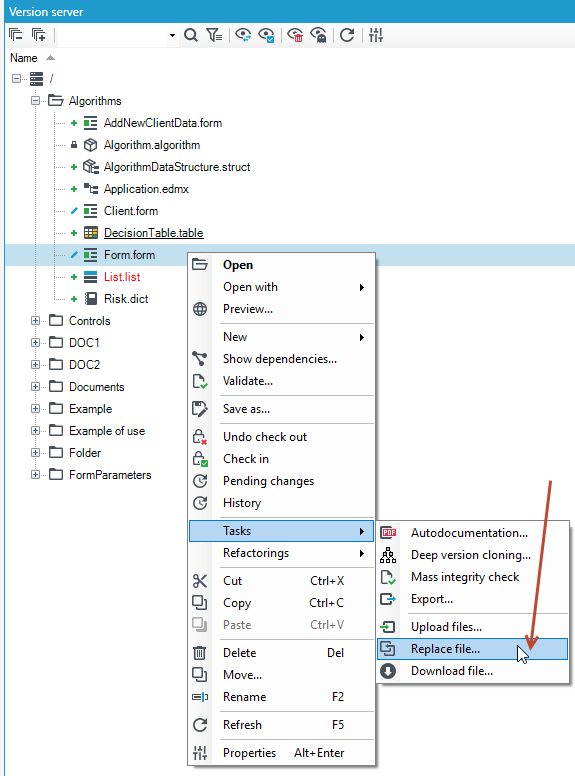
- In the window for selecting the file to replace, only files with the appropriate extension will be available for selection. For example, for a form replacement, only files with the .form extension will be available for selection.
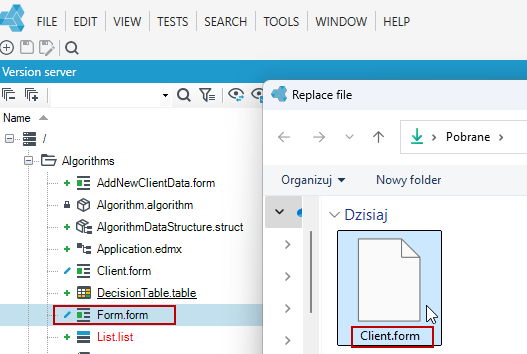
Upload/Download file
The Upload file option allows you to upload unpacked files to the version server, and download these files.
- Select the folder where you want to load the files, or the root of the version server tree.
- Select Upload files from the context menu.
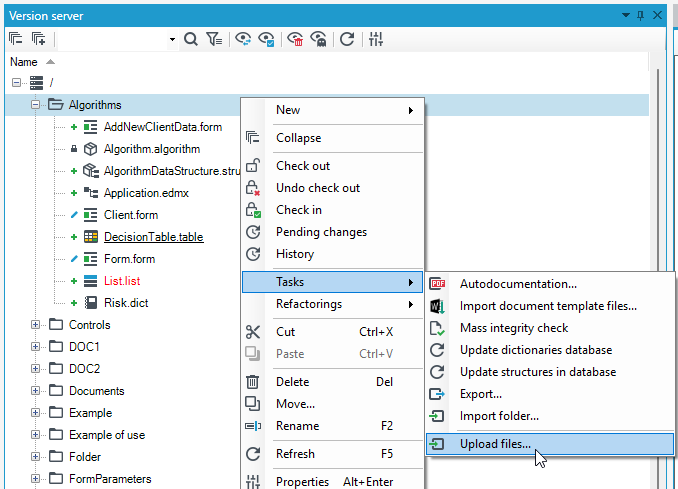
- Indicate the location from which the files are to be loaded.
- Select the file in the version server and choose Download file and indicate where the file is to be saved.
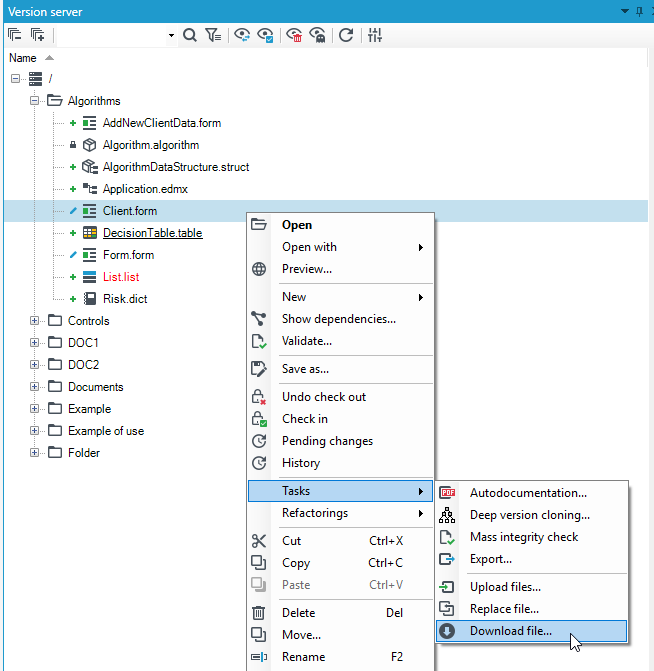
- Files are downloaded with the extension they have in the version server (in fact, all files in the version server are XML files). You can proceed to edit the file, by opening the XML file through a text editor pub other program to handle XML type files.