Workflow executors’ mechanism
When defining the workflow, you can use the functionality of assigning an executor to the workflow. The executor is the person who is expected to take the next step in the workflow. For example, if a given action is still to be performed by a user with a different role or a user with broader permissions, such as a business or technical administrator, then you can assign an executor to the workflow or change it.
You can assign the executor of a specific workflow in the end application, using the action mechanism available on lists and forms:
- assign an executor,
- undo the executor assignment,
- choose an executor.
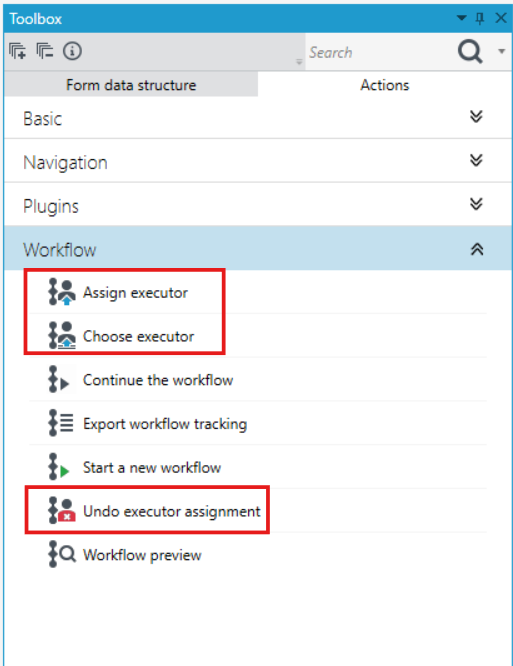
The Assign an executor and Choose an executor actions can operate in two modes:
- assignment of the executor to the workflow, if it does not have an executor,
- changes to the existing executor (only if there was one assigned to the workflow).
You can control these modes with the Change executor property. An attempt to execute an action in the wrong mode will result in displaying an appropriate message.
You can also select an executor directly in the workflow definition by using the Executor property of the workflow's State activity. This way, at the workflow design stage, you can determine which user can resume the workflow.
Assign an executor - yourself
For the Assign an executor action, you can define yourself as the current executor of the workflow.
- Go to the Actions panel on the form or list.
- Drag the Assign an executor action.
- Configure the data in the Properties panel.
On the list
- The Executor is set by default with the expression GetCurrentUserID().
- If you use the formula editor instead of expressions, search for the Current user ID function.
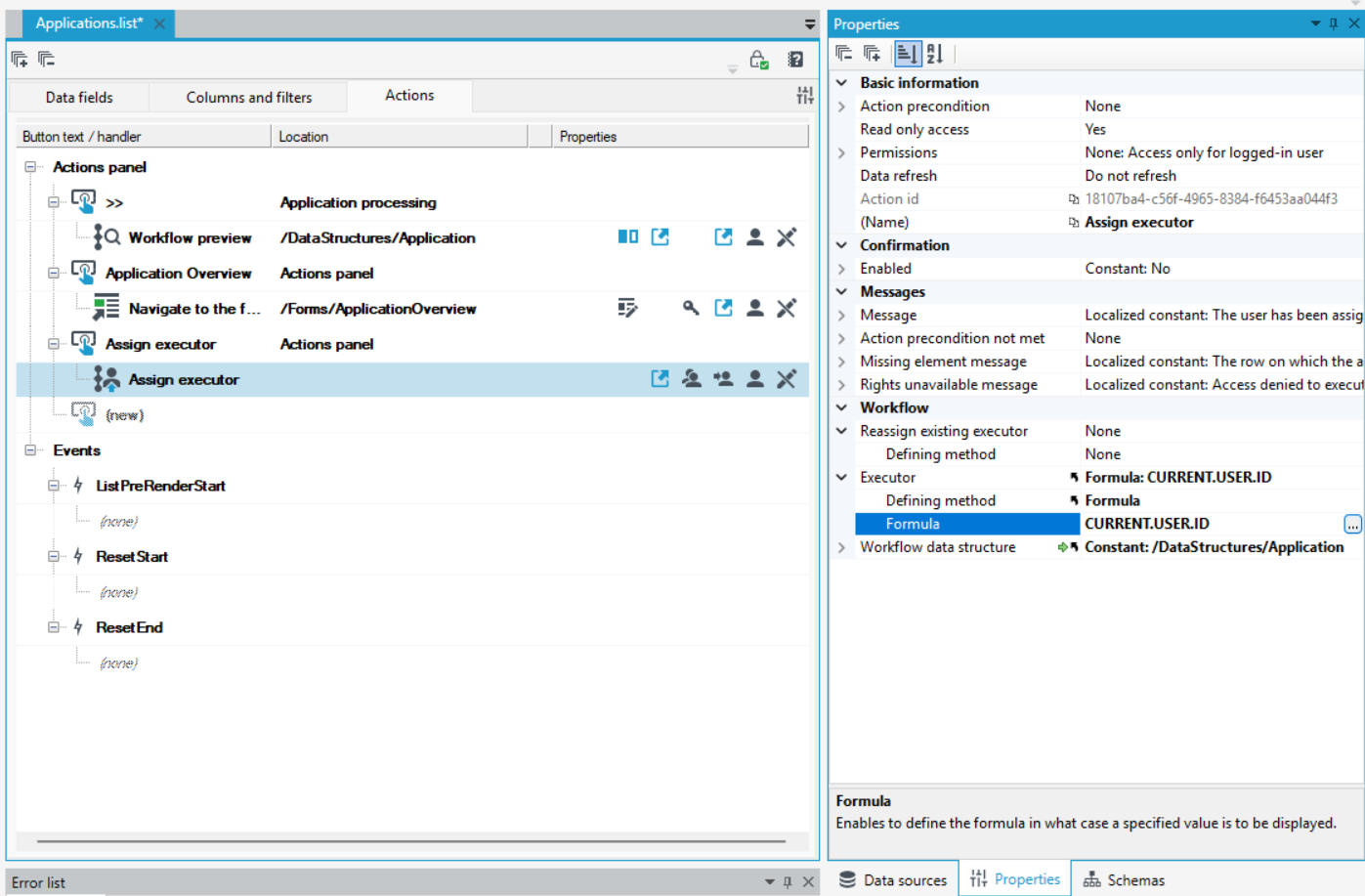
- Additionally, the workflow data structure must be provided.
- If the workflow had a different Executor assigned to it, select the Yes option in the Change the existing executor section. This property determines whether the action changes the assigned executor to another. It specifies the operating mode of the assignment:
- NO: assign an executor if there was no one
- YES: change the executor only if there was one
- empty/none: assign an executor without checking the conditions
On the form
-
The Executor is set by default with the expression
GetCurrentUserID(). -
If the workflow had a different Executor assigned to it, select the Yes option in the Change the existing executor section. This property determines whether the action changes the assigned executor to another. It specifies the operating mode of the assignment:
- NO: assign an executor if there was no one
- YES: change the executor only if there was one
- empty/none: assign an executor without checking the conditions
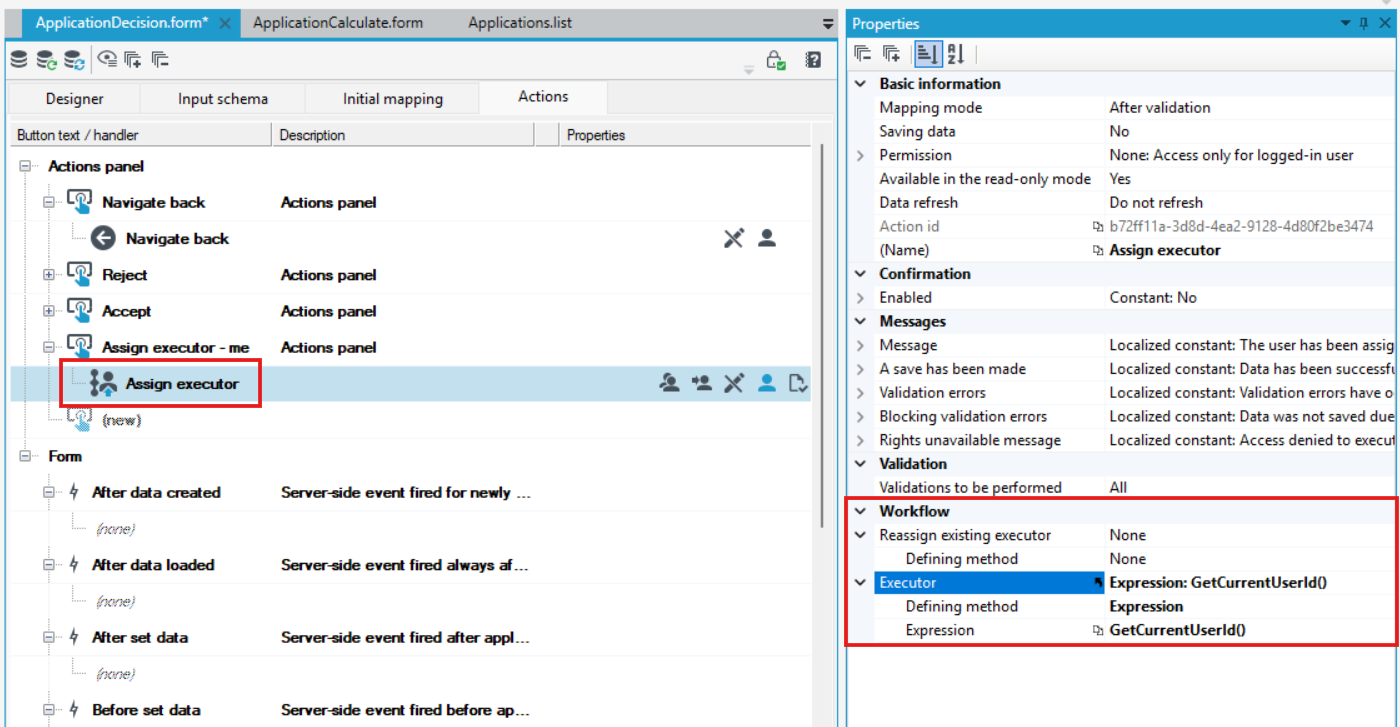
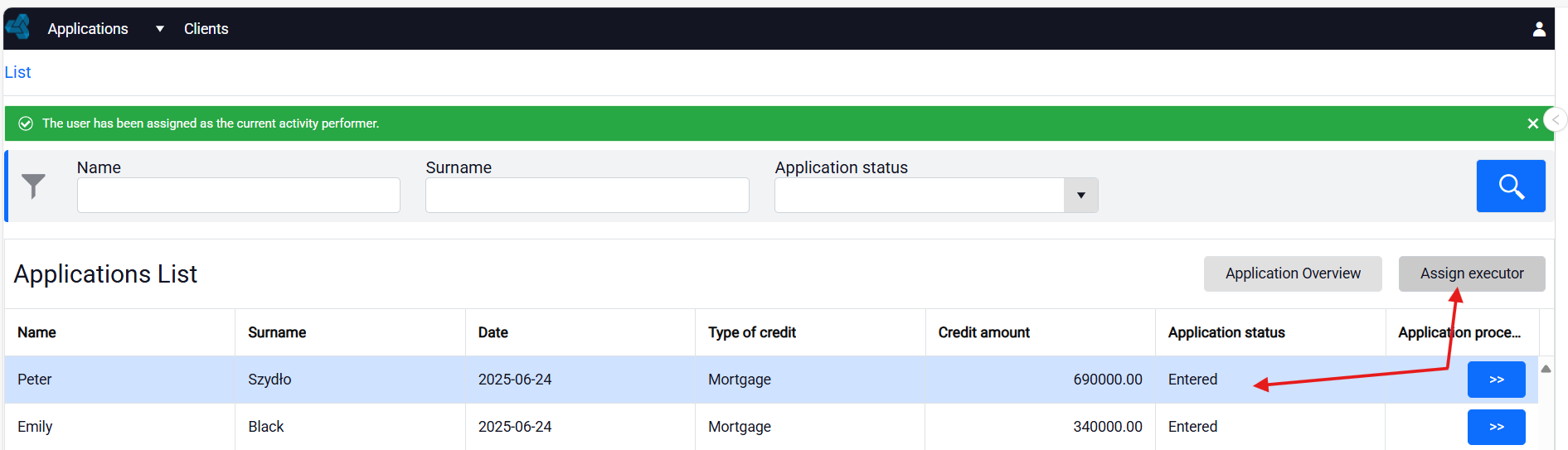
- After the form is displayed on the website, if you select the Assign an executor – yourself button, the current user will be assigned as the executor of the workflow. Thus, another user will not be able to perform further steps of the workflow.
Assign an executor - another user
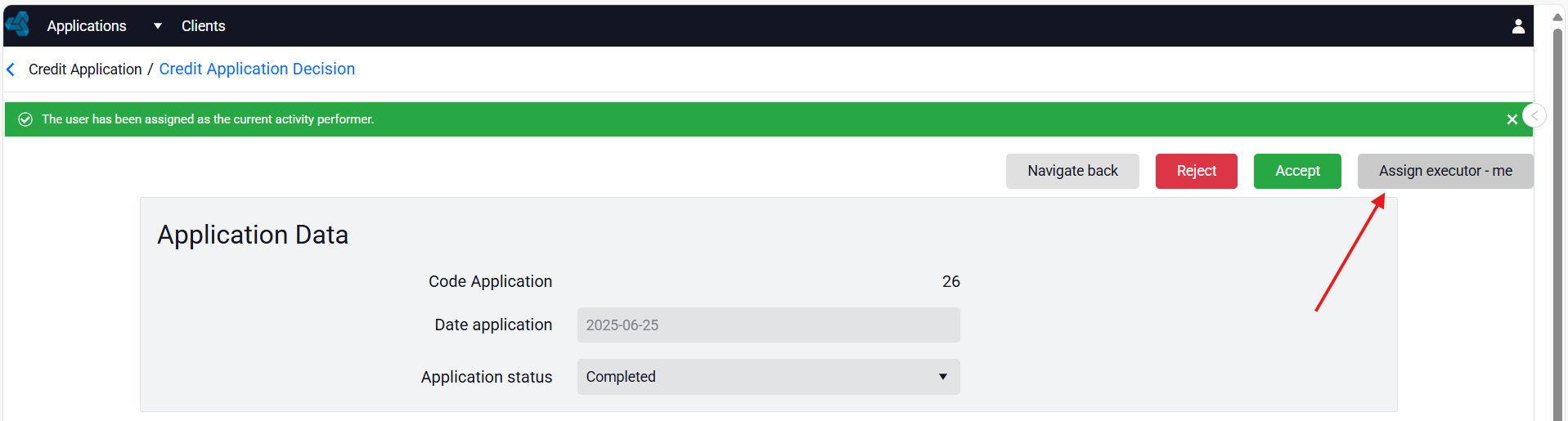
If you want to enter another user of the Application as the executor of the workflow, you can use the Assign an executor option and indicate the user ID, for example a user with a different defined role or permissions, etc. User accounts can be defined in the Authorization Server, for more information see: How to add a new application user.
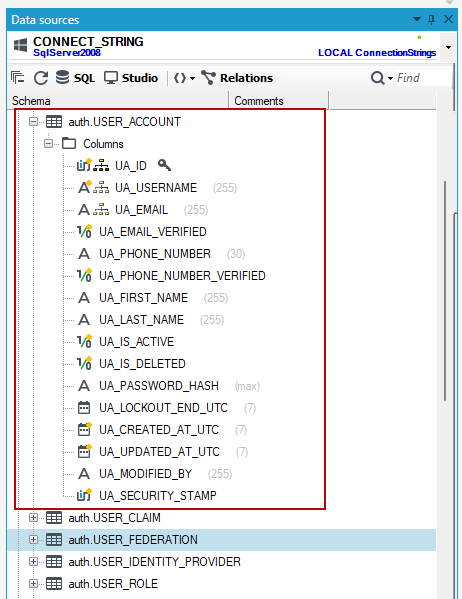
User data is saved in the CONNECT_STRING database in the auth.USER_ACCOUNT table.
- Activate the Databases panel and select the CONNECT_STRING database from the list.
- Find the auth.USER_ACCOUNT table and execute the SQL query.
- Go to the Actions panel on the form.
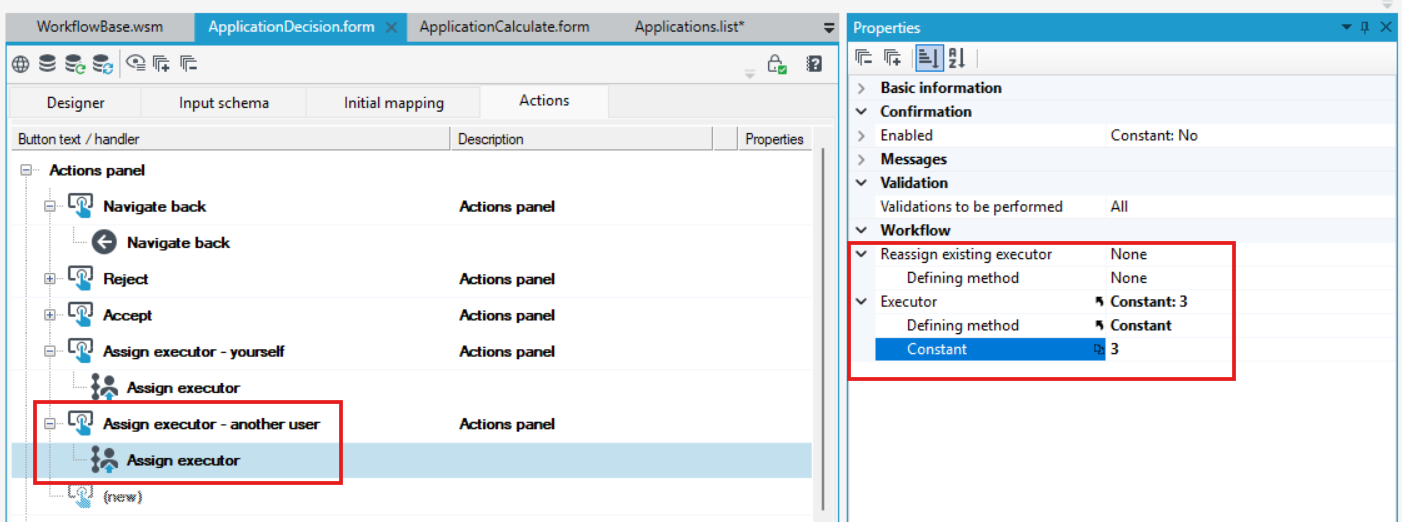
- Drag the Assign an executor action. You can enter the workflow executor ID or define a list of potential executors and use the Choose an executor option.
- Configure the data in the Properties panel.
- If the workflow had a different Executor assigned to it, select the Yes option in the Change the existing executor section. This property determines whether the action changes the assigned executor to another. It specifies the operating mode of the assignment:
- NO: assign an executor if there was no one
- YES: change the executor only if there was one
- empty/none: assign an executor without checking the conditions.
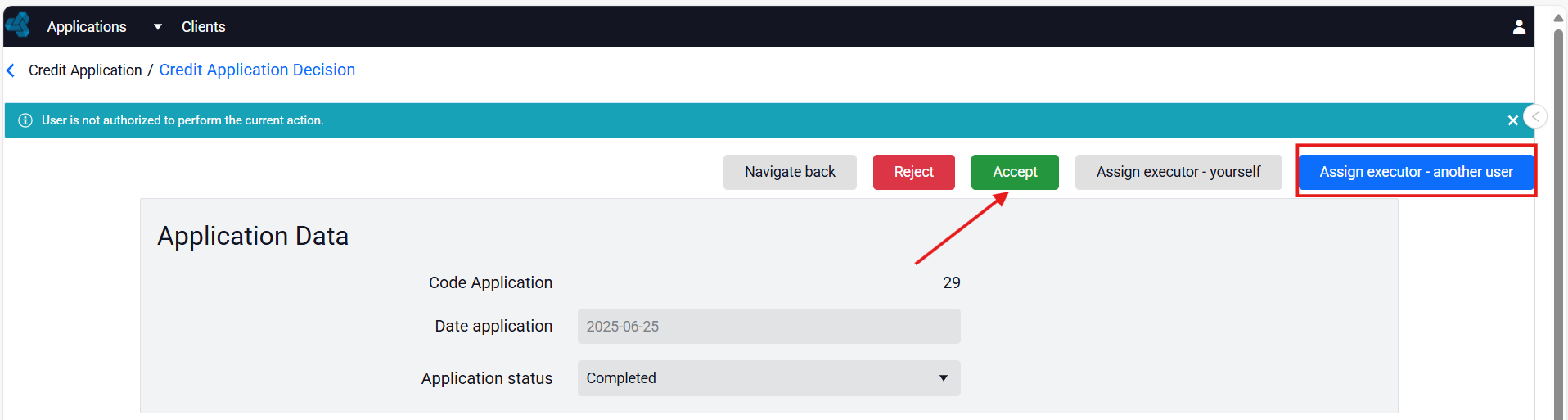
When the workflow has an executor assigned to it, only that person can resume the workflow. An attempt to resume the workflow by another person will be unsuccessful (with a message informing about the inability to resume the workflow).
In this case, if you select the Assign an executor – another user action on the form, you will no longer be able to continue the workflow and select workflow actions such as Calculate application and Reject application.
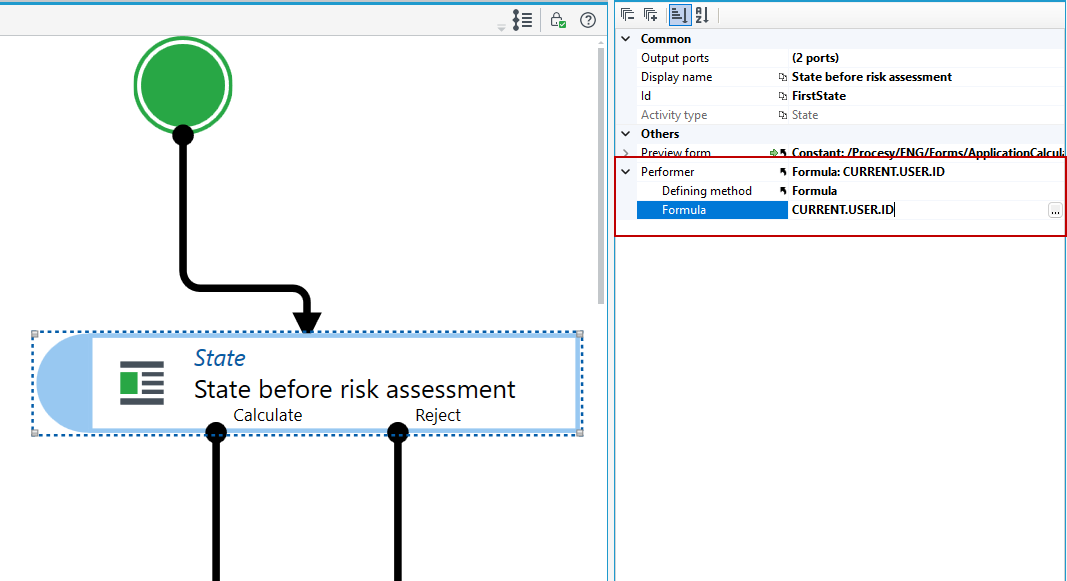
Assigning a workflow executor on the State activity
The functionality of assigning an Executor when designing the workflow can be defined on the State activity.
- Go to the properties of the State activity and select the workflow executor in the Executor section.
- Go to the formula editor and search for the function Current User ID, then the current user will be assigned as the workflow executor.
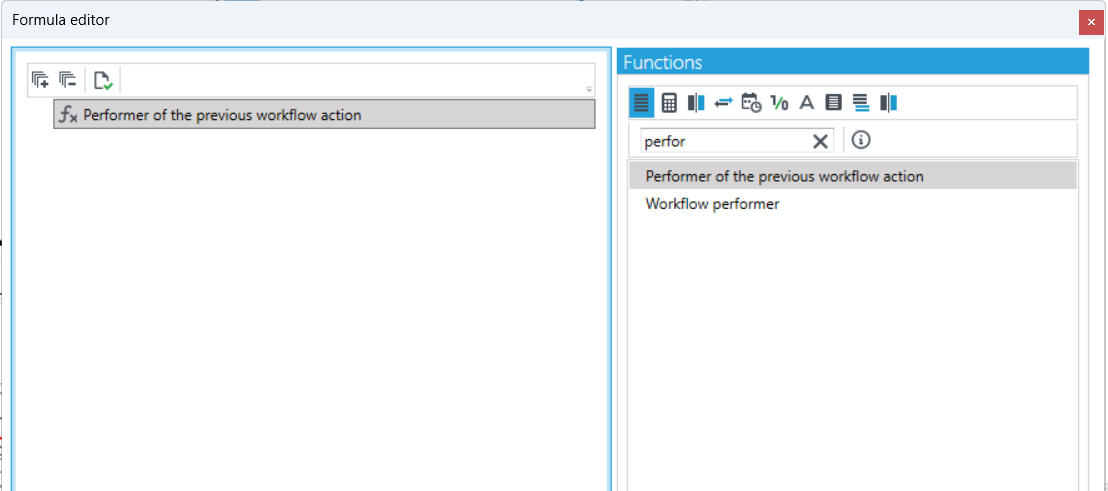
The following formulas were created for the executor mechanism:
- Performer of the previous workflow action (formula that can be used only as part of the steps in the workflow definition) - for the current workflow, it returns the value of the last user, who resumed the workflow from the form.
- Workflow performer- a formula that returns the user ID, based on the workflow ID.
Undo executor assignment
The action allows you to unassign an executor from a workflow, be it yourself or another user, regardless of whether the assignment has been configured on the form on the action or on the workflow itself on the State activity.
- Go to the Actions panel on the form or list.
- Drag the action Undo executor assignment.
- Additionally, indicate the workflow data structure on the list.
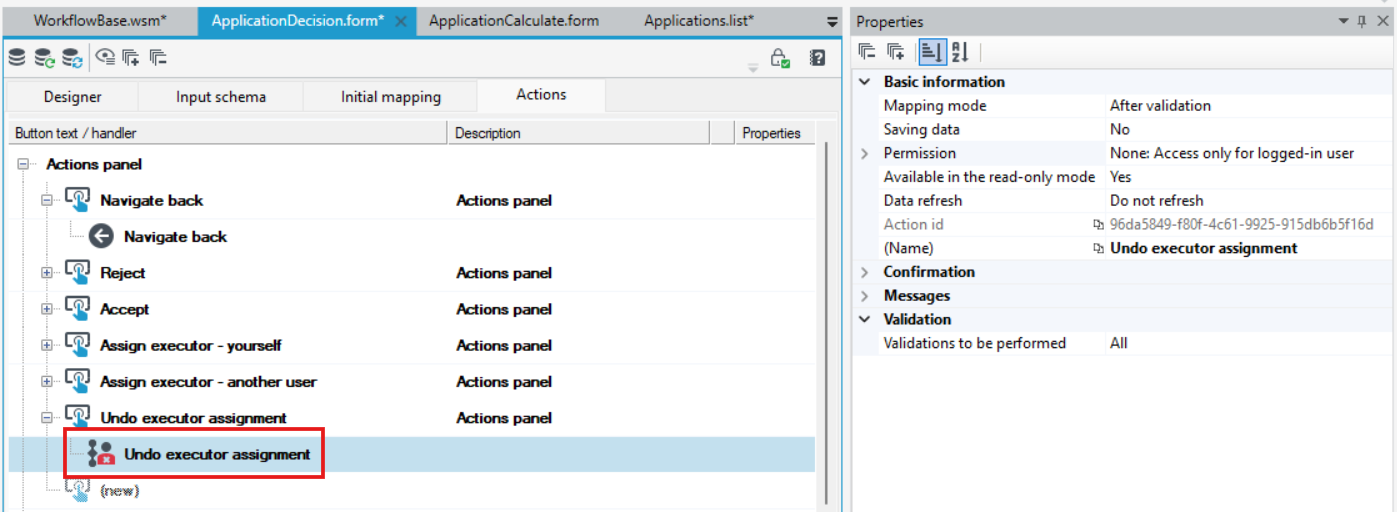
- After selecting the button on the form, the current assignment of the executor will be withdrawn.
- In this case, it will be possible for any user to select the Next action.
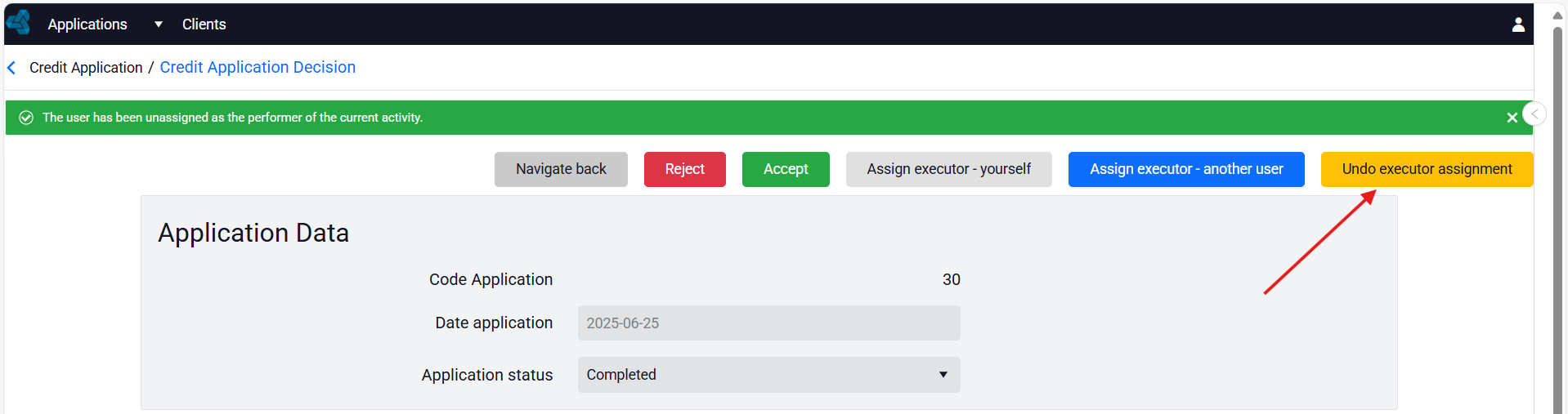
Choose an executor
The Choose an executor action also allows you to assign an executor to the workflow. You should also indicate the list from which you will be able to select the executor.
Define the list in advance. Defining the list is done by executing a SQL query to the database, and then retrieving the columns and determining their visibility in the table.
- Go to the Actions panel on the form or list.
- Drag the Choose an executor action.
- Configure the data in the Properties panel. In the List section, point to the list from the version server.
- Additionally, indicate the workflow data structure on the list.
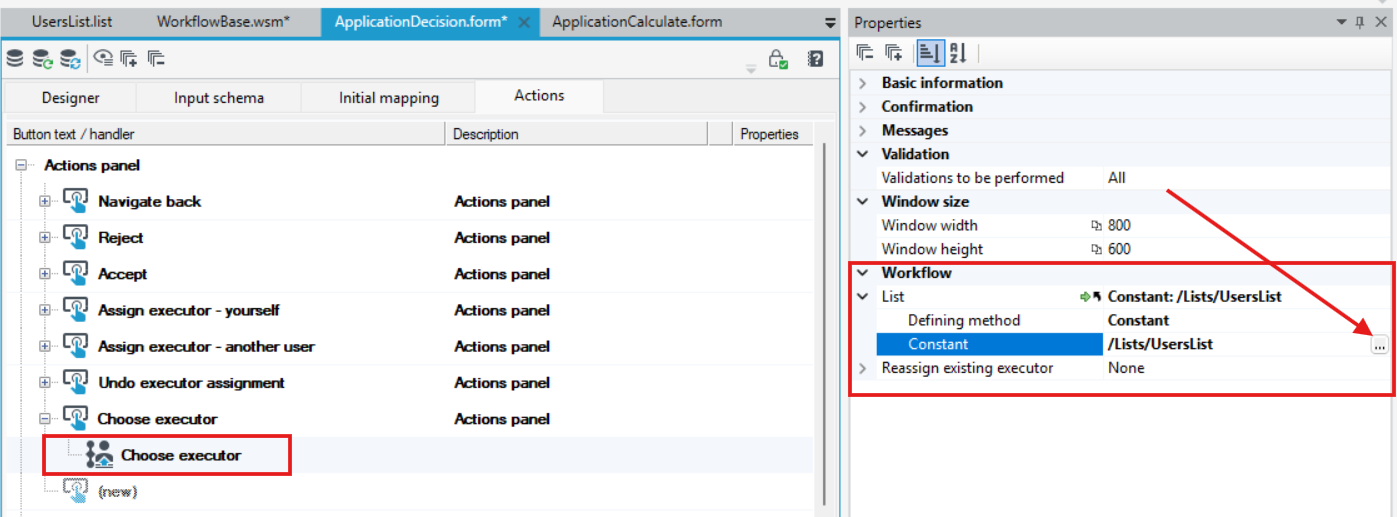
- Similarly to assigning an executor, if the workflow had a different Executor assigned, then select the Yes option in the Change the existing executor section. This property determines whether the action changes the assigned executor to another. It specifies the operating mode of the assignment:
- NO: assign an executor if there was no one
- YES: change the executor only if there was one
- empty/none: assign an executor without checking the conditions
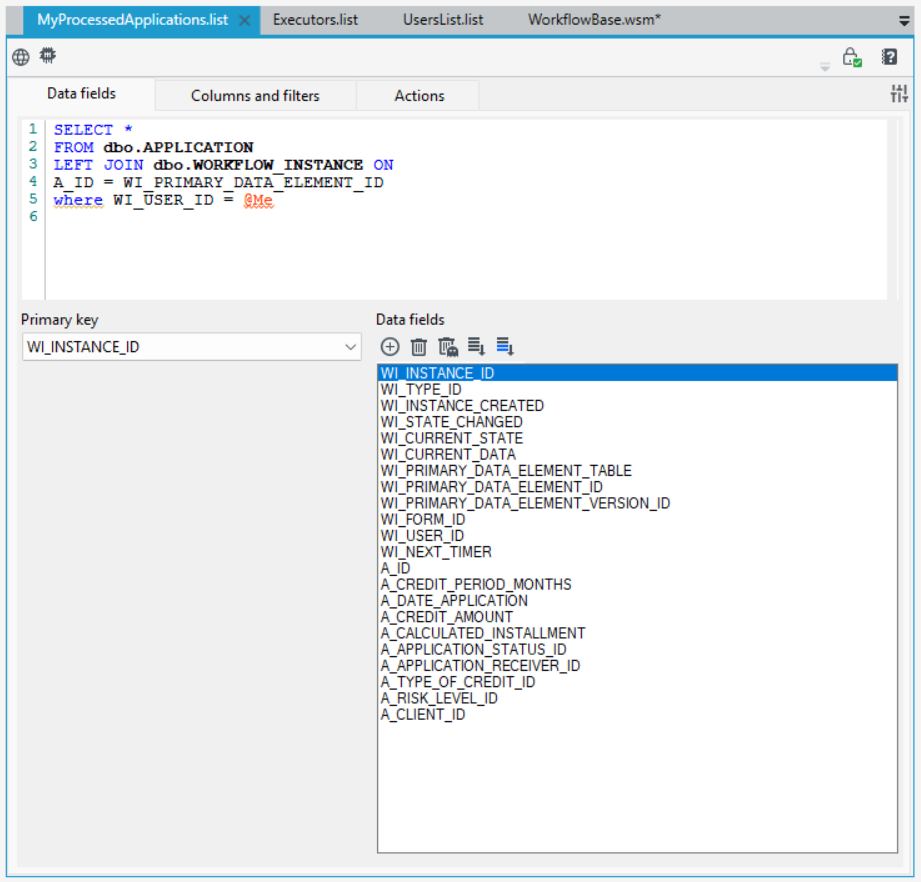
The current executor ID of the workflow is stored in the WI_USER_ID field in the WORKFLOW_INSTANCE table.
So you can create a list on the system containing the data from this table.
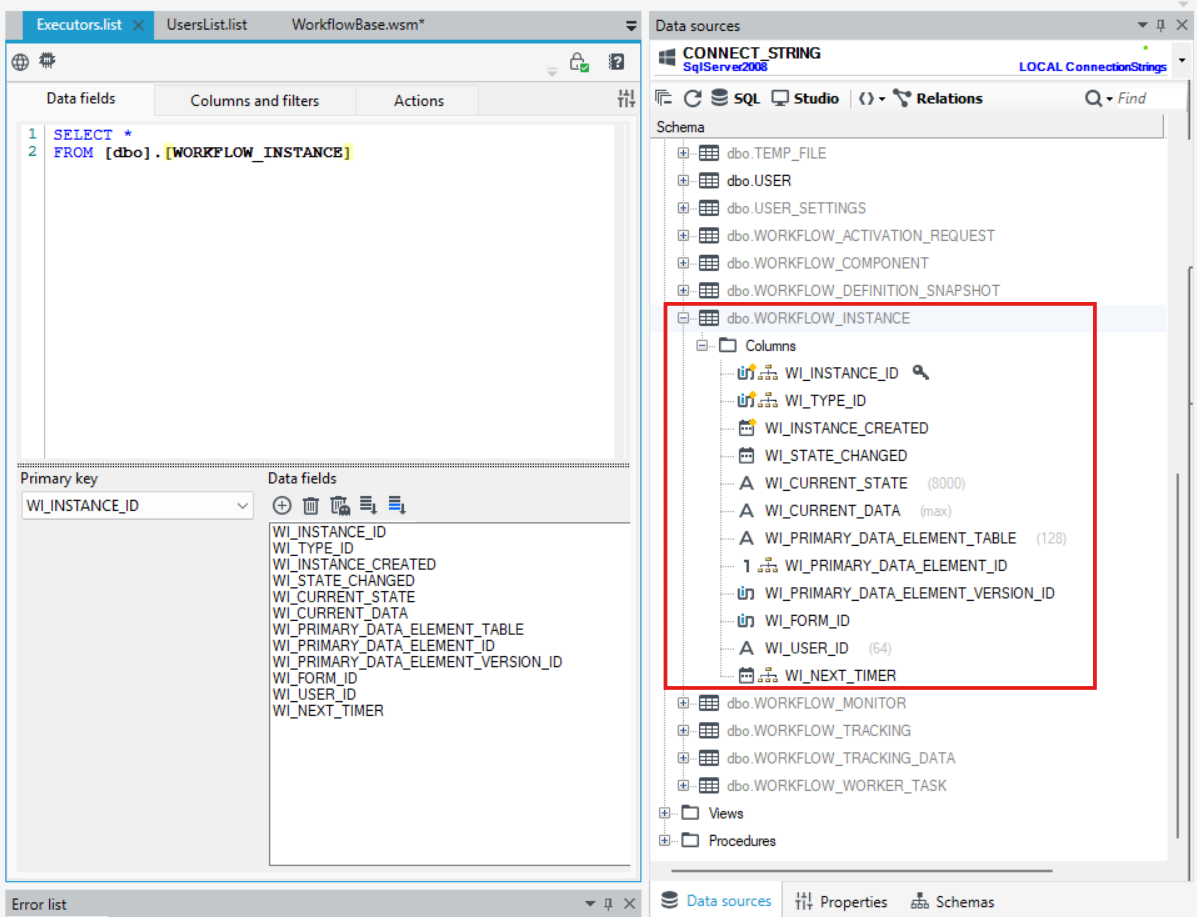
For example:
If the workflow has executors and is related to the system's business data, then you can define a list displaying business data, additionally filtered to only those records waiting for an action that can be performed only by the assigned executor (called an actor). In this case, a list of applications processed by the given user has been created, i.e. those waiting for an action to be performed by the authorized user.
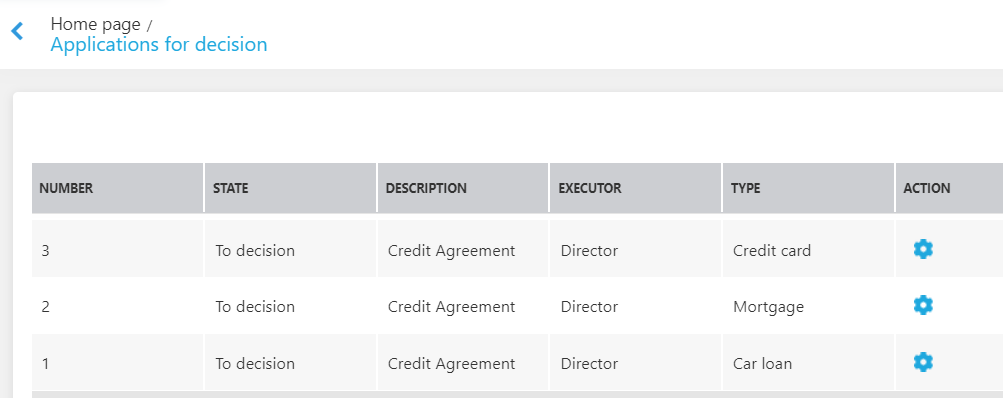
Using the WI_USER_ID field you can also narrow down the list of records presented on the list. The condition operating on this field should be used (e.g. by using the @ME variable when defining the query for the SQL list.)
In the following case, the list has been narrowed down to display those applications for which the current user can perform the action, i.e. they are the workflow executor.