Workflow manager
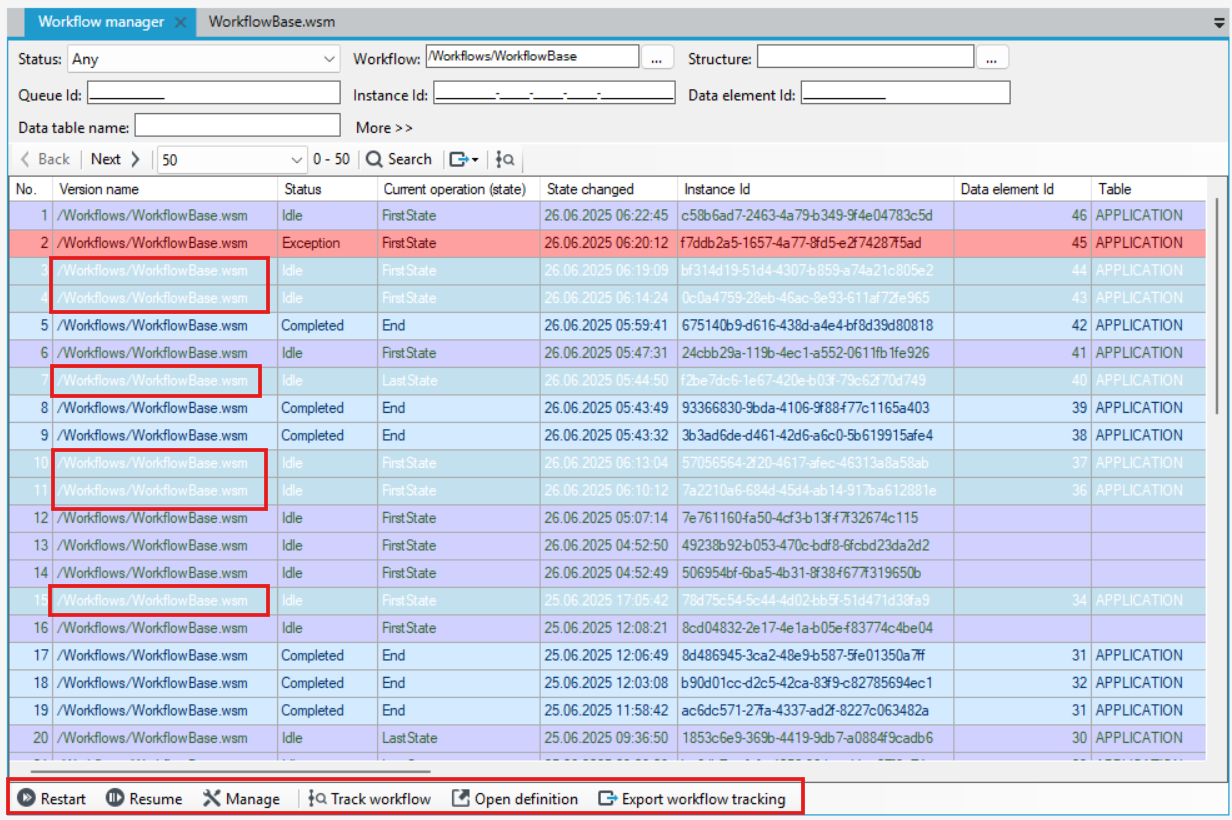
The workflow manager allows you to manage the execution of workflows that have been run in the application being created, for example from the GUI level on a given form, list, etc., and the workflows that have been started in archITekt Studio (for example for testing purposes). In other words, it is an execution log that contains detailed information about each activity that has been run.
- Select Workflow Manager from the Tools menu.
- The Workflow manager window contains a list of all workflows, along with additional information that is included in the individual columns of the table. There is a filter above the list so you can search for workflows. Select the More>> button to display additional filters or Less>> to hide them.
Keep in mind that a workflow is a dynamic part of the platform and any workflow list generated in the Manager window is valid only at the time of display. To refresh the list of workflow and their statuses, select the Search button.
- With a large number of workflows being run, use the search to find specific executions of a given workflow.
- On the bottom and top bar there are actions you can perform.
- Each workflow has its own unique id - Instance Id - the GUID number of the workflow (globally unique identifier).
- If the workflow is associated with a database object, you will find this information in the Data element Id column.
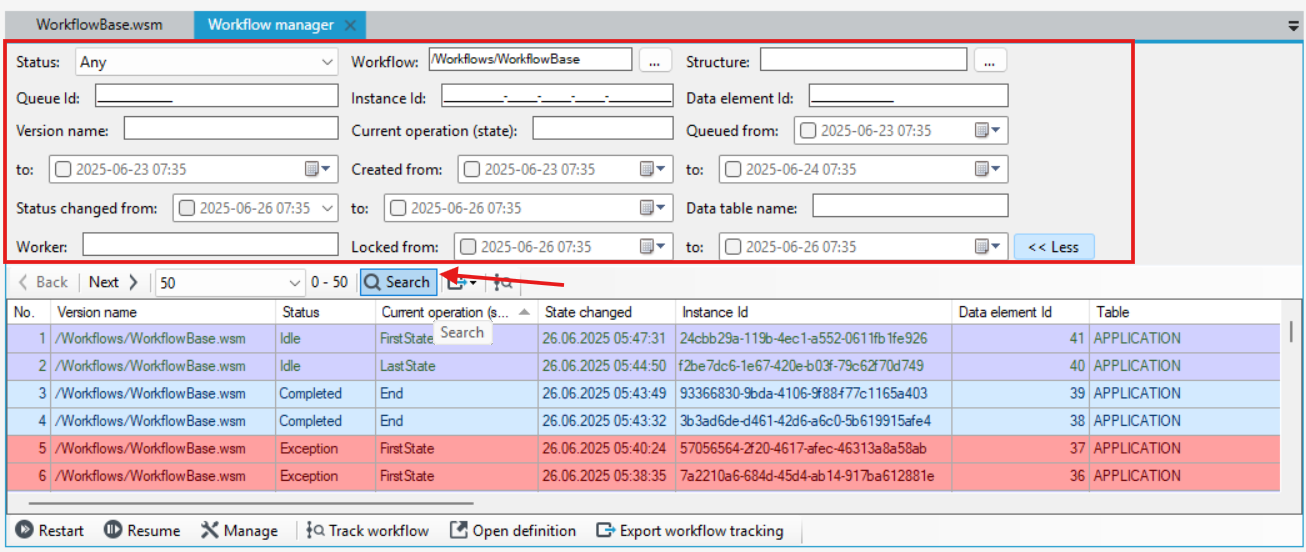
- In the Preview form column, there is a path to the form that the workflow is currently on. If the workflow is completed and has a preview form set for the workflow, then this information will be presented here. In the case of ongoing workflows, for example, in an idle state, there will be information on what state (form) the workflow is currently on.
The most common statuses in which a workflow can find itself:
- Completed - the workflow goes to this status if it has finished correctly.
- Completed (exception handled) - if an error occurs in the main workflow and another workflow is started to handle the error, which finishes correctly, then the main workflow gets this status.
- Idle - the workflow waits for an action to be performed by the user on State activity.
- Aborted - the workflow goes to this status if the user aborts the workflow (performs the Abort action). Based on an aborted workflow, you can resume or restart the workflow with the same data the Aborted workflow was working on. Use the Restart or Resume action.
- Stopped - the workflow goes to this status if the user stops the workflow (performs the Stop action). The workflow will be stopped when it reaches the nearest state activity. Based on a stopped workflow, you can resume or restart the workflow with the same data the workflow was working on. Use the Restart or Resume action.
- Exception - a workflow goes to this status as a result of an error during workflow execution. Based on the cancelled workflow, you can restart the workflow with the same data the cancelled workflow was working on.
You can go to the flow of all performed workflows. In the workflow manager, right-click on a given workflow and select Track workflow from the context menu.
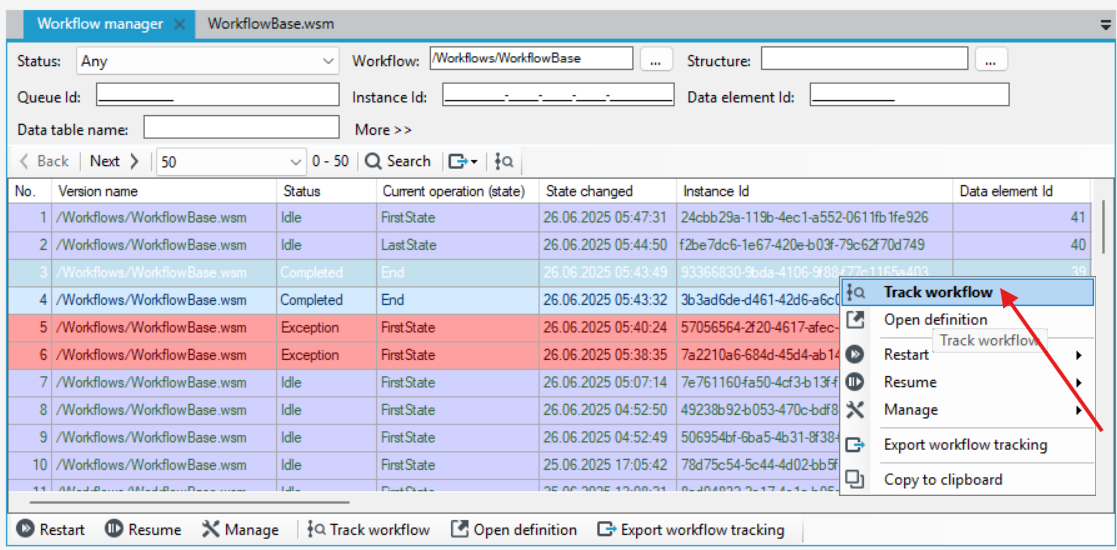
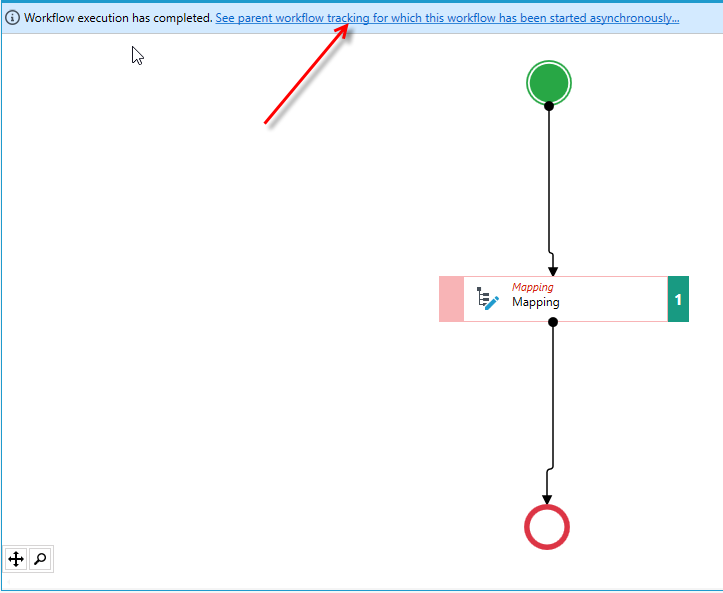
You will be transferred to the workflow tracking. If it is a subworkflow that has been started asynchronously by another workflow, you can go to the preview of the parent workflow from this level. For more on the functionality of the workflow tracking, see The workflow execution tracking .
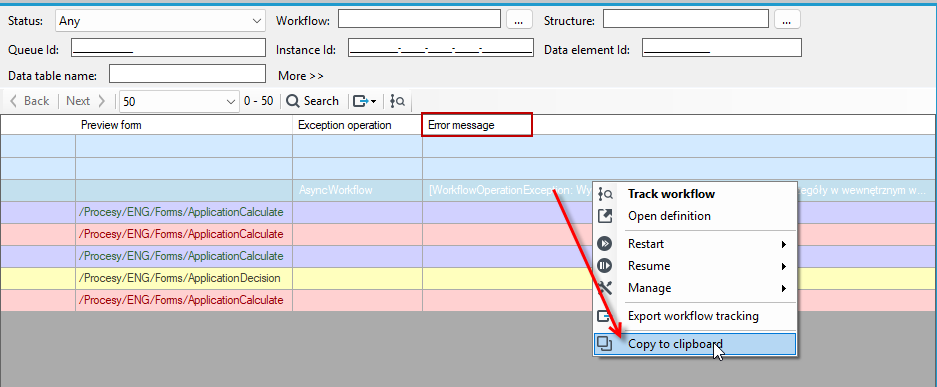
- To go to the exception details of a given execution, scroll to the right and hover over the message in the Error message column. The content of the exception will be displayed. You can copy it.
- Press the right mouse button and select Copy to clipboard from the context menu.
Resume and restart workflow
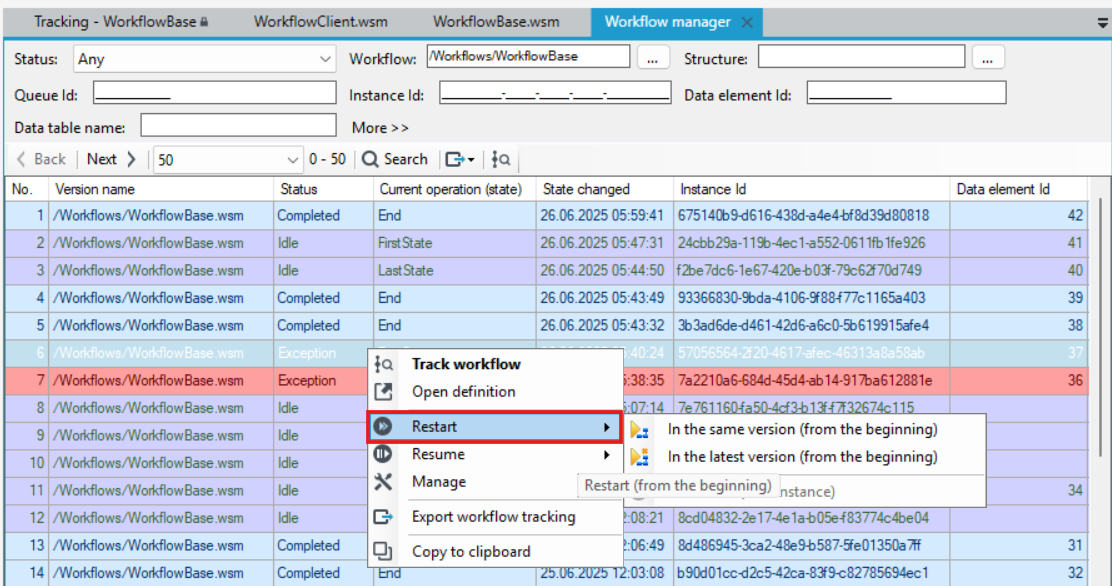
Depending on the status the workflow is currently in, you can perform workflow resume and restart actions.
The workflow resume and restart option additionally allows you to choose in which version to run the workflow - in the same version of the workflow or in the latest available version.
With this functionality, you can test the workflow in the original version and the latest version, and return to the workflow flow from the previous version, even if you have already modified the workflow .
- Restart - starts the workflow from the beginning, for workflows with the status Exception, Aborted or Stopped - you can restart the workflow in the same version in which it was run or in the latest available version.
- Resume - when the workflow is in the Stopped or Aborted status - you can perform the resumption in the same version of the workflow or in the latest available one. The workflow resumes from the point at which it was aborted or stopped.
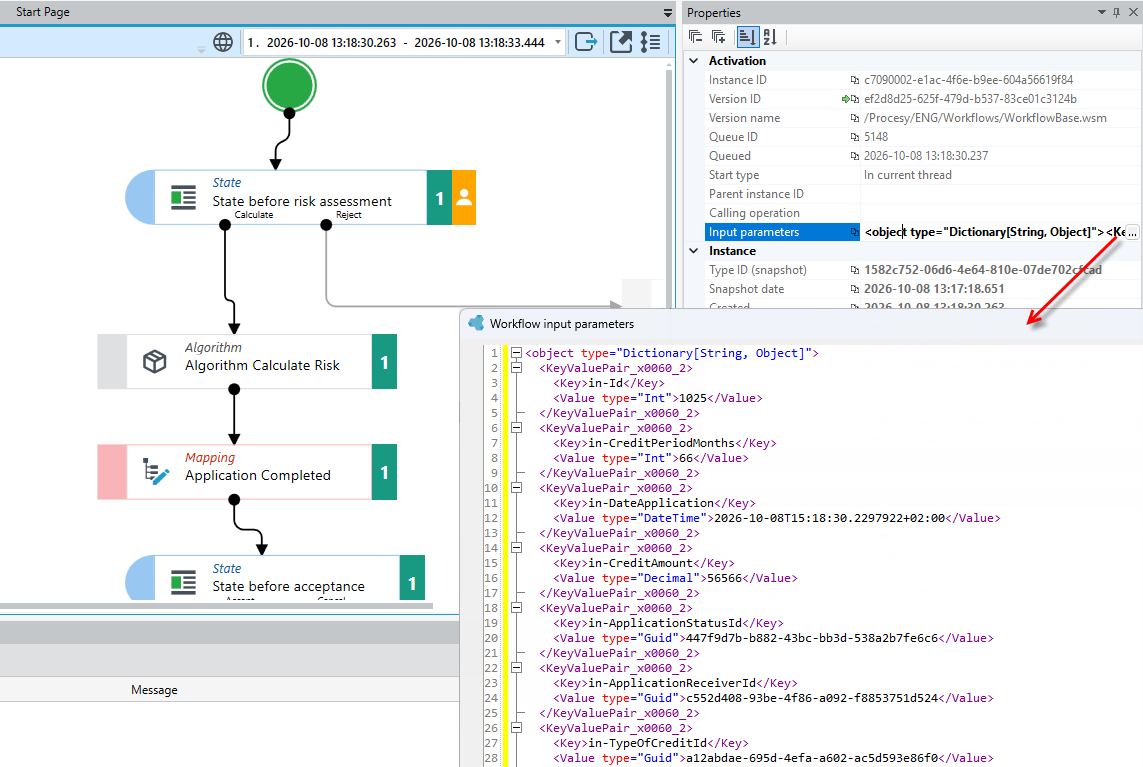
- Both the action of resuming and restarting the workflow is performed on the same input parameters to the workflow. To view the input data for a running workflow, go to the workflow tracking and on the Properties panel all the data is collected in the Input parameters option.
- For workflow resume, you can specify detailed resume parameters. Select More... and enter the criteria in the window that appears.
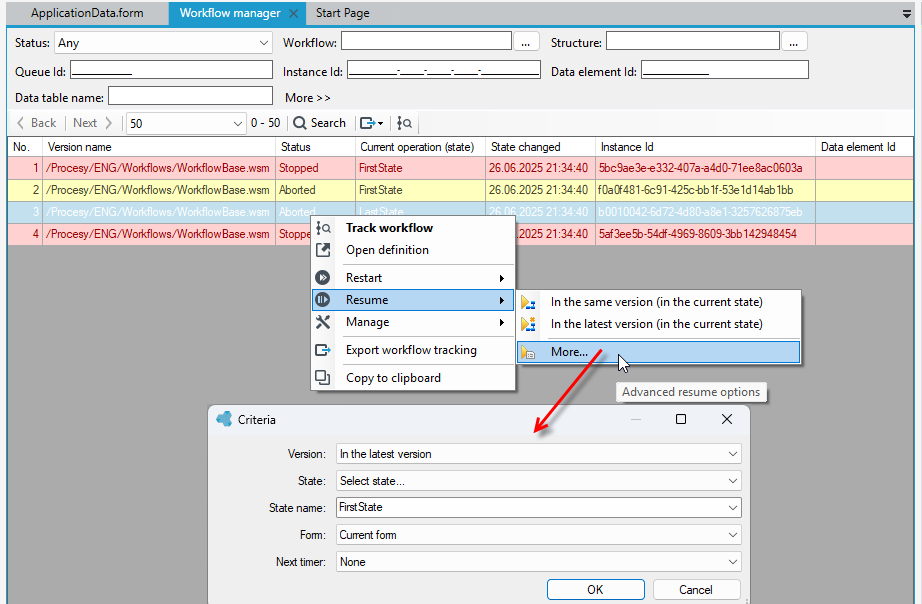
For example:
- An exception occurred during the workflow execution – the workflow ended with the status Exception or, if an error handling workflow is specified, with the status Completed (exception handled). See: Error handling workflow.
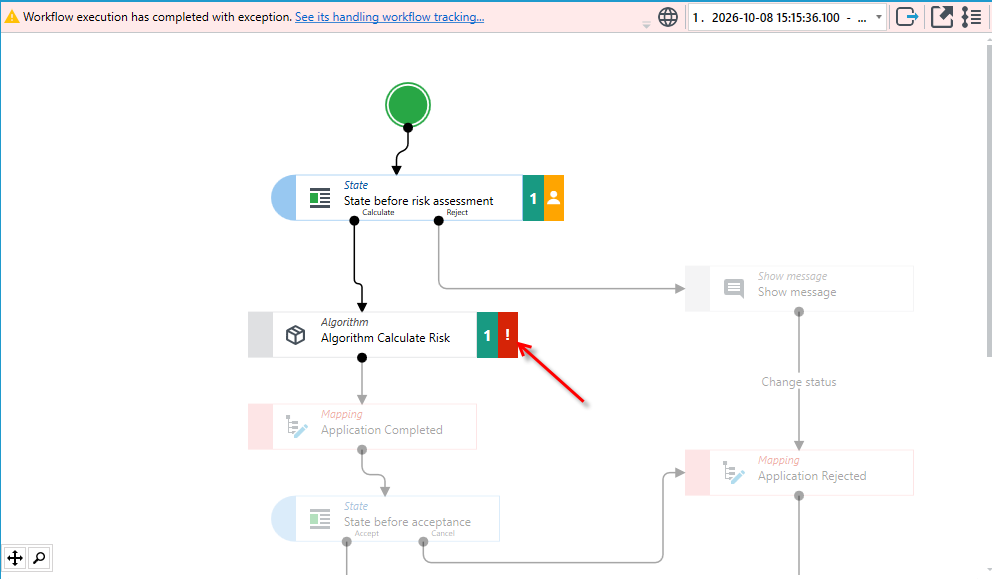
- Go to the workflow editing and correct the incorrect data or add new workflow activities.
- Save the workflow.
- Go back to the workflow manager, select the cancelled workflow and select Restart > In the same version or Resume > In the same version (in current state) from the context menu.
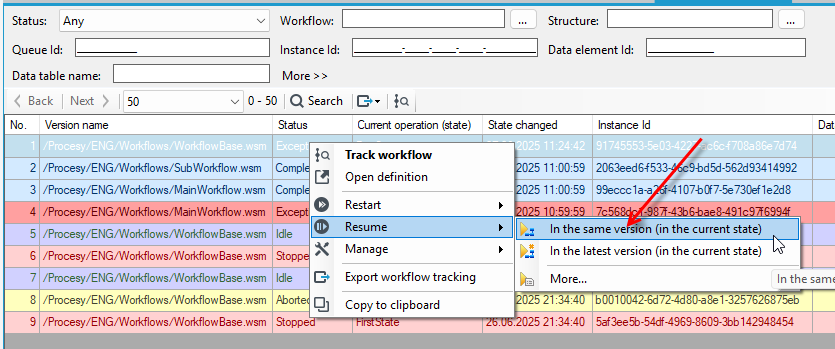
- Although the workflow has been modified, it will still run in the previous version. The previous workflow definition is stored and you can run workflows on it, even though there is already a new version of the workflow.
- Select Track workflow to go to the workflow preview.
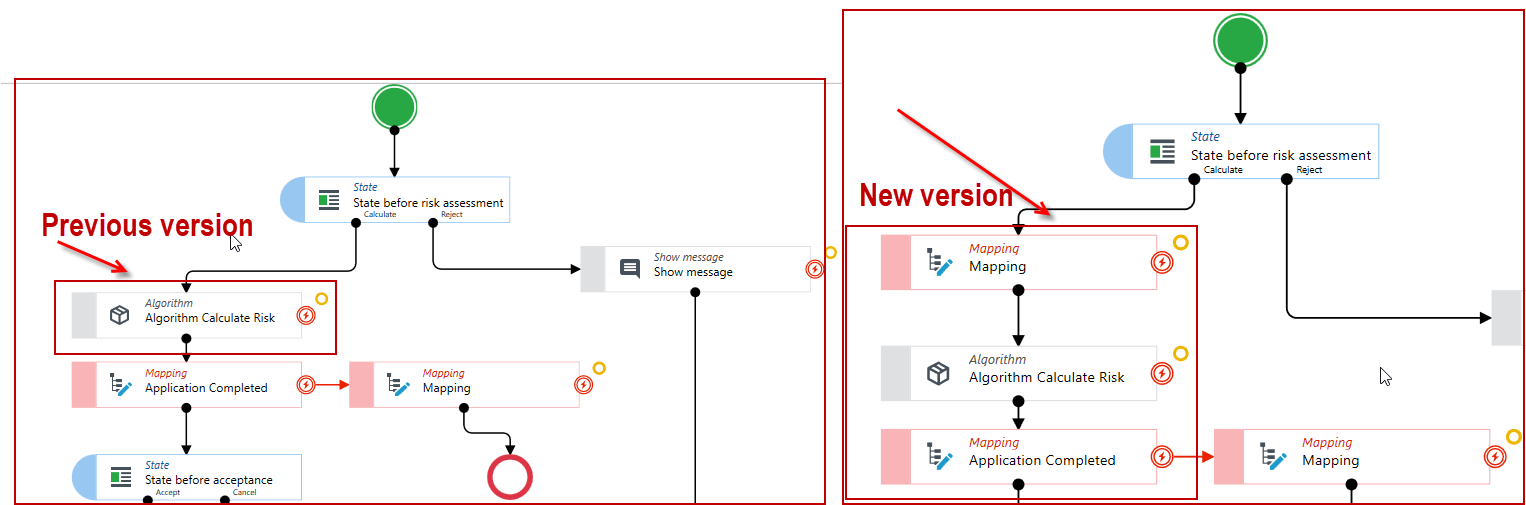
- If you select Restart/Resume > In the latest version in the workflow manager, the workflow will be started in the new version, and this version will be the valid one for the given workflow instance.
- You can always preview any of the previous flows, no matter which version of the workflow definition it was running on. Select the workflow in the workflow manager and select Track workflow.
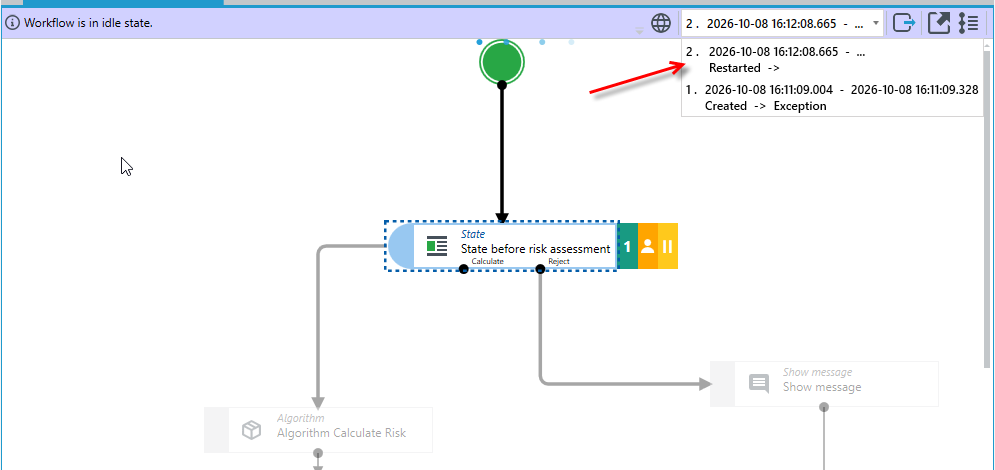
- In the workflow preview window, expand the list of workflow runs and trackings and select the tracking version you want to view.
Stop/Abort workflow
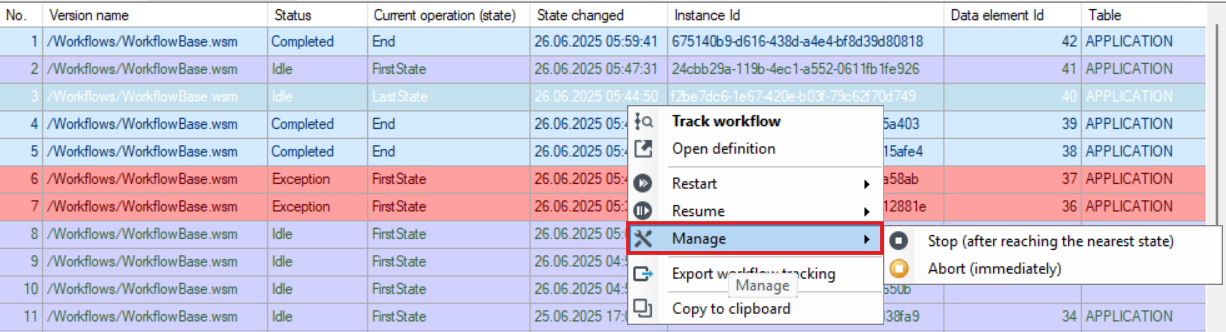
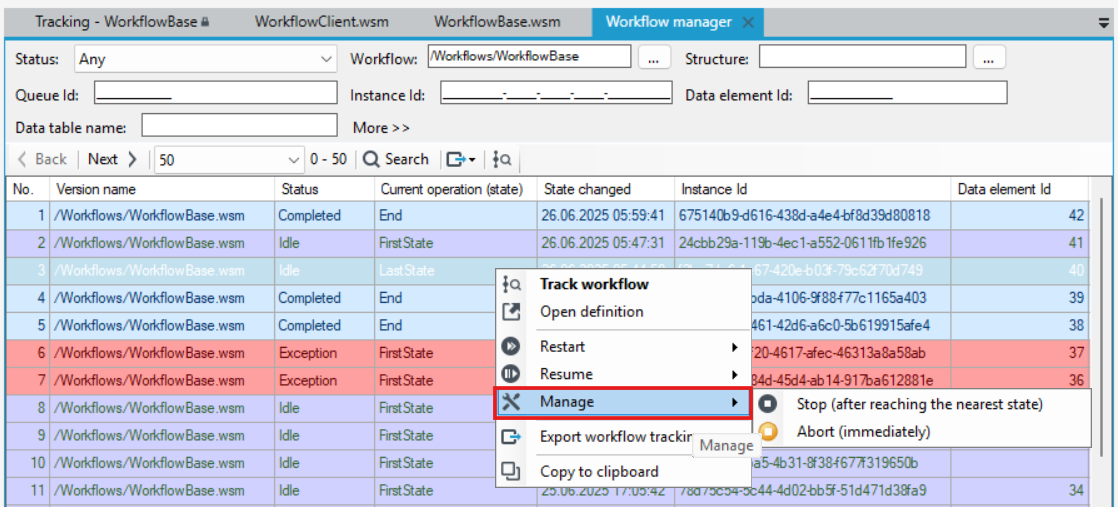
You can stop the workflow when it reaches the nearest state or abort the workflow- for workflow in the Idle or Running state.
- The workflow will receive the status Aborted or Stopped.
- Aborting a workflow involves canceling the execution of subsequent operations from the current one, rolling back the transaction, and returning the workflow to the state it was in before the transaction began.
- Stopping a workflow does not result in an immediate halt of the following operations — the workflow continues until it reaches a wait operation, at which point the transaction is committed, and only then is the workflow stopped (it is assigned the status Stopped).
- For both Stopped and Aborted workflows, you can perform the action of restarting or resuming the workflow.
Mass actions
Most of the actions that you can perform for individual workflows via the context menu can be performed for several workflows at once.
- Highlight the workflows with the Ctrl key held down and select the action from the bottom bar that you want to perform for several workflows.