Preview form
Setting the preview form determines the form that is visible when entering the preview of the workflow during its operation and after its completion. Similarly, you can set the form to the State activity, but it has a local character - the form will be visible only in this state; after exiting the state the preview form for the workflow defaults back to the one defined at the workflow definition level. You can also set a separate preview form on each End element – see: Preview form on the End element.
- Go to editing the workflow.
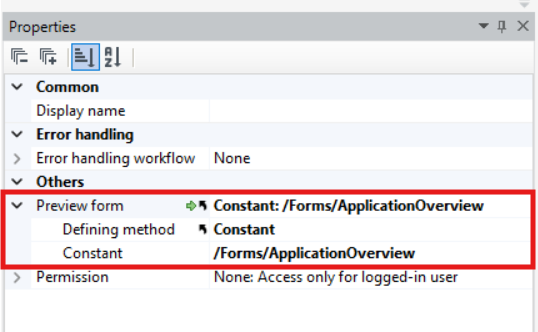
- Click anywhere on the canvas on an empty space and go to the Properties panel. (It is important that no item is selected, because then the details of the selected item are displayed in the Properties panel).
- In the Preview form section, indicate the form that is visible by accessing the workflow preview during its operation and after its completion.
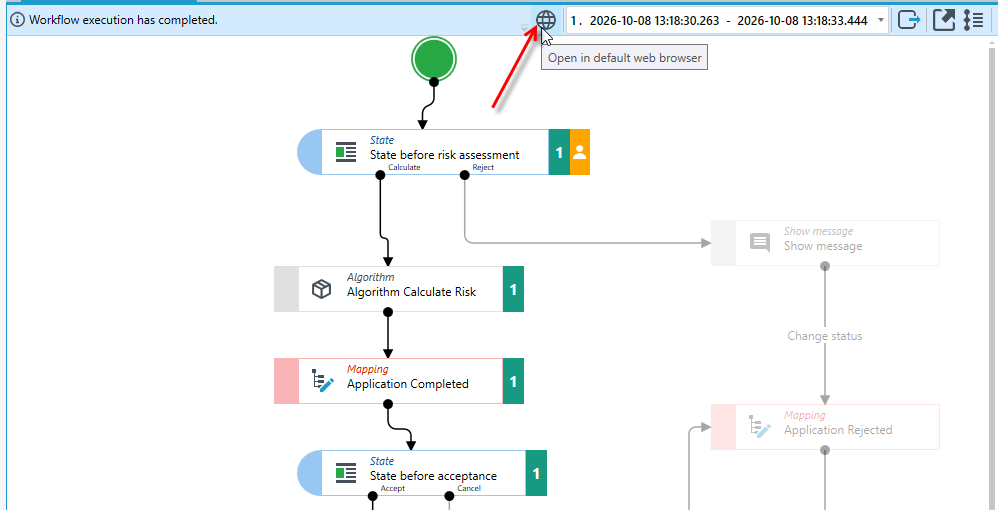
- After the workflow is started and finished, or while the workflow is in progress, you can go to the preview. Select Preview in the workflow flow tab.
Preview form on the End element
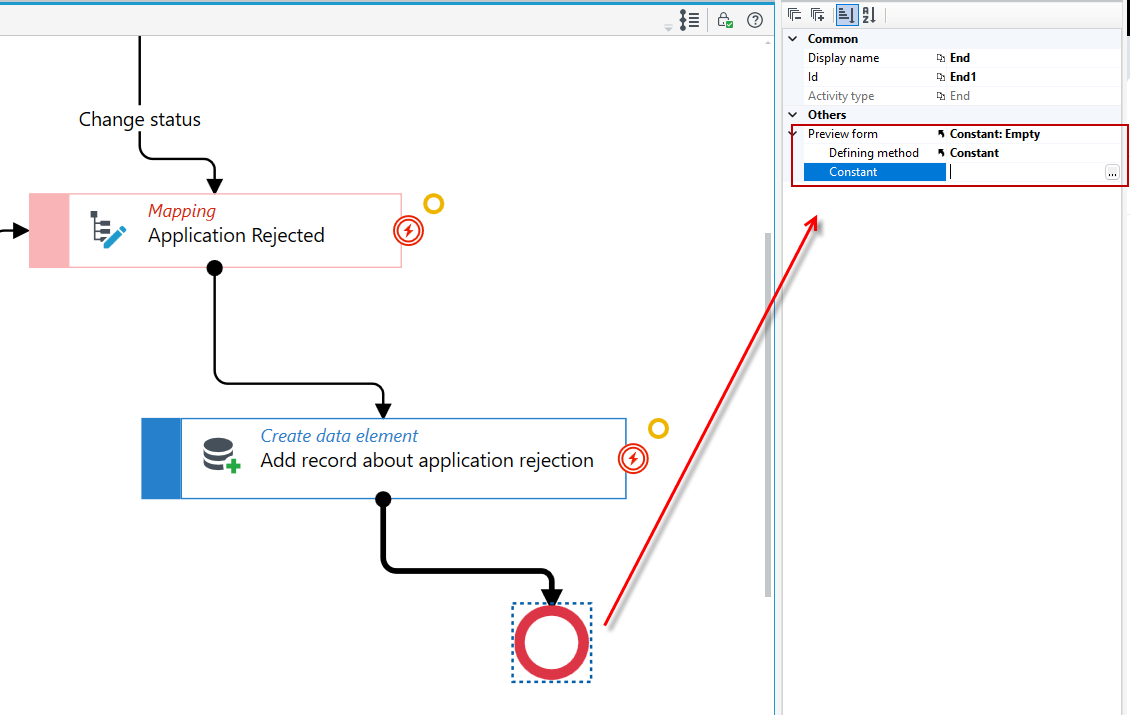
You can also set a preview form on each End element. If the workflow has several endings, each of them can have its own form. When the workflow ends with a given End element, the workflow preview shows the form set on that element instead of the preview form defined at the workflow definition level. This lets you, for example, show the user one form after an application is rejected and another after it is accepted.
- Select the End element on which you want to set the form.
- In the Properties panel, in the Others section, select the form to be displayed after the workflow ends with this element in the Preview form field.
In the example below, the preview form is being set on the End element that the workflow reaches after the application is rejected (Application Rejected activity) – select the form with the ... button in the Constant field.
If you do not set a preview form on an End element, the preview form defined at the workflow definition level is displayed after the workflow ends with that element.